Tips for Clean Install Windows 10 without Losing Data
Although Windows 10 won't delete or move your data during installation, some users may still want to perform a clean installation to free up space from old, unnecessary files. To do this without losing important data, follow these tips to install Windows 10.
Tip: Backup important data and files before installing Windows 10
It's essential to create backups of your PC data before installing Windows 10, as the new system installation may overwrite data stored on the system drive partition. Although Windows 10 promises not to move existing data, it's still possible for new system files to overwrite your current data. To prevent data loss, it's recommended to back up your data to an external hard drive.
If you think it's time-You can use professional backup and recovery software, such as Qiling Backup, to back up your Windows data with a few clicks, eliminating the need to copy files one by one. Qiling Backup supports Windows 10/8/7 and other versions, making it a convenient option for backing up your current Windows data. Just download and install Qiling Backup, and then follow the step-by-step process to complete the backup.
Step 1. Open Qiling Backup and select "File backup" as the backup mode.
You have a lot of important data like documents, pictures, music, and videos that you need to protect. It's a good idea to back up your files regularly to avoid losing them unexpectedly. File Backup is a reliable option for this purpose.

Step 2. Select the files that you want to back up.

Step 3. Select a destination to save your backup of the selected files.
To avoid the risk of the backup file getting corrupted or destroyed, it's recommended to store it in a different location, such as an external hard drive or cloud storage. This way, you can ensure that your backup remains safe and intact.

The schedule is to create an automatic backup plan.

Advanced backup settings allow you to create a flexible and automatic backup plan, giving you more control over your data protection.
The Image-The reserve strategy is to reserve the limited image according to the image retention rule.
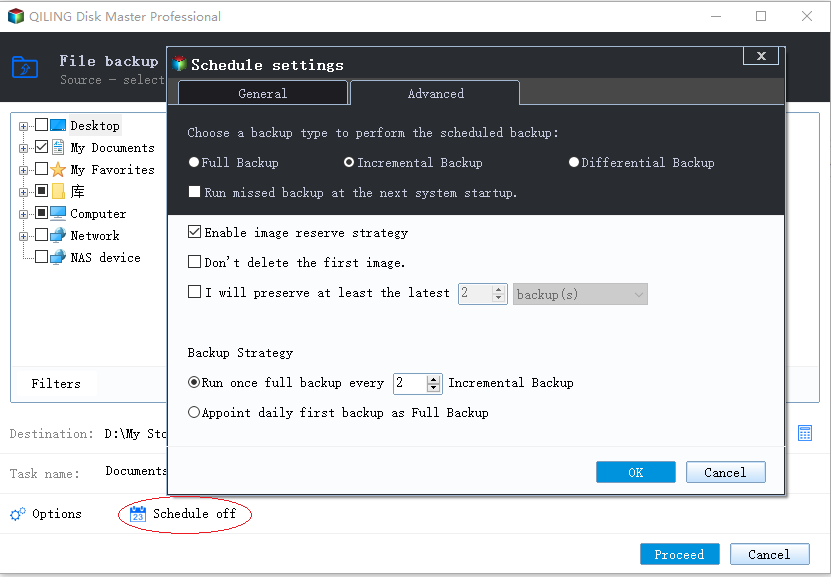
Backup options are to edit the advanced parameters.

Step 4. Click "Proceed" to execute your operation.
After installing Windows 10 on your computer, you can use Qiling Backup to restore backups to your PC. However, to maintain a fast speed on your PC, it's recommended not to restore backups to the system C drive.
Solution 1. Reset computer to clean install Windows 10 for Windows 10 users
If you're a Windows 10 user or have updated to Windows 10, refreshing your PC and resetting Windows 10 is the best option. To do this, follow the tutorial steps to reset and clean install Windows 10.
Step 1. Go to "Settings" and click "Update & Recovery".
Step 2. Click "Recovery", tap "Get Started" under Reset This PC.
Step 3. Choose "Remove everything" and then choose to "Remove files and clean the drive" to clean reset PC.
Step 4. Finally, click "Reset".
Give your computer a few minutes to restart and then you'll have Windows 10 installed on it.
Solution 2. Clean install Windows 10 for Windows 7/8 users
Prepare a USB drive (about 3GB or larger) for the Windows 7/8 to Windows 10 clean installation job.
Step 1. Download the media creation tool from Microsoft and choose 32-bit or 64-bit for your PC, and the compatible one will run automatically.
Step 2. Run the downloaded tool and choose to Create installations media for another PC and click "Next".
Step 3. Select "Language, Edition, and Architecture for Windows 10" and then click "Next".
Step 4. Choose the USB Flash drive.
Step 5. Insert the USB drive into PC and click "Next".
The tool will start downloading Windows 10 after the drive is selected, taking a few minutes to complete the process.
Step 6. Connect the USB drive with Windows 7/8 and run it in Explorer, click Setup.
Step 7. When you get with the Ready to Install dialog, click "Change" what to keep and choose Nothing. Click "Next".
After following these steps, you can patiently wait for the process to complete, and then you'll be able to cleanly install Windows 10 on your PC, replacing Windows 7 and Windows 8.
Solution 3. Clean install Windows 10 for a custom-build computer
If you have a custom-To clean install Windows 10 on a computer, you can create a USB drive with the installation media and boot from it, following solution 2. This will start the installation process. Note that you'll need a Windows 10 license, and if you have a Windows 7 or 8 license, you may be able to upgrade for free.
For why cloning Windows 7 does not upgrade it to Windows 10, read Can You Clone Windows 7 to Windows 10? The Correct Migration Path.
Related Articles
- Data Dackup: Do It Right, Do It Now!
- How to Copy/Move Recovery Partition to USB or Another Hard drive [2 Ways]
- Lenovo OneKey Recovery Free Download for Windows 10 64 Bit/32 Bit
- [Solved] Upgrade or Clone PS3/PS4 Hard Drive to a Larger Drive
- Reset Lenovo Laptops with OneKey Recovery Without Data Loss
- How to Create Recovery Partition in Windows 10 | 2 Ways
You will learn how to create a recovery partition in Windows 10 easily and quickly using a built-in tool or a third-party tool. The procedure of using the recovery partition is also included.
Products
Articles & Tutorials
- Data Recovery
- Data Backup
- File Recovery
- File Backup
- System Backup and Restore
- Disk and Partition Clone
- Technical articles
- Mobile articles
- Disk Master Help
- Windows Data Recovery Tutorials
- Windows Secure Delete Tutorials
- Windows Partition Management Tutorials
- Windows File Backup and Restore Tutorials
- Windows System Backup and Restore Tutorials
- Windows Disk Backup and Restore Tutorials
- Windows Clone Tutorials