Boot Drive vs Recovery Drive: Are They the Same Thing?
Recovery Drive ≠ Boot Drive
The terms "recovery drive" and "boot drive" are often confused, but they serve distinct purposes. A recovery drive is a separate storage device that contains a copy of the operating system and other essential files, used to restore a computer to its original state in case of a system failure. On the other hand, the boot drive is the primary drive where the operating system is installed and loaded from, responsible for booting up the computer. In summary, the recovery drive is a backup tool, while the boot drive is the main drive that starts the computer.
A recovery drive is an external storage device that stores information about your Windows 10 operating system, allowing you to reinstall it without losing data in case of a hardware failure or malfunction. By creating a copy of your Windows 10 on a DVD or USB drive, you can act as a safe haven for your operating system, protecting your data and minimizing damage to your system.
The boot drive is the internal hard drive or SSD of your computer where the operating system and necessary files are stored, allowing the computer to boot up. It's a physical drive that contains the OS, such as DOS, UNIX, or Linux, and should not be relied upon in case of hardware failure or system crashes.
The boot drive is used to start up your computer, while the recovery drive is used to restore your computer to its original settings in case of a problem. They serve different purposes and are not the same thing.
How to Create a Recovery Drive?
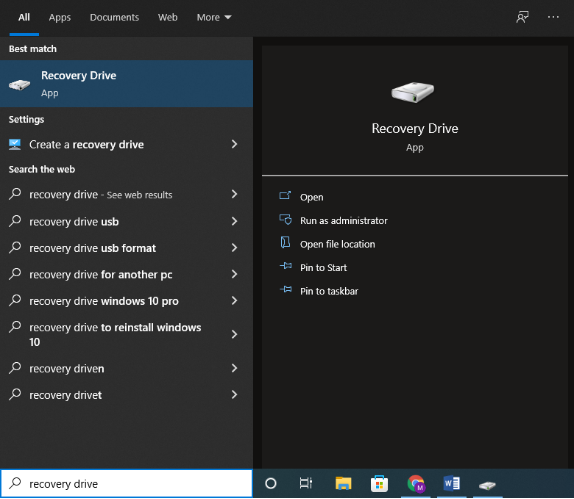
Step 1.To create a recovery drive, click on the search box, type 'recovery drive', and follow the prompts to create a recovery drive on a USB drive.
Notify: Before proceeding, ensure the USB or DVD you plan to use is formatted in NTFS. Although the Windows process will format the disc as FAT32, the formatting tool requires the drive to be initially formatted as NTFS to begin.
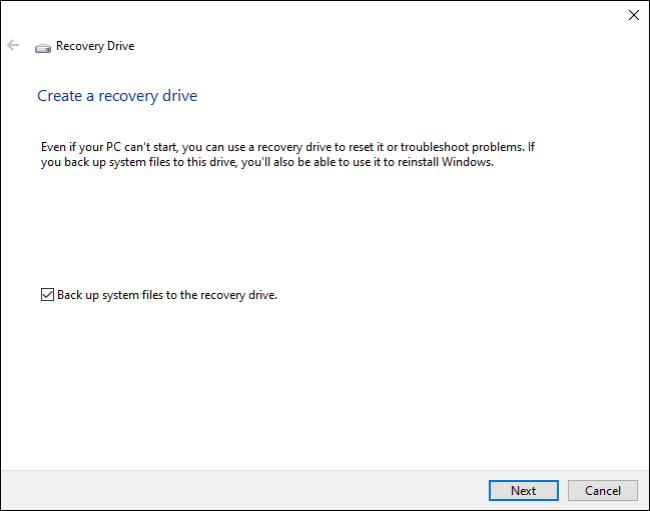
Step 2.The "Recovery Drive" window gives you the option to create a recovery drive immediately. If you choose to back up system files to the recovery drive, it will take around an hour to create, depending on the situation. This provides you a disc that can be used to install Windows in case of an emergency. It's a good idea to choose this option, and then click "Next".
Worth noting: Windows 11 has an option to copy the recovery partition drive to a recovery disc, which transfers the hidden recovery drive generated during Windows installation, and provides the choice to remove it after the operation is complete.
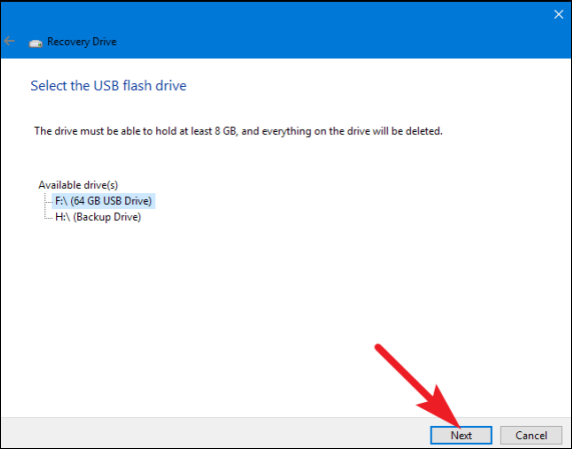
Step 3.Choose the USB or DVD drive you want to use as a recovery drive, making sure it's empty of any important data, and then click Next.
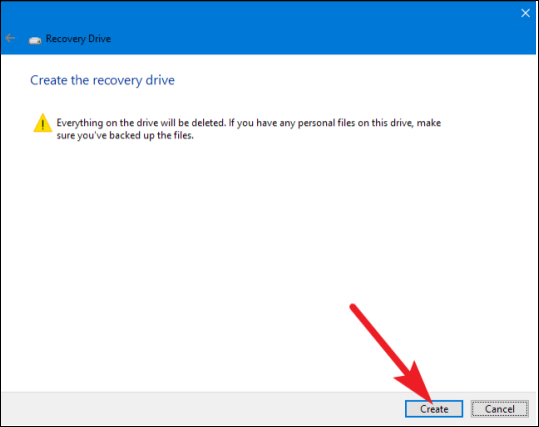
Step 4.When you're finished, click "Create" to have Windows format your USB drive and copy the data you need, which can take a long time, especially if backing up system files.
Step 5.After completing the recovery process, the "Recovery Drive" window can be closed. In Windows 11 or later versions, a prompt will appear asking if the recovery partition should also be erased. If so, it's recommended to erase the recovery partition to ensure the recovery disc can be used to restart and reset the PC later.
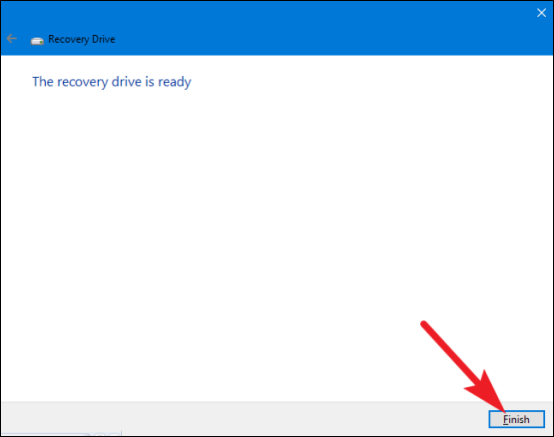
This process might take a bit long, but it will help you a lot in the long run if your windows are corrupted or face any issues.
Using A Recovery Drive
In most cases, a recovery drive is not necessary. If Windows fails to start twice in a row, it will automatically boot from the recovery sector and run advanced startup settings on the third attempt.
You'll have access to the same resources as using a recovery disc.
If Windows can't run all these utilities automatically, you'll need a recovery drive or a Windows 8 or 10 installation CD. Boot your computer by inserting the recovery disc, which should prompt your laptop to immediately boot from it.
If your computer doesn't boot, you may need to rearrange your drives' boot sequence from the DOS settings.
Better Alternative to Back up a System Boot Drive
While a recovery drive can reinstall Windows, it won't recover personal data, making a system backup a useful tool in case of a system failure.
A recovery drive can restore Windows to its original state, like a brand new installation, while a system backup will restore Windows to its previous state, including all data and settings, so you won't have to reinstall everything.
A system backup includes all system and user files, restoring the system to its exact state at the time of creation in case of a major failure.
Creating a system backup can seem like a hassle, but some free online backup software can make it easier. One of the best free backup tools is Qiling Backup.
Step 1.Launch Qiling Backup and choose "System Backup" on the home page to initiate a system backup.

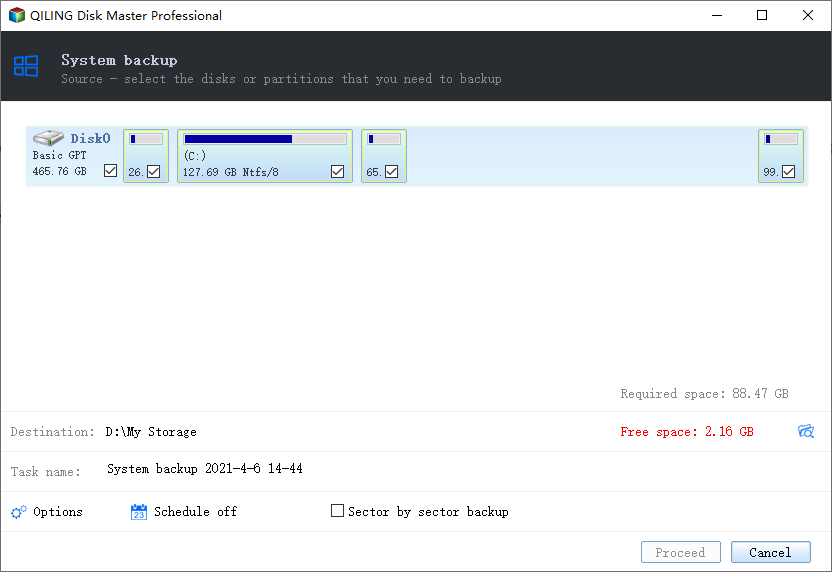
Step 2.The system partition will be automatically selected, you just need to choose the location.
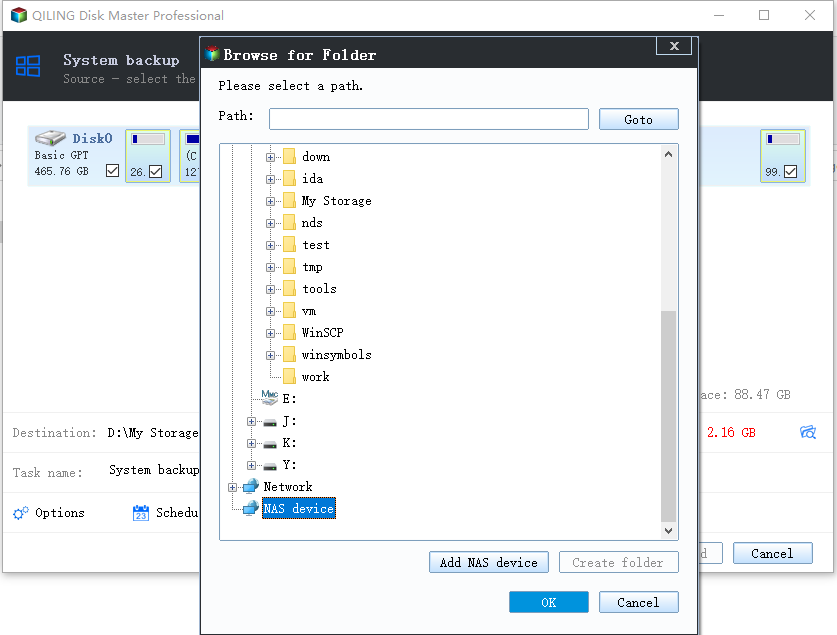
Step 3.3 options are available for saving system backup files: Local Drive, Cloud, and NAS, with the option to also connect an external hard drive.
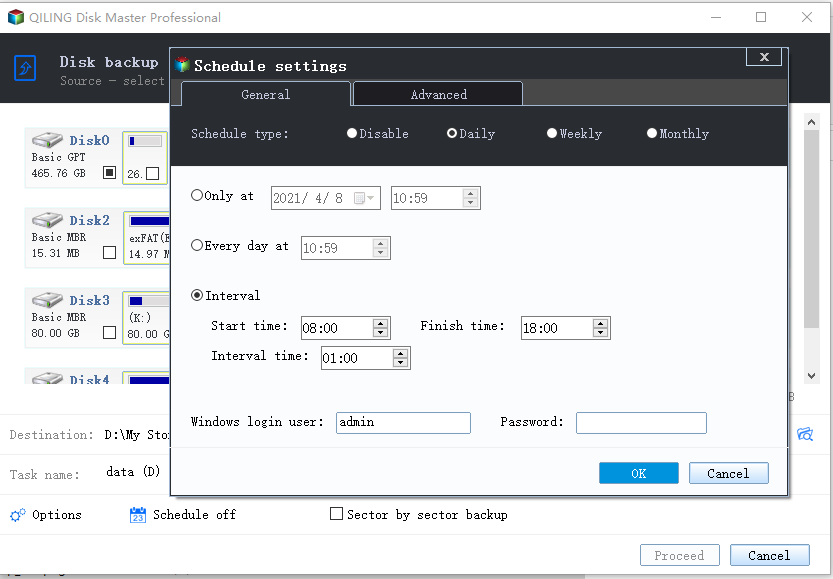
Step 4.You can customize settings in the "Options" at the bottom left, then click "Proceed" to start the process.
After finishing the backup process, you can check the backup status, recover, open, or delete the backup by right-clicking the backup task on the left.
Qiling offers 250GB of free cloud storage, making it a great option for users. It also seamlessly integrates with Windows 11, and can even backup system and personal files on older versions of Windows.
Conclusion
In today's world, with cut-In a throat competition, losing data can be devastating, so it's crucial to have a backup system in place to prevent data loss and protect yourself from potential long-term damage.
A recovery drive and a boot drive are two distinct concepts. A recovery drive is essentially a copy of the operating system, used to restore or recover the system in case of a failure or corruption. On the other hand, a boot drive is the actual operating system itself, where the operating system is installed and runs from. The two terms are often confused, but they serve different purposes in maintaining the health and functionality of a computer system.
Related Articles
- How to Install Windows 10/8/7 on Multiple Computers at The Same Time | System Deployment Solution
- What's the Difference between Differential and Incremental Backups
- Top 6 Best Incremental Backup Software for Windows 10 [2022 Guide]
- How to Clone GPT Disk to SSD in Windows Without Boot Failure
- How to Backup Encrypted Hard Drive with Best Free Software
To backup encrypted hard drive, you need a professional backup software. Follow this article and see how to backup encrypted hard drive. - Backup Only New Files to External Hard Drive in Windows 10(2 Ways)
You will learn how to backup only new or changed files to external hard drive using Windows built-in tool and the best free software.
Products
Articles & Tutorials
- Data Recovery
- Data Backup
- File Recovery
- File Backup
- System Backup and Restore
- Disk and Partition Clone
- Technical articles
- Mobile articles
- Disk Master Help
- Windows Data Recovery Tutorials
- Windows Secure Delete Tutorials
- Windows Partition Management Tutorials
- Windows File Backup and Restore Tutorials
- Windows System Backup and Restore Tutorials
- Windows Disk Backup and Restore Tutorials
- Windows Clone Tutorials