[PC & Android] How to Backup to Cloud with 3 Methods
If you're looking to create a secure backup to your cloud but are unsure of the process, this guide is here to help. With the advancements in technology, we now have a wide range of opportunities for data storage, and creating a secure backup is a great way to ensure your data is protected.
Why It's Important to Backup Your Data
Backup is a crucial component of any data process, safeguarding and making data easily accessible by creating copies and allowing for data restoration from earlier times, ultimately helping businesses recover from unexpected events.
- Keeping a separate copy of data on a different medium helps prevent data loss and corruption by having a backup.
- Copies of data can be quickly recovered in the event of primary data failure, typically caused by hardware or software issues.
- Backup copies enable users to save data and restore it from a previous state, ensuring that important information is preserved in case of data loss or system failure.
- Data backup enables secure archiving of important information and allows users to restore their devices quickly in case of data loss, providing a sense of security and peace of mind.
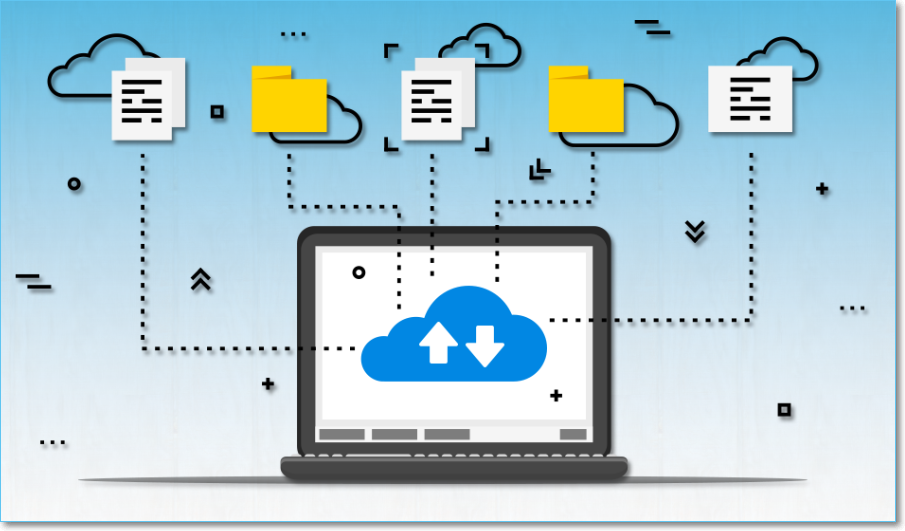
The Benefits of Using a Cloud-Based Backup Service
Cloud backup services have become increasingly popular, providing a safeguard against data loss by storing essential files on external remote servers that can be accessed from anywhere, at any time. This convenience is especially appealing for users who want to backup images to the cloud, ensuring the security of their cherished photos and memories. The benefits of using a cloud-based backup service include the ability to access and retrieve files from anywhere, making it a reliable and convenient way to protect valuable data.
Data Storage on External Server
Cloud backup services save a second copy of your data on a remote server, eliminating the need to worry about internal server breakdowns or disasters. You can quickly recover essential data from cloud storage without hassle, and it's easier and faster than physical data transport from a warehouse.
Easy Access
Cloud backup services provide users with easy access to their stored data, allowing them to access it from anywhere, at any time, 24/7.
High-End Affordability
The affordability of cloud backup services is the main reason most people now prefer them. They offer a cost-effective way to quickly and securely access data, without the need to spend extra money on maintaining a private server or software. The actual cost of data backup depends on individual requirements, and many service providers offer a certain amount of cloud storage for free.
Reduced Maintenance Costs
The introduction of cloud backup services has greatly reduced maintenance costs for data storage. These services utilize modern, high-tech infrastructure stored on servers that are monitored and maintained by the servers themselves, eliminating the need for users to spend money on technical assistance, upgrades, and checks.
Top 7 Free Cloud Storage Service for Backup
Backing up data to the cloud is now a straightforward process, and cloud storage services can be easily accessed with just a few clicks.
Understand the Different Types of Cloud Backup Services
Cloud backup services have made it easier for organizations to send copies of files, databases, and virtual machines to secondary locations, providing access to content in case of disaster or failure. There are four types of cloud backup solutions:
Backing up Directly to the Public Cloud
Users can back up their data by copying it to a public cloud storage service, which requires only software to create copies of data and a cloud service provider to store it safely. With access to both, users can implement data protection without issues, and the backup software should ideally not interfere with the cloud service. This option offers users flexibility and freedom to choose and implement their data protection method.
Backing up to a Service Provider
Cloud backup service providers offer users the flexibility to back up related services on their managed data centers, allowing for a seamless integration with their backup software. This enables users to have their absolute backup software to choose this option.
Choosing a Cloud to Cloud (C2C) Backup
This cloud backup service allows you to replicate data from one cloud service to another, enhancing resilience and reducing reliance on a single cloud platform by copying data from IaaS deployments and SaaS applications.
You may be interested in What Is Cloud-to-Cloud Backup? Definition & Examples of 2022.
Backing Up from On-Premises Data to the Cloud
Cloud data backup allows users to manage hardware solutions remotely, providing all-in-one backup facilities that are convenient and effortless, covering space, servers, and software needs.
How to Backup to Cloud - 3 Ways
Cloud storage has made it easier to backup data, reducing the risk of loss. Users can backup their computer system using various methods, including cloud storage, external hard drives, and automated backup software. This ensures that data is safely stored and can be easily restored in case of any issues.
- Automatically Backup Computer Files to Cloud Drive
- Manually Upload Files or Photos to Cloud Drive
- How to Set Up Cloud Sync Backup
Automatically Backup Computer Files to Cloud Drive
Google Drive and OneDrive offer unlimited cloud backup options to users when they sign up for a Google account, with Google Drive providing limited free data storage and backup service. Additionally, Qiling Backup is a cloud backup solution that offers 250GB of free cloud space and allows differential or incremental backups based on a previous full backup, as well as backing up data to an external hard drive, NAS, or network share.
Qiling backup is a cloud backup solution that provides safe access to users, offering backup folders, files, and systems, with free restoration of backup files.
Here, we provides you the full steps to backup computer files to cloud drive.
Step 1. To start the backup process, click the "File backup" button on the home screen.

Step 2. The list view on the screen displays both local and network files, allowing you to expand directories and select specific files to back up.
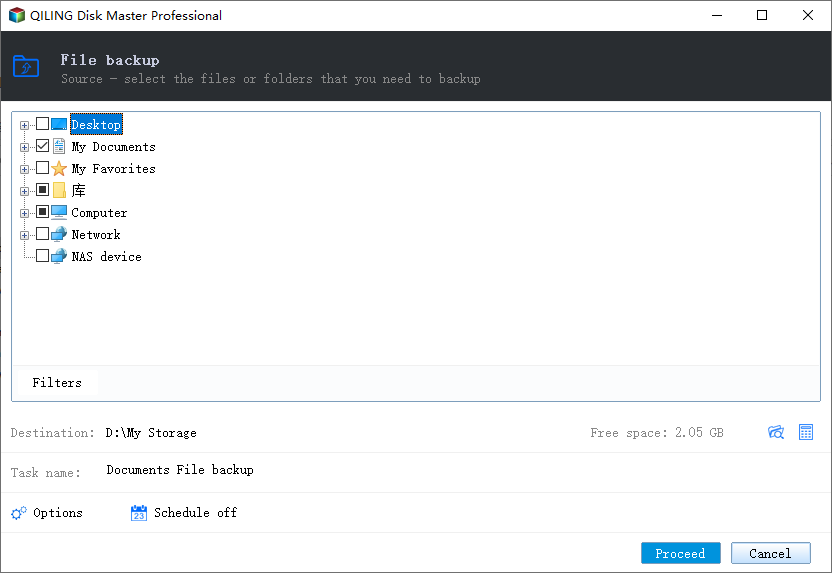
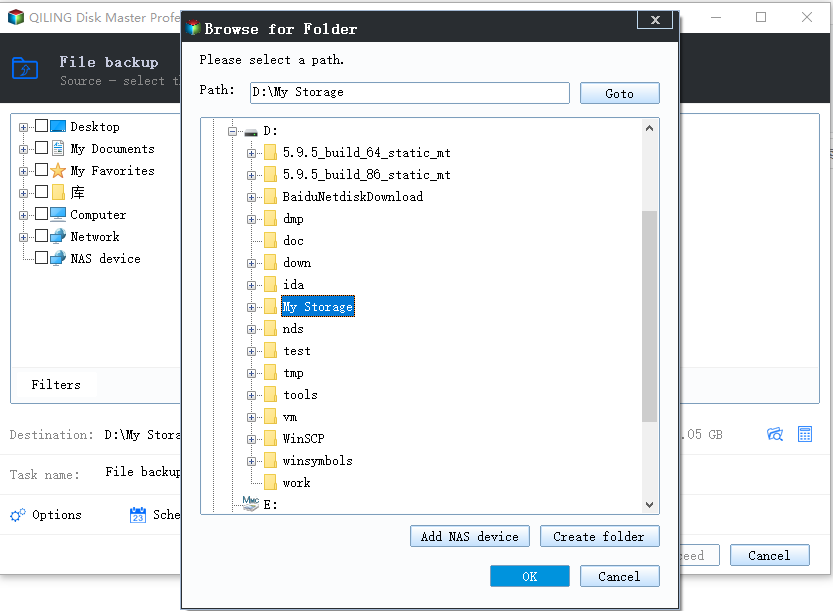
Step 3. Follow the on-screen instructions to select the location where you want to store the backup.
Step 4. To set up a backup, click on Backup Options and then click on Options to ensure that the backup is encrypted. Additionally, click on Options to set the backup schedule.
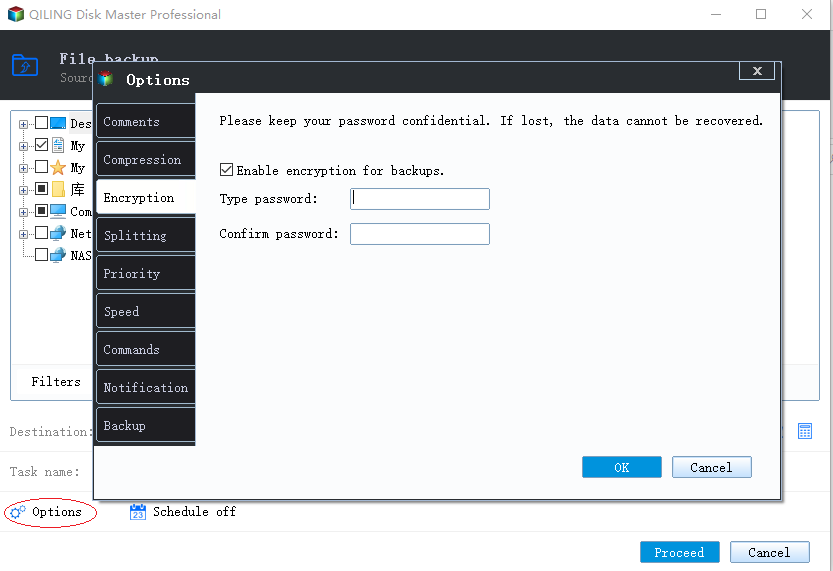
To start the backup at a certain time, go to Backup Scheme and click Options. There are many other customizable options available.
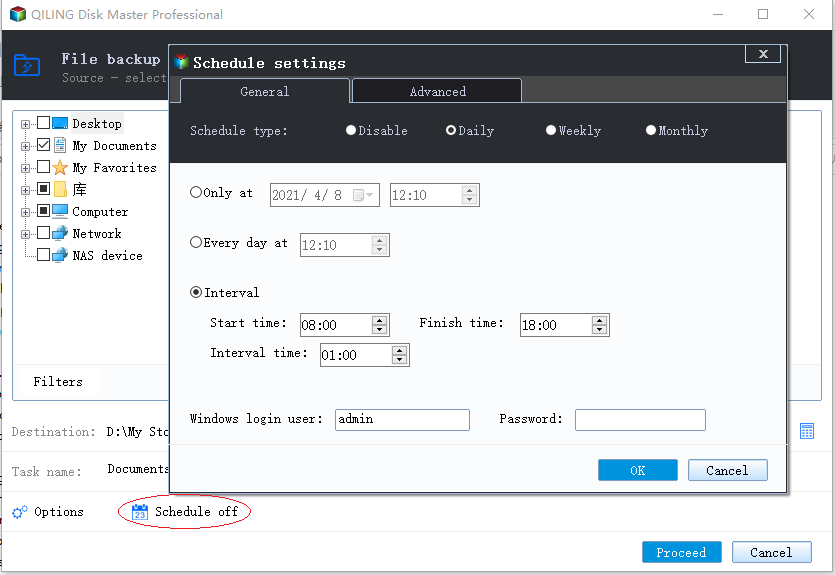
Step 5. You can store the backup file either on your computer, in Qiling's cloud service, or on a network-attached storage device (NAS).
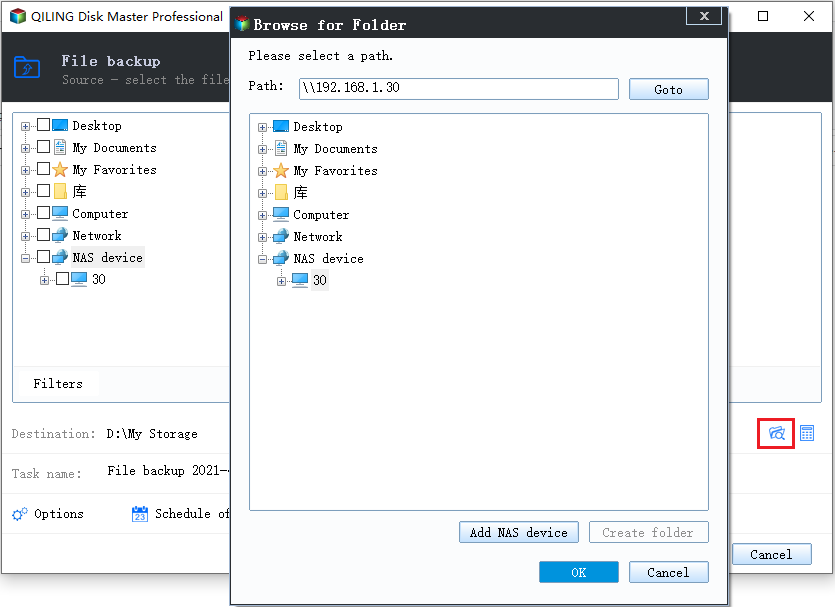
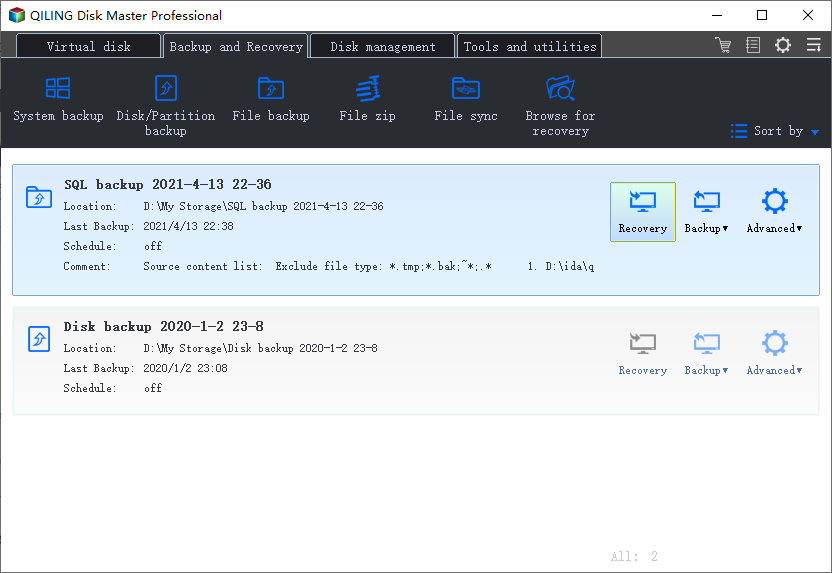
Step 6. To start a backup, click on the "Proceed" button, which will initiate the backup process. Once completed, the backup will be displayed as a card on the left-hand side of the screen, and a right-click on this card will allow you to view more details and options for managing the backup job.
Manually Upload Files or Photos to Cloud Drive
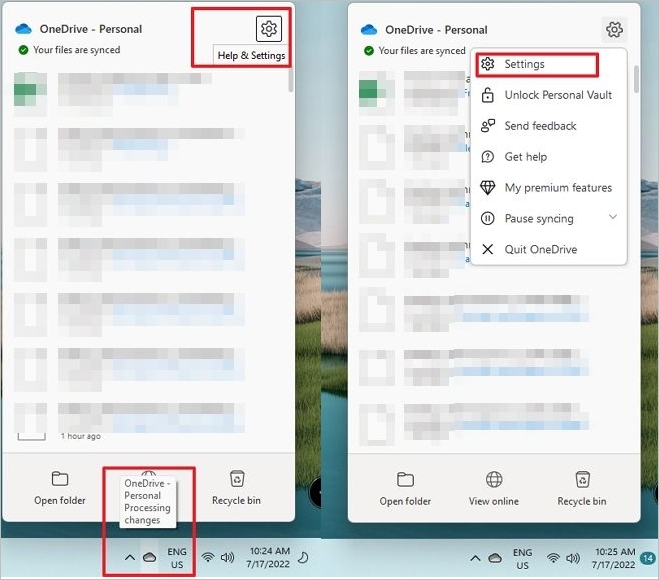
To enable cloud storage functionality with OneDrive, you need to sync the OneDrive folder on all your devices and protect files stored in other locations. Make sure OneDrive is already installed on your device, which can be checked via the icon on your System Tray. Then, proceed with the process to allow the same.
Step 1. To access the OneDrive settings, right-click on the OneDrive icon in the System Tray and select Help & Settings. Then, choose the Settings option from the menu to open the settings panel.
Step 2. To switch to the Backup tab and proceed with the process, tap on the Manage backup option.
Step 3. To select a backup of your Desktop, Documents, or Pictures folders, you will need to open a new window on your device and choose one of these folders as the backup location. This will ensure that your important files and documents are safely backed up and protected in case of any data loss or system failure.
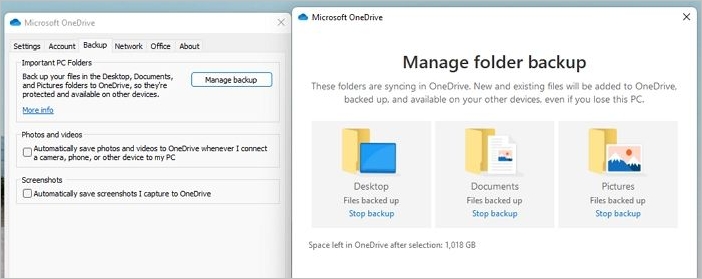
Step 4. After completing the setup process, select the "Start Backup" option to initiate a secure backup immediately. Once initiated, OneDrive will automatically continue backing up files from the selected folders.
Step 5. To back up your photos, videos, and screenshots, tap on the Backup tab option and select the Photos and Videos option, then check the box provided under the Screenshots option.
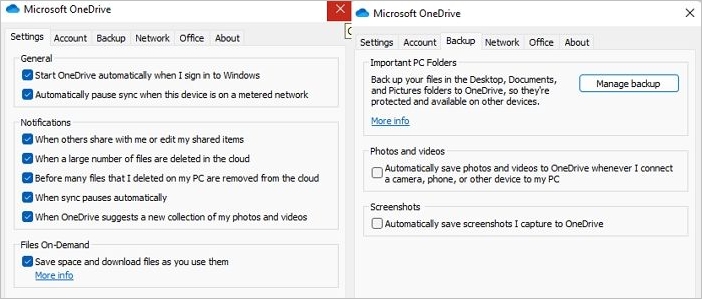
Step 6. To enable automatic OneDrive backup, go to the Settings tab, then click on the "Accounts" option, followed by "Your Email and Accounts." Scroll down to the "OneDrive" section and toggle the switch to enable "Start OneDrive automatically when I sign in to my Windows." This will allow OneDrive to run in the background and automatically back up your files, eliminating the need for manual backups.
If you're experiencing some difficulties, you can find helpful solutions by reading the article, which offers various methods to address the issue at hand.
Related Article: [Error 0x8007016a] Fix OneDrive Cloud Error Code
How to Set Up Cloud Sync Backup
To enable cloud sync backup on your device, you must first ensure that you are not a mobile user, as this feature is unavailable for mobile users. Then, you can proceed to set it up.
Step 1. Launch Cloud Sync on your device, select your preferred cloud provider, and then choose Dropbox or another service provider.
Step 2. Select the online account that will sync your data for backup purposes and agree to the terms and conditions.
Step 3. Once you've completed the above process, select a folder you're willing to sync with and decide how you want it to sync with it.
Bingo! You have successfully set up a cloud sync backup to your device
Final thought: Backup Your Data Regularly
Consistent cloud backup is essential for convenient access to your data. Cloud backup solutions enable you to recover lost data, regardless of the remote server's location. To ensure successful access, it's crucial to enable regular updates to your cloud backup services, allowing you to retrieve your data whenever needed.
Related Articles
- How to Backup Windows 10/11 to OneDrive
- The Cloud File Provider Is Not Running: Causes and Solutions
- Ransomware Prevention: Protect Your Data with Backup Strategies
- What Is HP Cloud Recovery And How To Use It?
- How to Transfer User Account and Profile from Windows 7 to Windows 10/11
Transferring user accounts from Windows 7 to Windows 10/11 can be a seamless process with the right tool. - How to Migrate Windows Server 2008 (R2) to 2016/2019 Step by Step
Upgrading from Windows Server 2008 to 2016 can be a straightforward process with the right tools. Qiling Disk Master allows you to transfer data, applications, and user accounts from the old server to the new one in just a few clicks, making the migration process quick and easy.
Products
Articles & Tutorials
- Data Recovery
- Data Backup
- File Recovery
- File Backup
- System Backup and Restore
- Disk and Partition Clone
- Technical articles
- Mobile articles
- Disk Master Help
- Windows Data Recovery Tutorials
- Windows Secure Delete Tutorials
- Windows Partition Management Tutorials
- Windows File Backup and Restore Tutorials
- Windows System Backup and Restore Tutorials
- Windows Disk Backup and Restore Tutorials
- Windows Clone Tutorials