How to Backup PST File with 3 Outlook PST Backup Tools
What Is PST File?
A Personal Storage Table (PST) is a proprietary file format used by Microsoft to store copies of messages, calendar events, and other items for their software, including Microsoft Outlook.
The PST file is a common email storage format used by Microsoft email solutions, with Outlook saving its data in this format. The Outlook data files (.pst) are typically stored in the Outlook file folder located in the documents folder on your computer.
To prevent data loss or attacks using archived email data, it's essential for Outlook users to understand how to secure and manage PST files, as damage to this file can result in the loss of all data. Having backups for the PST file can be beneficial in such situations.
Three Ways to Back up Outlook PST File
- Solution 1. Back up PST File with Powerful Outlook Backup Software
- Solution 2. Create PST File Backup Using Personal Folders Backup
- Solution 3. Back up PST File in a Straightforward Way: Copying It Manually
There are several ways to back up an Outlook PST file, including using the built-in backup feature, creating a manual backup, and using a third-party tool.
Solution 1. Back up PST File with Powerful Outlook Backup Software
Qiling Backup is an all-This software enables automatic backup creation for various types of data, including system backups, disk backups, file backups, and email backups. It also allows users to create backups of diverse file types, such as images, videos, documents, audio files, and more.
You don't need to know how to use a computer to make Outlook PST file backups, as the process can be completed in just a few clicks. Additionally, the backup process comes with many useful features.
- It is compatible with Windows 11/10/8/7 and Windows Vista.
- This tool can help you create backups of everything on your computer, including the operating system, applications, files, and partitions, making it easy to restore your system in case of a disaster.
- You can use this backup tool to create different types of backups, including full, incremental, and differential backups.
- You can save backups to various storage options, including local drives, NAS devices, a designated security zone, and cloud storage.
Guide: How to Use Qiling Mail Backup
To back up PST files with Qiling Backup, follow this guide.
Step 1. Launch Qiling Backup on your computer, and click File Backup on the home screen.

Step 2. On the left, both local and network files are displayed, allowing you to browse and select the desired backup files from the directory.
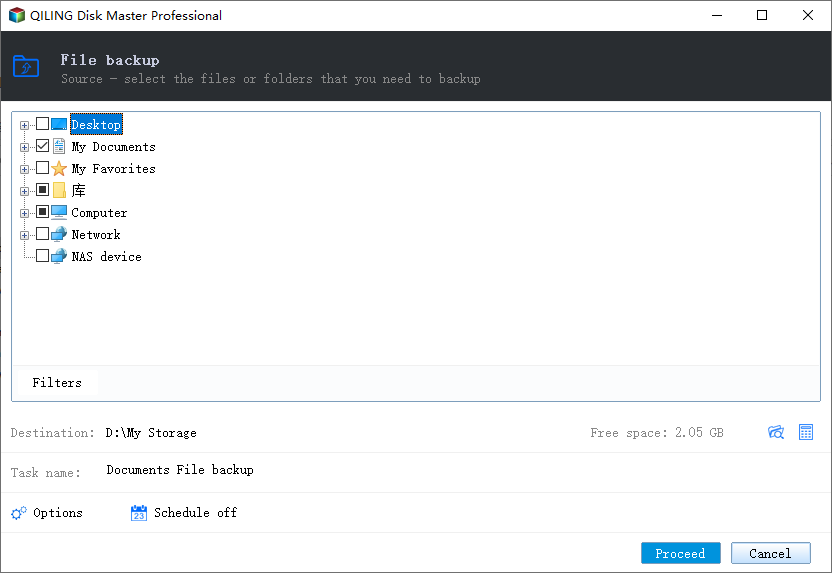
Step 3. To save the Outlook backup, you'll need to select a location on your computer where you want to save the backup file. This can be a folder on your desktop, documents, or any other location you prefer.
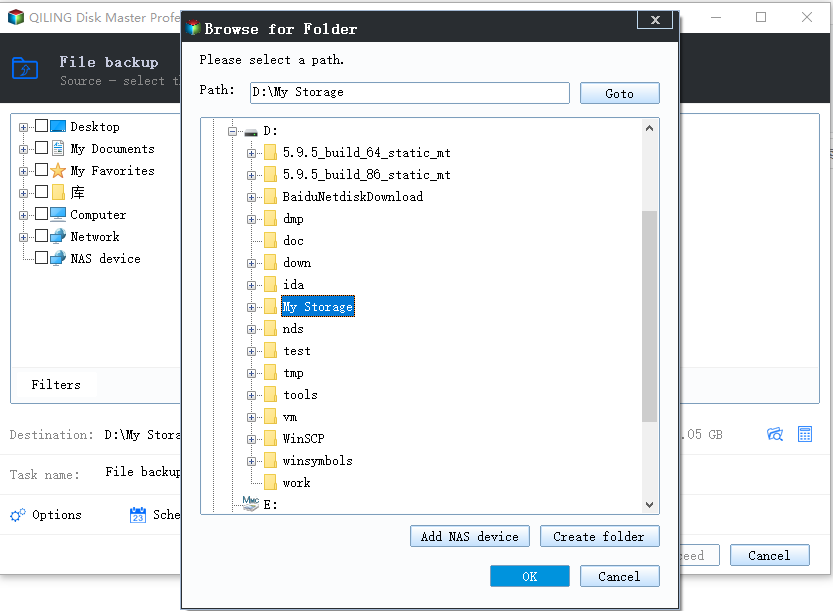
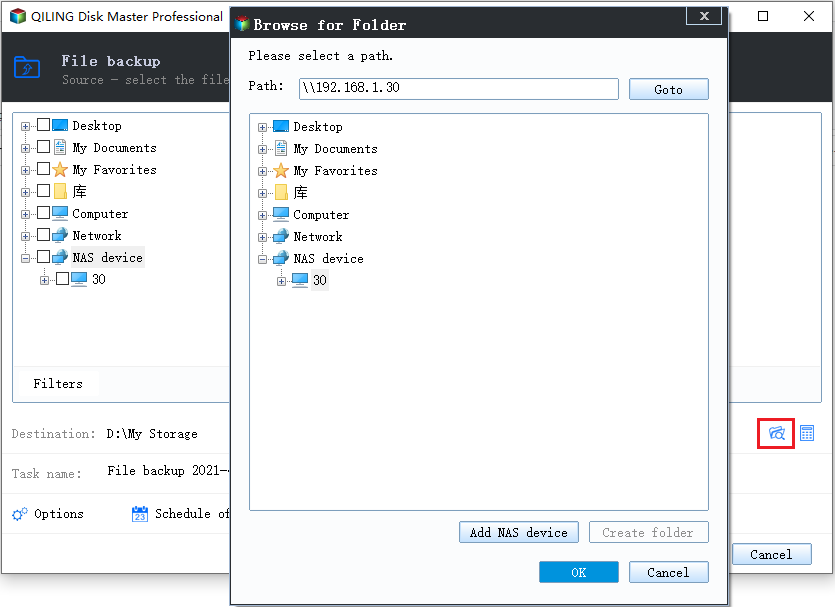
Step 4. The backup location can be another local drive, external hard drive, network, cloud, or NAS, with external physical drives or cloud storage being preferred for preserving backup files.
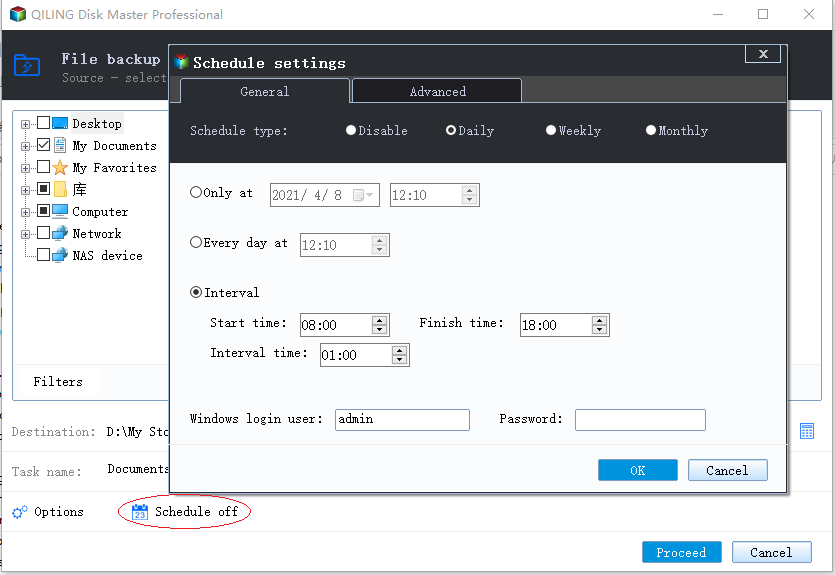
Step 5. Settings for automatic backup, such as scheduling backups daily, weekly, monthly, or upon a specific event, and options for differential and incremental backups, can be found in the scheme button. Upon selecting these settings and clicking "Proceed", the backup process will initiate, with the completed task displayed in a card style on the left side.
Solution 2. Create PST File Backup Using Personal Folders Backup
Personal Folders Backup is a free and useful tool for backing up PST files, which can be installed as an add-in on Microsoft Outlook. This tool automates the backup process, but it is limited to backing up files in PST format.
Guide: How to use Personal Folders Backup
The following are steps to use the Microsoft Outlook Personal Folders Backup to back up Outlook PST files.
Step 1. Launch Microsoft Outlook, and sign in with your account and password.
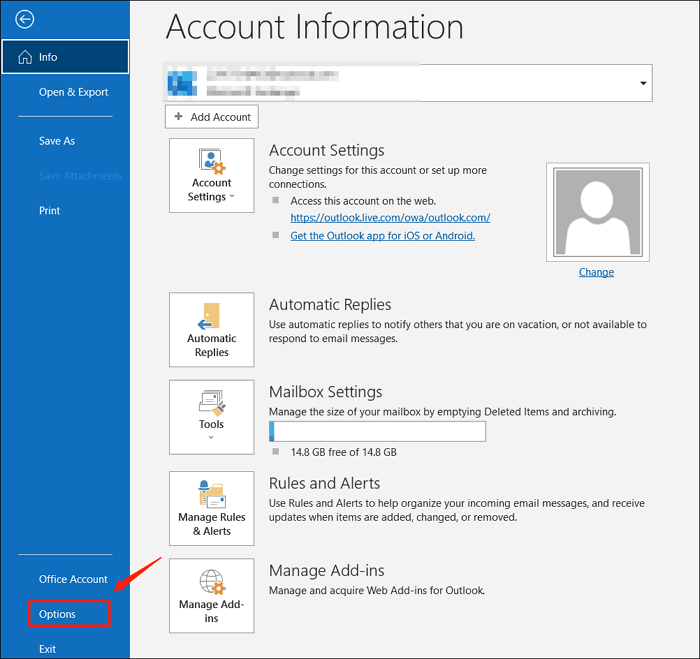
Step 2. Click on the File in the top-left corner, then click Options.
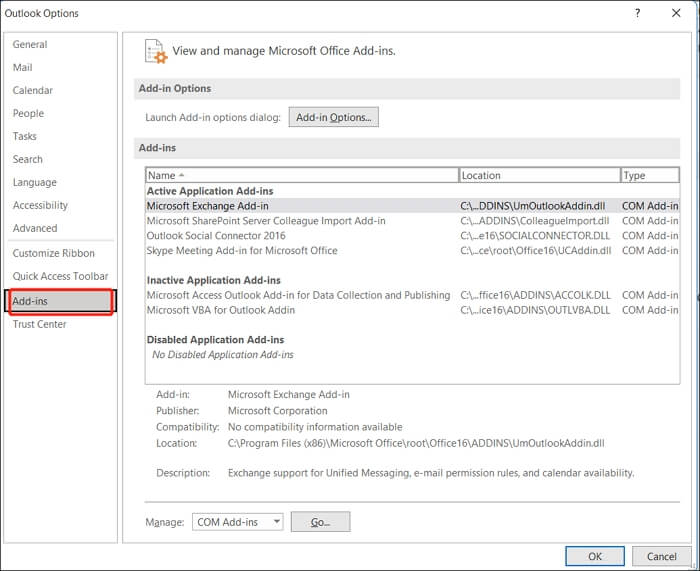
Step 3. Click on the Add-ins tab in the taskbar located up.
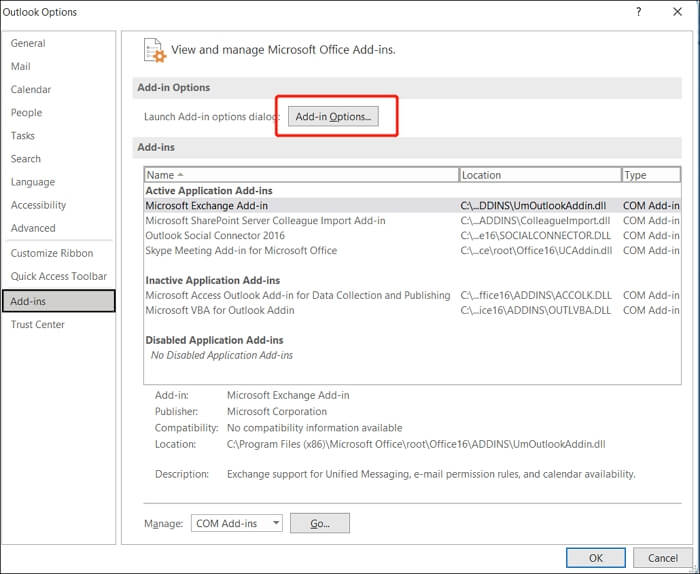
Step 4. Click on Add-in Options. Then select the file that you want to back up in the pop-up window.
Step 5. Click Finish, and your files will back up themselves automatically.
Solution 3. Back up PST File in a Straightforward Way: Copying It Manually
Manually copying PST files is a simple yet flawed method of backing them up. While it's easy to do, it requires a checklist of configurations to ensure an error-free backup, which can be cumbersome. Moreover, it doesn't automatically back up files, making it easy for users to forget to create a PST files backup.
Guide: How to Copy PST File Manually
Below are the steps about how to copy files manually.
Step 1. Choose the file by navigating to the file in the toolbar up > Open> Outlook Data file.
Step 2. Open the location: Navigate to where the PST file is stored.
Step 3. In the folder, click on the items you want to copy.
Step 4. To copy items, select them, left-click and hold, then drag them to the desired folder.
The Best Way to Create PST File Backup
To back up Outlook PST files, you can use one of three methods: manually creating a backup, using the built-in Outlook backup feature, or using third-party software like Qiling Backup. We recommend using Qiling Backup, which makes it easy to create PST file backups and ensures that you can recover your Outlook account's contents in case the original PST file is lost or corrupted.
This reliable backup tool allows for easy SSD to image backup within a few clicks, automatically backs up SSD to HDD, and can back up files in safe mode. It also offers 250 GB of free cloud storage, catering to various user needs, including home, free, and business users.
Qiling Backup offers a more accessible alternative to PST file backup, providing users with a range of tasks to perform.
FAQS
1. Why are PST files not allowed in OneDrive?
OneDrive can't sync a PST file because Outlook locks it, which can lead to the file becoming corrupted and data loss.
2. What is difference between OST and PST files?
PST files can be moved to a local computer, while OST files are synchronized with a server. PST files can be uploaded to other email services, but OST files can only be moved to other services after being converted.
3. How many PST files can I have in Outlook?
There is no documented limit to the number of PST files one can attach to a profile, and there is no information on the effects of having multiple PST files.
4. Does Outlook automatically create PST files?
A PST file is a file where Microsoft Outlook stores all your Outlook items, including email, calendar events, contacts, tasks, and others, which are automatically created when you set up your account in Microsoft Outlook.
Related Articles
- Download Crucial Data Transfer Software to Migrate SSD Data and OS
- How to Copy/Clone Bootable USB Drive in Windows 10/8/7 (2022 Tips)
- How to Create A File History Backup? Full Guide About File History
- 7 Best Windows 10 Backup Utility [Features and How-to Guide]
- How to Create Disk Image Windows 10 for Free on Laptops & PCs
This article provides a step-by-step guide on how to create a disk image on Windows 10, using both the Qiling Disk Master software and the built-in Backup and Restore tool on Windows 11/10. - Stepwise Guide | How to Install Windows 7 on a Hard Drive for Another Computer
This is a step-by-step guide on how to install Windows 7 on a hard drive for another computer. However, with the help of Qiling Disk Master, you can also learn how to install Windows on an external hard drive for another PC.
Products
Articles & Tutorials
- Data Recovery
- Data Backup
- File Recovery
- File Backup
- System Backup and Restore
- Disk and Partition Clone
- Technical articles
- Mobile articles
- Disk Master Help
- Windows Data Recovery Tutorials
- Windows Secure Delete Tutorials
- Windows Partition Management Tutorials
- Windows File Backup and Restore Tutorials
- Windows System Backup and Restore Tutorials
- Windows Disk Backup and Restore Tutorials
- Windows Clone Tutorials