2 Ways: How to Backup Partition to Image File for Free
Why Partition Image Backup Is Necessary?
Partition Image Backup is crucial for daily computer use. Sudden system crashes, careless operations like deleting partitions, formatting, or wiping disks, and virus invasions are common issues that can be prevented with regular backups. By creating an image of your system, you can easily restore it to a previous state, minimizing data loss and downtime. This ensures your computer remains protected and functional, even in the face of unexpected events or human error.
To avoid losing important data due to annoying situations, it's essential to be aware of the importance of partition imaging backup. This can help you restore corrupted partitions quickly and prevent data loss.
How to Create Backup Partition Image (2 Ways)
To make a full backup of a partition on your computer, you can either create a partition backup using specialized software or utilize the built-in Windows backup program. This allows for a comprehensive backup of the partition, ensuring all data is safely stored.
Solution1: How to Use Partition Imaging Backup Software to Image a Partition
Qiling Backup is a highly recommended software for backing up partitions to image, as well as backing up hard drives, folders, and entire systems, all while keeping your data safe and intact.
1. If you schedule a partition backup, Smart will automatically perform backups based on your chosen plan, which can be set to run daily, weekly, or monthly, or even triggered by specific events.
2. To ensure efficient backup, consider having multiple backup modes for different plans, such as partition differential backup and Windows incremental backup. This approach allows for faster backup speeds and quicker recovery times, similar to those achieved with RAID backup.
3. Safe supports encrypting partition backup images, making your data secure.
4. Adaptive: supports different kinds of systems, Windows® 7/8/8.1/10/11
Qiling Backup is a powerful backup software that ensures you never have to worry about data loss. By following its steps, you can rest assured that your important files and information are safely protected.
Step 1. Start with selecting the Disk backup button.

Step 2. It is available to back up a whole disk or a certain partition. Choose the one you need.
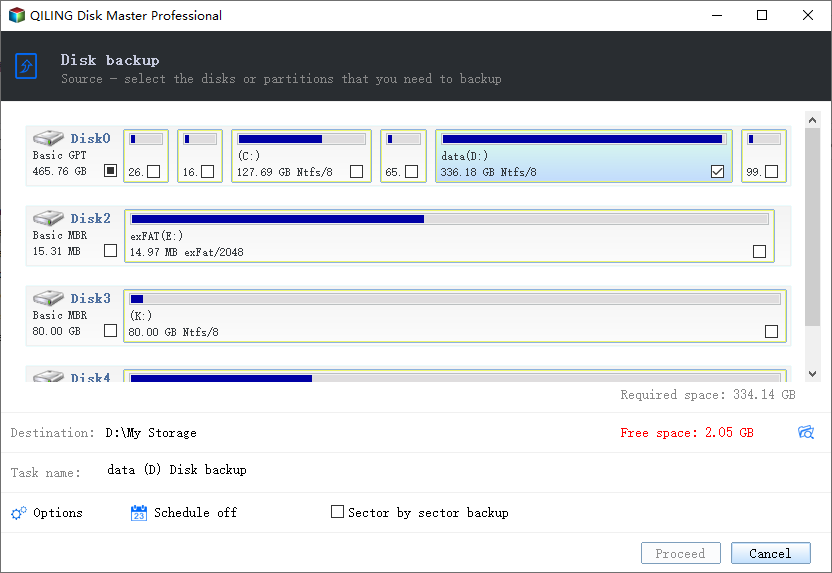
Step 3. Select the destination where you want to save the backup.
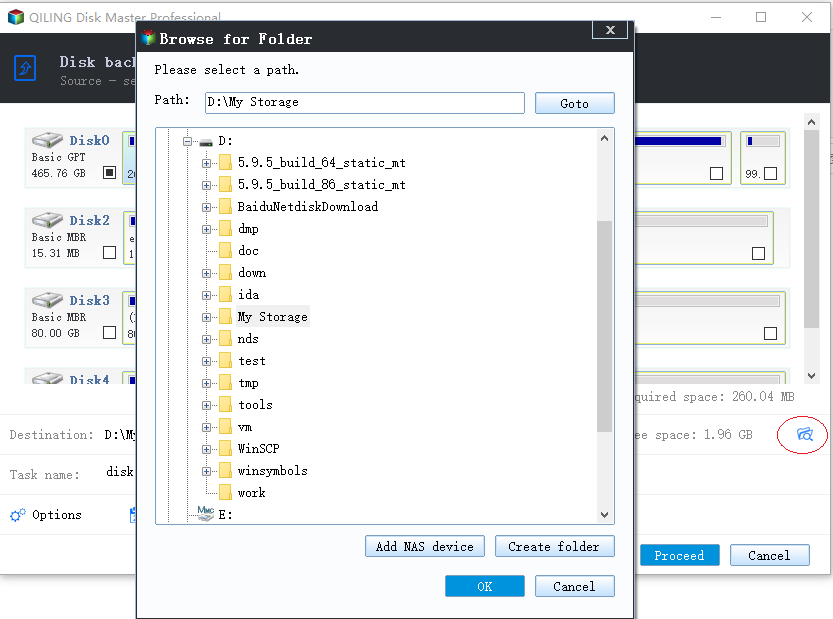
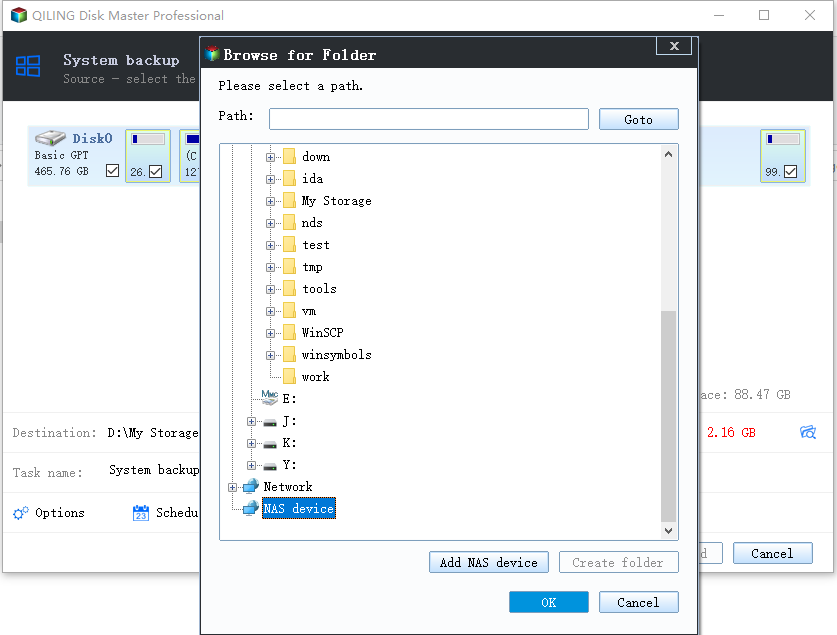
Step 4. For disk/partition backup, you can choose to save the backup to a local drive or to a Network Attached Storage (NAS) device.
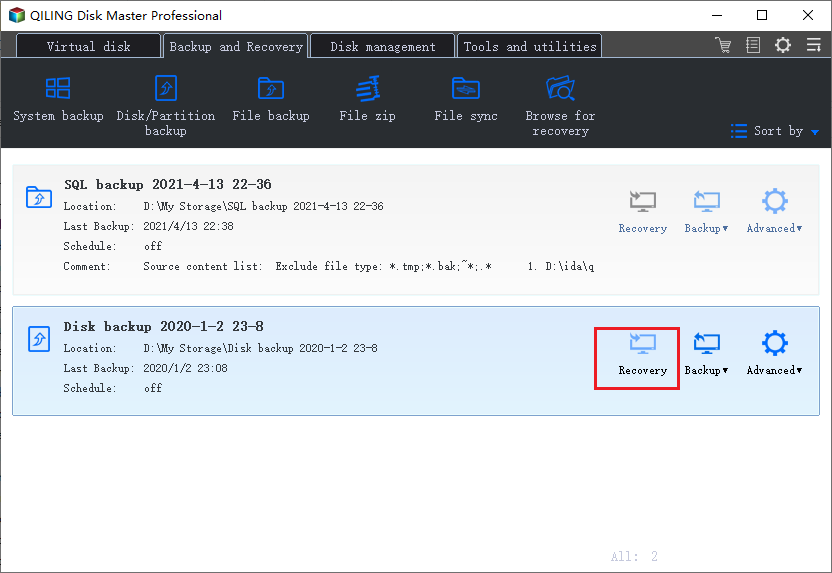
Step 5. After completing the backup process, your task will be displayed on the left side. You can click on any task to further manage your backup, such as recovering it or creating an incremental backup.
Solution 2: How to Use Backup and Restore (Windows 7) to Back up Partition to Image
Windows has a built-in backup tool called "backup and restore" that enables users to back up individual files on a Windows-based computer. This tool allows users to back up files, which is helpful for someone looking to back up a partition image. However, it's worth noting that this tool is primarily designed for backing up files, not partition images. If you're looking to back up a partition image, you may need to use a different tool or method.
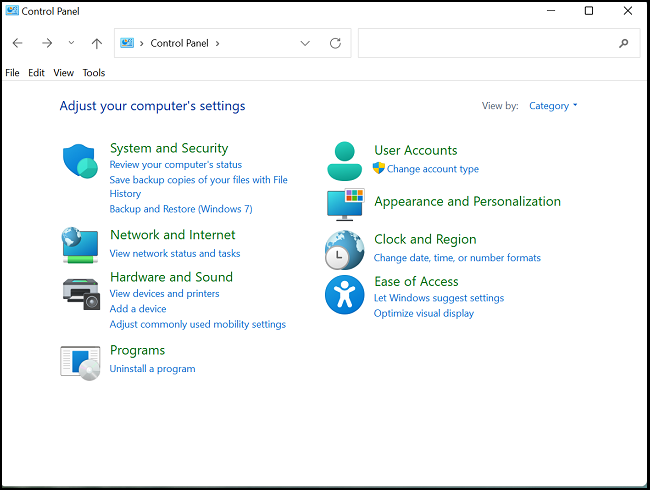
Step 1. Select the Start button, and find your Control Panel. In System and Security, click Backup and Restore.
Step 2. Choose Back up now. But if you have never used windows backup before, select Set up backup.
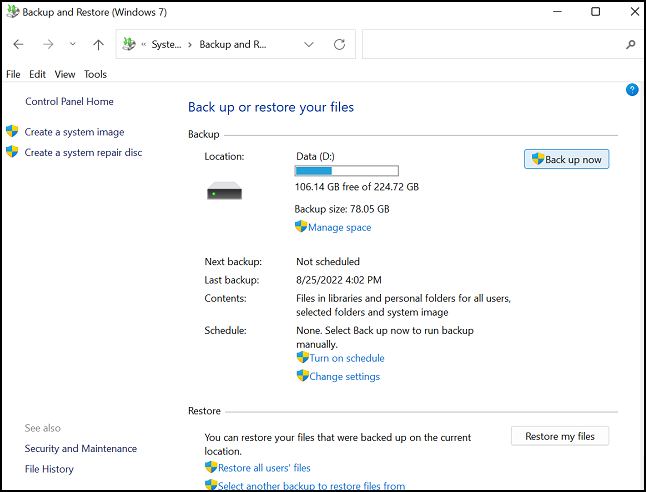
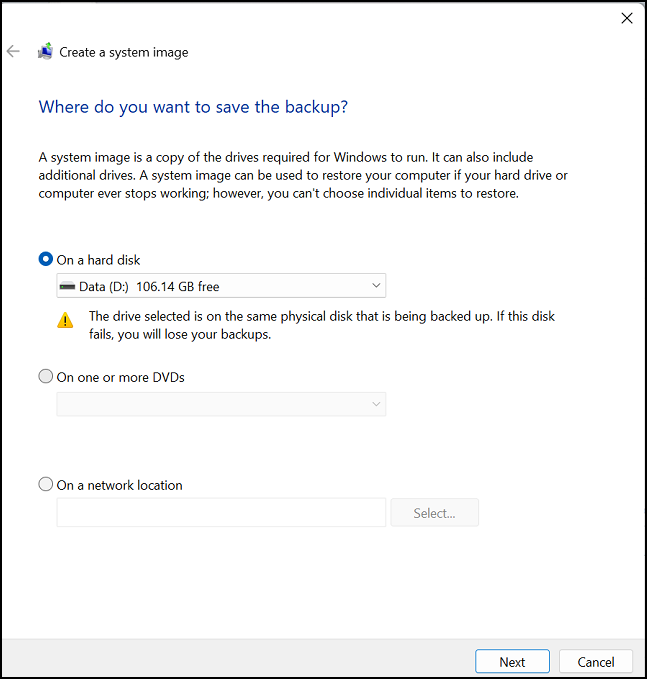
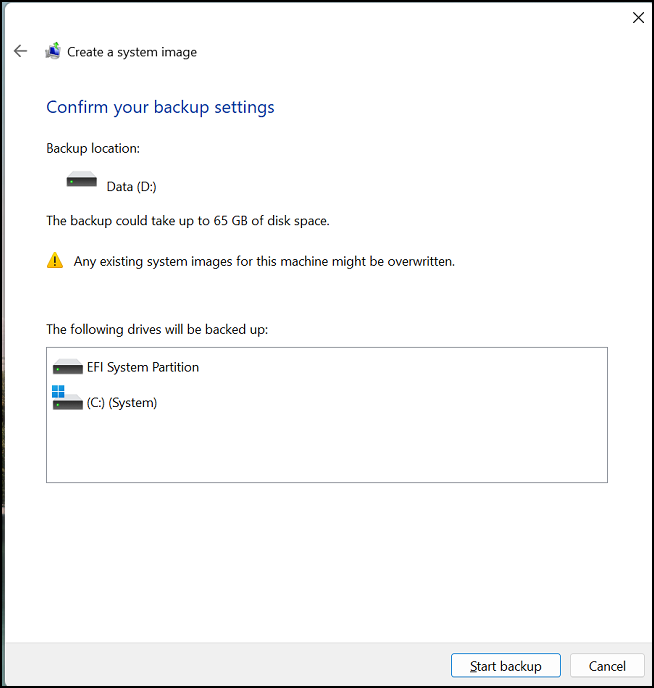
Step 3. Create a system image to save your backup partition.
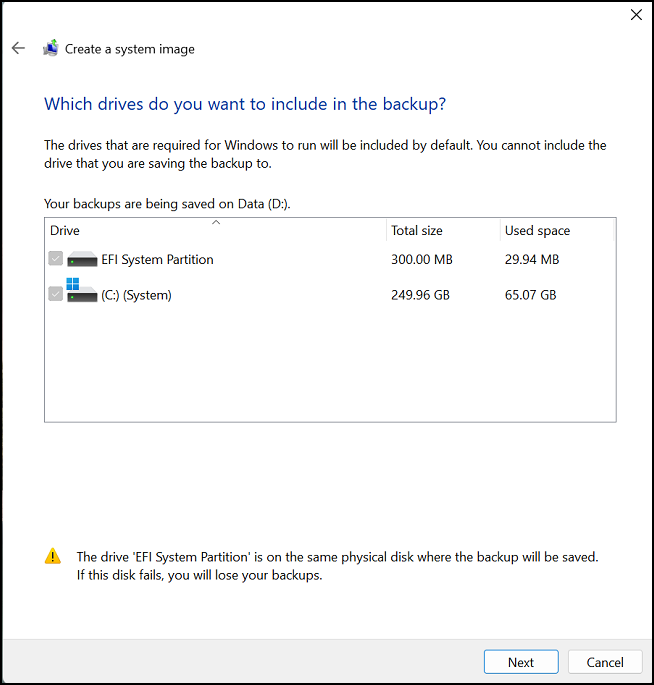
Step 4. Select a drive or partition you want to backup
Step 5. Confirm backup settings and Click "Start backup."
While using the Windows-based tool, you may encounter some shortcomings. The main deficiencies include:
1. The software has limited custom backup options, only allowing for two choices during the backup process. This results in some temporary files and partitions without drive letters being unable to be backed up.
2. Unlike the past, the current trend is to back up partitions to the cloud, which is considered safer for users compared to relying on a local drive.
3. No single file restore is not available in Backup and Restore, but Qiling backup restore can satisfy this need.
Given the limitations of Windows' built-in backup tools, we need a professional and free backup software for Windows 11 and 10, such as Qiling Backup, to meet our requirements. This is a crucial moment where you realize the importance and convenience of useful Windows backup software, prompting you to download and get your partition backed up to an image.
FAQ about Backing up Partition
1. What is a partition image?
The partition image includes all folders, files, boot records, and file allocation tables, as well as files in the root directory and the first track of the hard disk.
2. What does disk backup do?
Disk backup is a data backup and recovery method that stores data on a hard disk, allowing for fast data restoration and continuous data protection.
Related Articles
- Clone GPT Disk in Windows 10 - This Method Would Work!
- [Fixed] Windows 7 Build 7601 This Copy of Windows Is Not Genuine
- How to Back Up Computer Windows 7 Before Upgrading to Windows 10 (2 Ways)
- 7 Best Free Imaging Software for Windows 11/10/8/7
- 5 Best Free Hard Disk Backup Software for Windows 11/10/8/7[The Latest]
A hard disk is a physical component of a computer where data is stored, and backing it up is crucial to protect your information in case of a hard drive failure. Fortunately, there are various hard disk backup software programs available, and here are five of the best and most popular ones. - How to Backup Files to pCloud on Windows 11/10/8/7🏆
Learn how to back up files to pCloud on Windows. Use pCloud backup or Qiling Disk Master to protect important files in cloud storage.
Products
Articles & Tutorials
- Data Recovery
- Data Backup
- File Recovery
- File Backup
- System Backup and Restore
- Disk and Partition Clone
- Technical articles
- Mobile articles
- Disk Master Help
- Windows Data Recovery Tutorials
- Windows Secure Delete Tutorials
- Windows Partition Management Tutorials
- Windows File Backup and Restore Tutorials
- Windows System Backup and Restore Tutorials
- Windows Disk Backup and Restore Tutorials
- Windows Clone Tutorials