How to Backup Google Drive to OneDrive? Best Solutions
People often use cloud storage services like Google Drive and OneDrive to save and manage data. These services offer free storage space, making them convenient for users. Many people backup their SD cards to Google Drive or OneDrive to keep their files organized. However, some users may want to transfer files from Google Drive to OneDrive, either to consolidate their data or take advantage of OneDrive's features. In this case, the process of syncing OneDrive and Google Drive can be done, but it may require some effort to transfer all the files.
Why Backup Google Drive to OneDrive?
Google Drive and OneDrive are online cloud storage services offered by Google and Microsoft respectively. Both platforms provide free storage space for users to save and share files online, making them convenient for work purposes. If it's possible to backup Google Drive to OneDrive, users can enjoy the benefits of having their files stored in two secure locations, providing an added layer of protection and flexibility.
- Better data preservation: Backing up important files to multiple locations is essential to prevent accidental deletion of data.
- Better data management: You can now edit and manage files online without the need to download and upload them between different cloud storage platforms.
- More storage space: OneDrive offers 5GB of free storage space, whereas Google Drive provides 15GB of free space, making Google Drive a more practical choice for users who want to utilize their storage space effectively.
Google Drive and OneDrive are both reliable data storage options, and backing up Google Drive to OneDrive can provide an added layer of security and peace of mind. This can be especially useful for important files and documents that you want to ensure are safely stored in multiple places.
How to Backup Google Drive to OneDrive
To backup Google Drive to OneDrive, there are three convenient methods: using Qiling Backup Home, Google Takeout, or Copy Google Files.
You can follow the table and check the best method:
| Comparison | |||
|---|---|---|---|
| Network Needs | Offline backup is available. | The Network cannot be interrupted | The network cannot be interrupted |
| Backup Type | You can create not only a system image, but also backup files and hard drive partitions. | Only files are available | Only files are available |
| Backup Plan | You can set backup daily or weekly | You export files daily or weekly | No backup plan |
| Backup Process | Easy | A little complicated | Very complicated |
Copy Google files is a traditional way to download and upload all the files manually. And Google Drive can help you export Google data to local storage. By comparing the three backup ways, we can see that Qiling Backup has more features and can meet comprehensive needs. It will be efficient with fast backup time. And it will also protect files. As a professional software, it is not difficult to operate. Next, I will introduce how to use it.
How to Backup Google Drive to One Drive with Qiling Backup
Qiling Backup is the easiest and fastest method to back up Google Drive to OneDrive, automatically connecting your account to both services. This tool enables automatic backup, improving efficiency and saving time, and also allows you to set a password to protect your files. Before using Qiling Backup, you'll need to download your Google Drive data to your computer, after which you can utilize the tool to transfer your files to OneDrive.
Step 1: Open the browser and log into Google Drive.
Step 2: To download a file, first locate the file you need, and then right-click on the file and select the "Download" option from the drop-down menu.
Step 3: Google Drive will compress your files and you can find the ZIP file on your computer.
After that, open Qiling Backup. Here are the steps:
Step 1. Click the "File backup" button to start backup.

Step 2. Local and network files will be listed on the left, allowing users to expand directories and select files to be backed up.
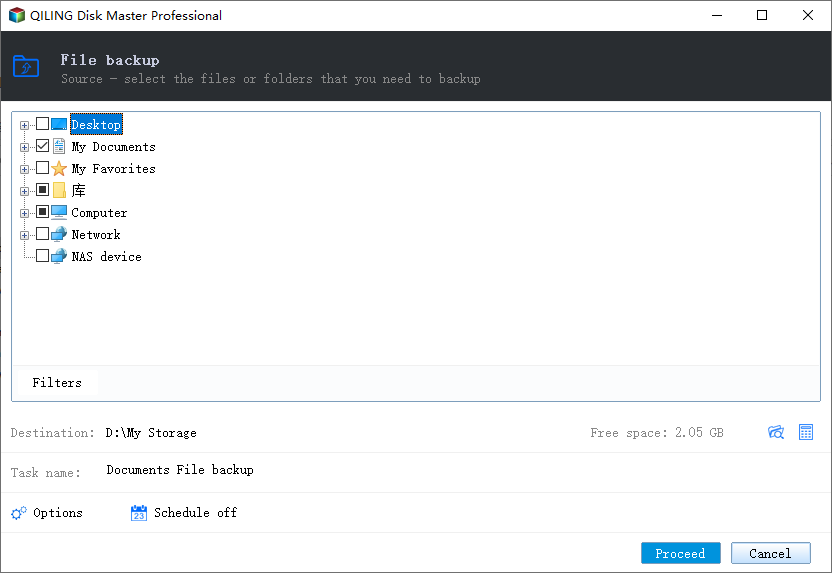
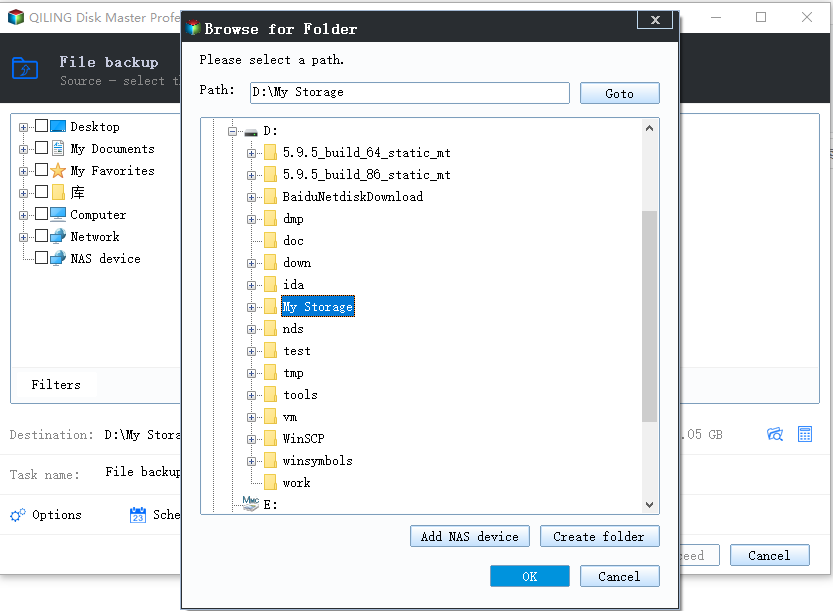
Step 3. Select the destination where you want to save the backup, following the on-screen guide.
Step 4. To encrypt the backup with a password, click on "Options" in the "Backup Options" section and select the desired encryption method. This allows you to customize the backup task according to your specific needs.
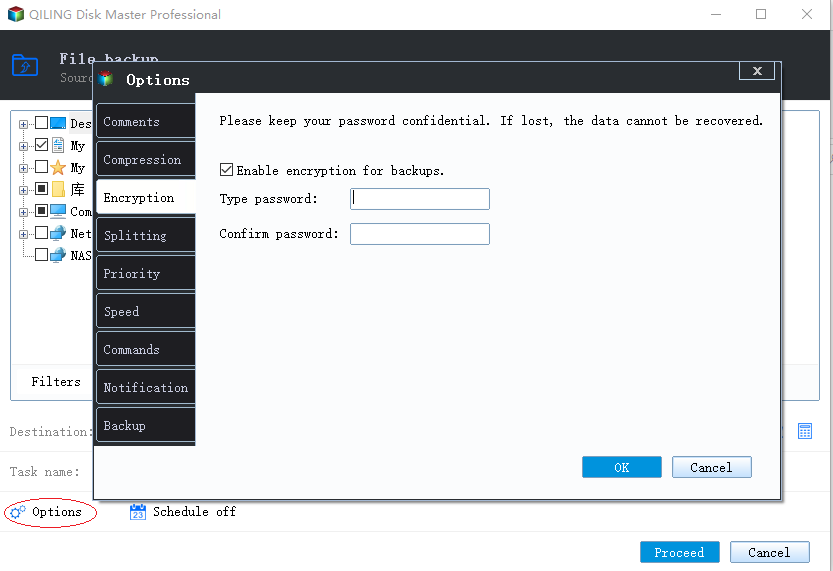
Set the backup schedule and choose to start back up at a certain event in "Backup Scheme".
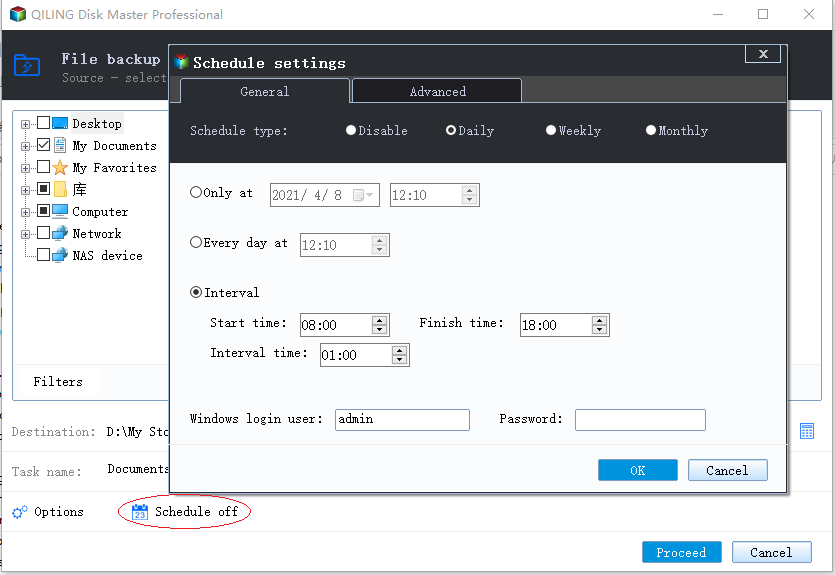
Step 5. You can store the backup to local drive, Qiling's cloud service, and NAS.
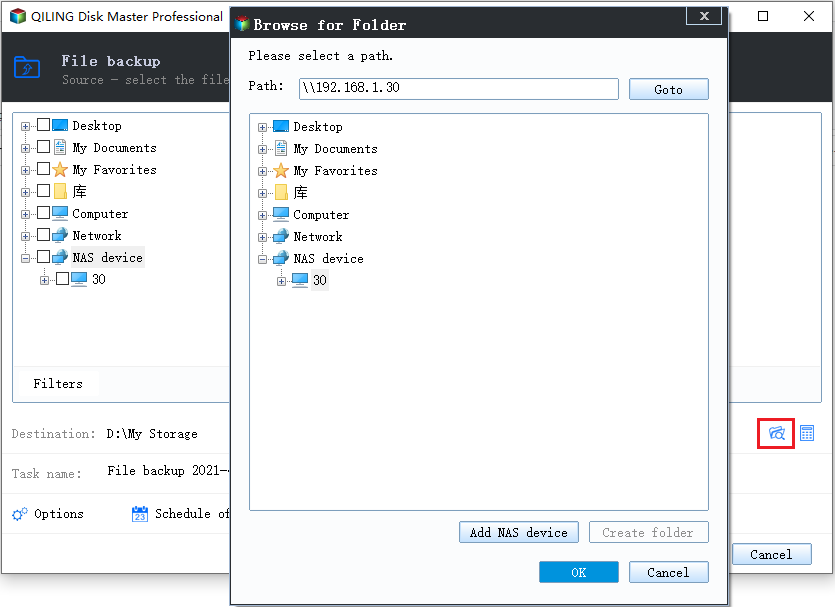
Step 6. Qiling Backup allows users to back up data to both a third-party cloud drive and its own cloud drive.
To back up data to a third-party cloud drive, select Local Drive, then scroll down to add a Cloud Device. After that, add and log in to your account.
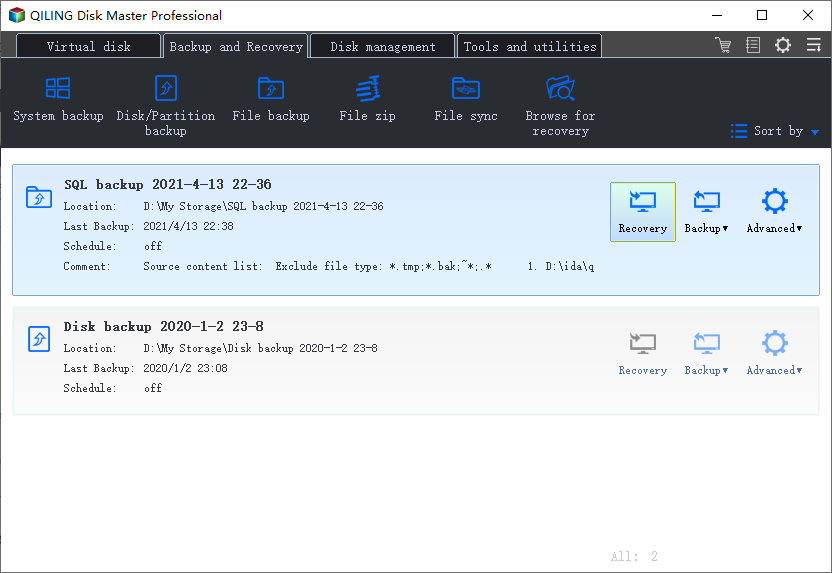
Step 7. Click "Proceed" to initiate the backup process. Once the backup is completed, it will be displayed as a card on the left panel, and can be managed further by clicking on it.
How to Backup Google Drive to OneDrive with Google Takeout
Google Takeout is a simpler way to transfer Google files to OneDrive, avoiding the need to download and upload all files, and providing a straightforward method for backing up Google Drive to OneDrive.
Step 1: Go to Google browser and log in to Google Takeout.
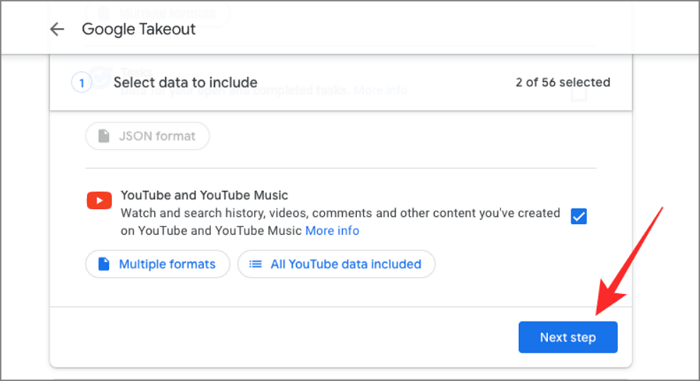
Step 2: Select the drive in the export list and click "Next step."
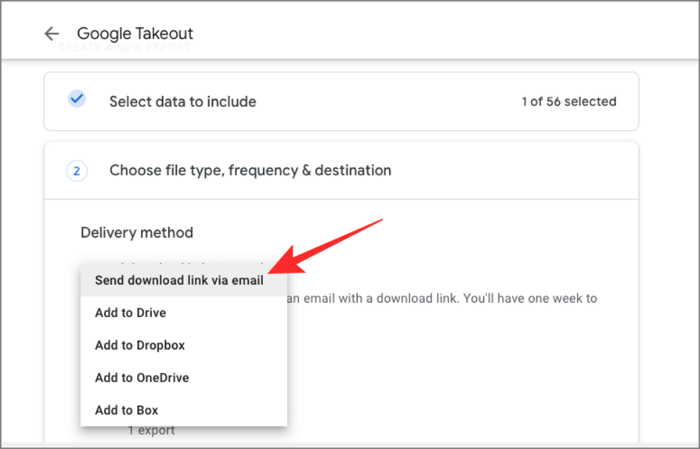
Step 3: To upload a file to OneDrive, select the "Add to OneDrive" option from the "Delivery method" dropdown menu.
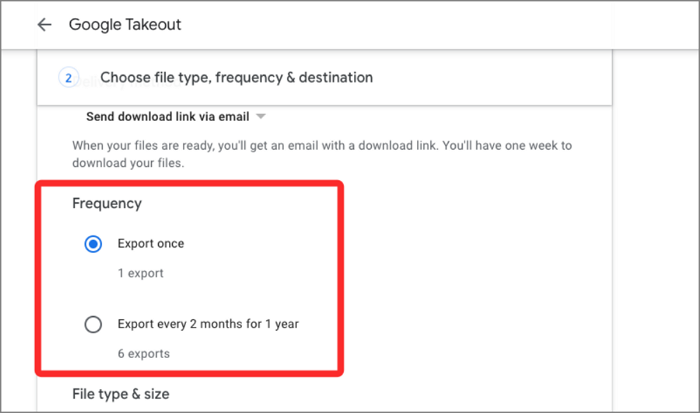
Step 4: After adding to OneDrive, you can set the frequency of exporting, as well as choose the type and size of the export file.
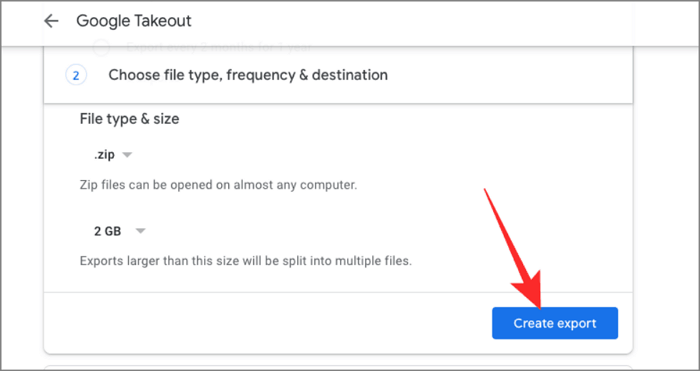
Step 5: To export files from OneDrive, click "Create export," and then check the transferred files by clicking "Open in OneDrive."
How to Backup Google Drive to OneDrive by Copying Google Files
Copy Google files are a traditional method that doesn't require the use of other programs. However, it involves manual effort, as you need to do it all the time. This method works by allowing users to copy files from Google Drive, but it's a time-consuming process that requires constant repetition.
Step 1: To start backing up Google Drive to OneDrive, you need to have a Google account and log into your account in Google Drive.
Step 2: Select all required files and click the "Download" button to save all the files on your computer.
Step 3: After downloading and compressing the files from Google Drive, open OneDrive and sign in to your account.
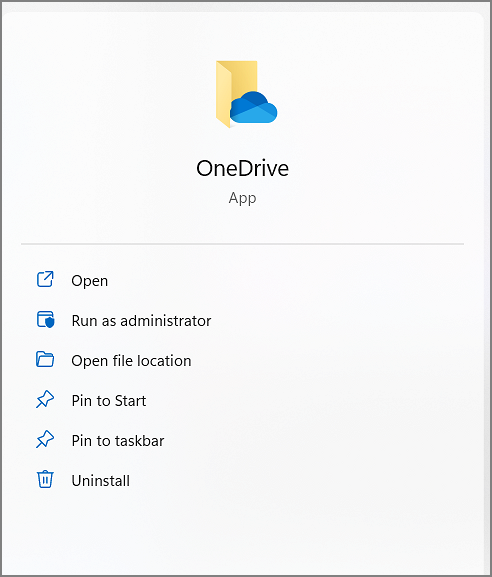
Step 4: After logging into your OneDrive account, click on "My files" on the left side and then click "+New" to create a new folder.
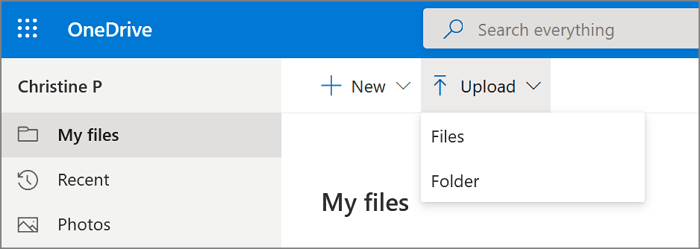
Step 5: To upload files from Google Drive, go to Google Drive on your device, select the files you want to upload, and click the "Upload" button. Alternatively, you can also drag and drop the files from your device to Google Drive.
Conclusion
This article highlighted the importance of backing up Google Drive to OneDrive and introduced three different backup methods. A professional software like Qiling Backup can make the process easy and efficient, allowing you to quickly complete your backup tasks and protect your data with confidence. If you're interested in learning more, you can download Qiling Backup.
FAQs of Backup Google Drive to OneDrive
To back up your Google Drive to OneDrive, first, you need to install the Microsoft OneDrive app on your computer. Next, sign in to your OneDrive account using your Microsoft account credentials. Then, click on the "Settings" icon and select "Backup" to enable the backup feature.
1. Should I use Google Drive or OneDrive?
Google Drive is more suitable for individual users who want more storage space, while OneDrive is the preferred choice for business use.
2. How do I sync my Google Drive folder to OneDrive?
You can sync your Google Drive folder to OneDrive by copying all the Google files and uploading them on OneDrive, or you can use Google Takeout to help with the transfer.
3. How do I backup my entire drive to OneDrive?
To backup your entire drive, you can click the blue cloud icon in the Windows notification area and select settings to manage backup, or use professional backup software like Qiling Backup, which allows you to backup everything to OneDrive or other cloud storage.
Related Articles
- How to Backup Files to Cloud (Google/Dropbox Are Included)
- How to Backup NAS? Top 3 Strategies
- Top 10 Database Backup Software in Windows and Linux [2022 Reviews]
- Toshiba External Hard Drive Backup Software for Windows 11/10/8/7
- [2 Easy Ways] How to Backup QuickBooks Automatically on Windows 11/10/8/7
If you're looking to automatically back up your QuickBooks data, this article will outline two methods to help you achieve this. By the end of reading, you'll be able to choose the best approach to back up your QuickBooks, ensuring your financial data is safely secured. - [QuickBooks Online Backup] How to Backup QuickBooks Online to Desktop
Backing up QuickBooks Online involves two main scenarios: backing up files from QuickBooks Online to QuickBooks Desktop, and creating a local backup copy on the Windows Desktop. This allows users to transfer data between the two platforms or have a local copy of their files for added security.
Products
Articles & Tutorials
- Data Recovery
- Data Backup
- File Recovery
- File Backup
- System Backup and Restore
- Disk and Partition Clone
- Technical articles
- Mobile articles
- Disk Master Help
- Windows Data Recovery Tutorials
- Windows Secure Delete Tutorials
- Windows Partition Management Tutorials
- Windows File Backup and Restore Tutorials
- Windows System Backup and Restore Tutorials
- Windows Disk Backup and Restore Tutorials
- Windows Clone Tutorials