How to Backup/Save Outlook Emails to Hard Drive Automatically in 3 Ways
PAGE CONTENT:
- How to save Outlook emails to a hard drive automatically with a professional email backup tool
- How to backup outlook emails using Import/Export Wizard in Outlook
- How to save Outlook emails to an external hard drive manually
To back up Outlook emails, you can use the built-in feature in Outlook to export emails to a .pst file, which can then be saved to an external hard drive. To do this, go to File > Export > Export to a file, select Outlook Data File (.pst) as the file type, and choose the emails you want to back up. You can also use a third-party backup software to automate the process.
Backing up Outlook emails is crucial to prevent data loss, whether you're using it for business or personal purposes. If you need to save emails from Outlook to a hard drive or transfer them to another account, this tutorial provides three effective methods to help you achieve this. We'll guide you through each step-by-step process to save your Outlook emails to a local drive or external hard drive.
Method 1. How to Save Outlook Emails to Hard Drive Automatically
Your Outlook Inbox can quickly become overwhelmed with new messages, replies, and forwards, resulting in a large number of important emails. To avoid wasting time and energy on manually exporting or copying individual Outlook files, consider using a professional file backup software like Qiling Backup.
This tool offers a quick and easy way to backup Outlook emails, saving you time and effort. It not only allows you to save emails to your hard drive or local folders like your desktop, but also backs up other important data in Outlook, such as calendars, contacts, and more. You can also set a schedule to automatically backup your Outlook emails daily, weekly, or monthly, or even set it to run on a specific event.
Other key and outstanding features of Qiling Backup:
- Comprehensive file and system backup in a few clicks
- Migrate Windows 10 from HDD to SSD without reinstalling
- Upgrading your computer's hard drive to a faster one can significantly improve its performance. To do this, you can either partition the new drive and install your operating system and programs on it, or you can clone your existing hard drive to the new one, which will transfer all your files, programs, and settings to the new drive.
- Advanced backup features for better protection include full, incremental, or differential backup options, allowing users to choose the level of data redundancy and recovery speed that suits their needs.
To save Outlook emails to a hard drive or external hard drive, download an email backup software to automate the process.
Step 1: Run Outlook backup software - Qiling Backup
Launch and run Qiling Backup, select "File backup" on the main window.

Step 2: Connect to Outlook, select Outlook emails and backup destination
Select the email files that you want to back up.

Specify a location - Save the backup image to an external hard drive or a dedicated backup hard drive as the destination.

Step 3: Start the backup process
Click "Proceed" to start backing up your email files now.
With this tool, you can transfer Outlook emails from one computer to another, recover lost emails, and even access your emails from another computer, making it a great help when switching to a new computer or recovering deleted emails.
Method 2. How to Backup Outlook Emails with Import/Export Wizard
If you don't want to use a third-party tool, you can back up and save Outlook emails to your hard drive by using the Outlook Import/Export Wizard, which lets you save emails stored in an OST file to a PST file format.
This utility not only saves Outlook emails but also other mailbox items such as Contacts, Notes, Calendar, Tasks, Journals, etc. in the PST file. The process involves following a series of steps.
If Outlook is accessible and connected to the Exchange server, you can use the Import/Export Wizard to save Outlook emails to the hard drive, allowing you to backup Outlook emails automatically.
Step 1. Open Microsoft Outlook and log in > Click "File" > "Open & Export" and then click "Import/Export".
Step 2. Select "Export to File" in the Import and Export Wizard and then click "Next".
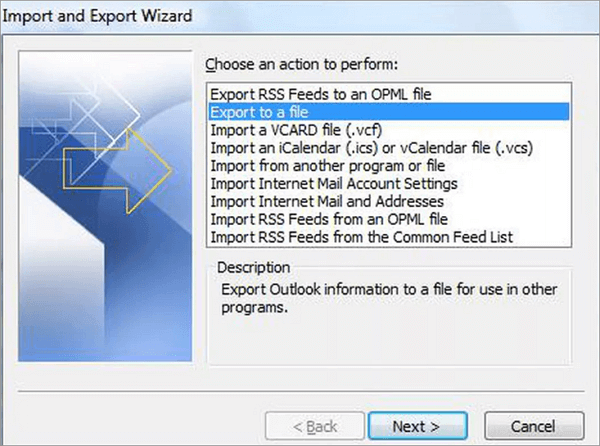
Step 3. To export a PST file, click on "Outlook Data File (.pst)" and then click "Next". Next, choose the "Inbox" as the folder to export or expand the "Inbox" and select the appropriate folder. Finally, click "Next".
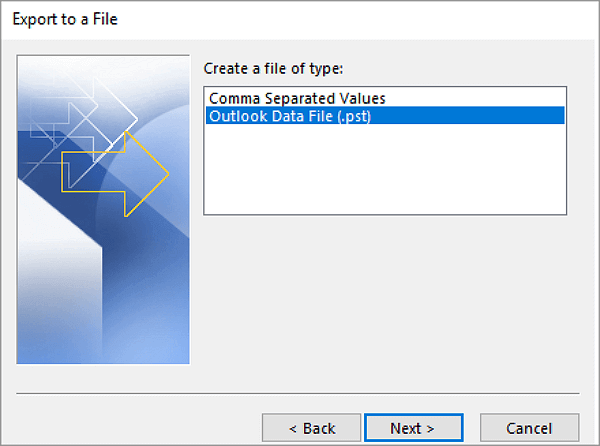
Step 4.If To back up Outlook, you need to connect your external hard drive to your computer and then click "Cancel" if a dialog box appears on-screen.
Step 5. Click "Browse" and select the external drive from the list of storage devices, then create a name for your backup file and click "OK".
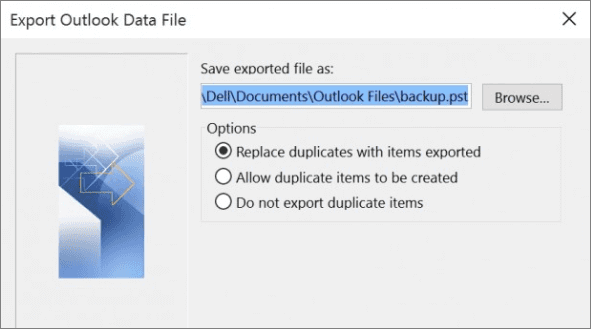
Step 6.Click "Next" > "Finish". To secure the messages, enter a password when prompted and then click "OK". Otherwise, click "Cancel".
By saving your Outlook emails to a PST file on the hard drive, you can easily import them into any Outlook or Office 365 account to access your emails and other mailbox items.
Method 3. Backup and Save Outlook Emails to Hard Drive Manually
To find the location of Outlook emails on your PC and manually copy them to Outlook .pst or .ost files on another hard drive, follow these steps: First, open Outlook and click on "File" > "Account Settings" > "Data Files" to locate the .pst or .
Step 1. Check out where does Outlook save your emails: Run Microsoft Outlook and login > Click "File" and select "Account Settings".
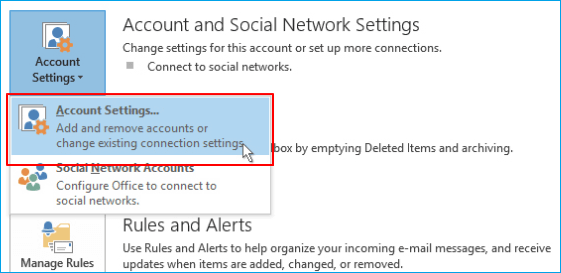
Step 2. Click "Data Files" and then check out the exact location of Outlook .pst and .ost files on your PC.
Step 3. If you need to open the PST or OST file in Windows Explorer, click "Open File Location".
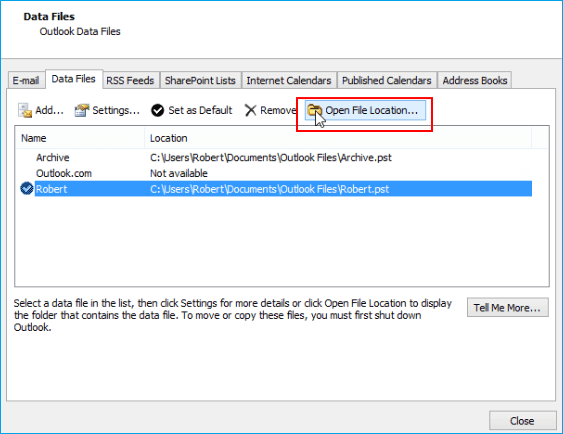
Step 4. To copy your Outlook .pst or .ost files to an internal or external hard drive, follow the path:
1. To open the Run dialog and navigate to the AppData folder, press the Windows key + R to open the Run dialog, type `%APPDATA%` into the field, and click "OK" to open the folder.
2. To find the location where Outlook saves your .pst or .ost files, navigate to the "Roaming" folder in your user profile. The path is usually "C:\Users\
drive:\Users\ \AppData\Local\Microsoft\Outlook
drive:\Users\ \Roaming\Local\Microsoft\Outlook
drive:\Users\ \Documents\Outlook Files
drive:\Users\ \My Documents\Outlook Files
drive:\Documents and Settings\ \Local Settings\Application Data\Microsoft\Outlook
Step 5. After performing a full system backup, you can copy .pst or .ost files and save them to your local drive or external hard drive as a backup. This will ensure that your email data is also protected in case of a system failure.
Conclusion
To backup Outlook emails to a hard drive or external hard drive, you can use either a manual or automated solution. While manual methods are available, they have some drawbacks, making an automatic Outlook email backup software a better option. This software can help you easily and efficiently backup your Outlook emails, providing a reliable and hassle-free solution for data preservation.
With Qiling Backup, you can automatically and regularly save Outlook emails to a hard drive, external hard drive, or USB flash drive, ensuring no data is lost, making it the most efficient and secure method.
How to Save Outlook Emails to Hard Drive FAQs
If you're experiencing issues with backing up Outlook emails, you may also be dealing with other related problems. Some highly relevant topics include the related topics below. Brief information on these topics may be helpful in addressing your concerns.
How do I save Outlook emails to an external hard drive?
To save Outlook emails to an external hard drive, Qiling email backup program is a helpful tool.
Launch Qiling Backup, on the main window, select "File backup" and run it.
2.Connect to Outlook, select Outlook emails, and backup destination. Select the external hard drive you want to use and choose the email files you want to back up.
3.Start the backup process. Click "Proceed" to start backing up your email files now.
Can you save Outlook emails to Google Drive?
You can backup Outlook emails using Qiling Backup, which allows you to save backup images to various locations, including internal disks, external disks, network drives, and free cloud storage options like Google Drive, Dropbox, and OneDrive, as well as CD/DVD.
How do I back up my emails to an external hard drive?
Back up your email:
1. Select File > Open & Export > Import/Export.
2. Select Export to a file, and then select Next.
3. Select Outlook Data File (.pst), and select Next.
4. The process of backing up a mail folder involves selecting the specific folder you want to back up, which is usually done by clicking on the folder name in the email client's interface. Once selected, the next step is to choose the "Next" option, which typically initiates the backup process.
5. Choose a location and name for your backup file, then select Finish.
6. Enter a password and confirm it, then click OK. This will encrypt your files and ensure they're only accessible with the correct password.
Related Articles
- How to Copy OS from Laptop to USB Pen Drive
- How to Backup/Export and Restore Chrome History and Cookies
- COVID-19 Safely and Effectively Work from Home Backup and Recovery Plan
- Auto Backup VMware with Best VMware Backup Software
- How to Automatically Backup Files to An External Hard Drive in 3 Ways
- What Is the Easiest Way to Save Backup Files to Two or More External Hard Drives at the Same Time
To ensure the security of important data, it is a good way to save its backup to multiple hard disks. So what is the easiest way to save backup files to two or more external hard drives at the same time? You can find the answer in this short post.
Products
Articles & Tutorials
- Data Recovery
- Data Backup
- File Recovery
- File Backup
- System Backup and Restore
- Disk and Partition Clone
- Technical articles
- Mobile articles
- Disk Master Help
- Windows Data Recovery Tutorials
- Windows Secure Delete Tutorials
- Windows Partition Management Tutorials
- Windows File Backup and Restore Tutorials
- Windows System Backup and Restore Tutorials
- Windows Disk Backup and Restore Tutorials
- Windows Clone Tutorials