[7 Solutions] How Do I Backup Computer to Cloud? Here Is the Complete Guide
Cloud backup is a trend that allows users to upload and share files with others anytime and anywhere. One of the top needs among cloud users is to backup their computer to the cloud.
If you need to back up your computer to the cloud, a complete guide is available to help you achieve this. Let's get started now.
PAGE CONTENT:
How Do I Backup My Computer to Cloud?
Backing up computer files to a cloud drive can safeguard against sudden errors like deletion, formatting, viruses, or system failure, and also free up local disk space.
Here are three things you must know when selecting a cloud backup service:
- The Cloud Backup Tool is a dependable cloud backup service that ensures the security and accessibility of your important data. It uses advanced encryption techniques to safeguard your information, and allows you to easily upload and manage your backups from any device with an internet connection. This tool is designed to provide peace of mind by protecting your files, photos, and other digital assets against data loss, corruption, or hardware failure.
- Decide what you want to back up on your PC, whether it's a single file, multiple files, or your entire computer.
- If your budget is limited, choosing an affordable cloud backup service is key.
What Is the Best Cloud Backup for PC? 7 Best Cloud Backup Services
Here, we collected 7 cloud services to help you back up computer data to cloud drive successfully.
You can use Google Backup and Sync to backup your computer to the cloud. This tool allows you to choose which files and folders to sync, and it will automatically back up any changes you make to those files.
| Cloud Backup Solution | Pricing | Highlighted Features |
|---|---|---|
| Qiling Backup | $19.95/month - unlimited files |
1. Easy-to-use 2. Cross cloud platform backup - OneDrive, Dropbox, Google Drive 3. To protect sensitive files, create a backup image that can only be accessed by Qiling Backup, ensuring these secure files are safely stored and can only be retrieved by authorized personnel. |
| OneDrive Backup | $6.96/month - 1TB |
1. Real-time collaboration with multiple persons online. 2. Integrate with other Microsoft products. |
| Google Drive Backup | $1.99/month - 100GB |
1. Store, share, and collaborate files and folders from anywhere - whether you're using a mobile device, tablet, or computer. 2. Integrates with Docs, Sheets, and Slides, collaborate in Office files. |
| Dropbox | $16.85/month - 3TB |
1. Send and share large files up to 100GB easily with Dropbox Transfer. 2. Secure files with passwords. |
| Backblaze | $6/month - unlimited |
1. Easy-to-use, 1-click backup. |
| IDrive | $51.12 first year - 5TB |
1. Secure files with encryption key. |
| Carbonite | $6/month - unlimited |
1. Automtatic backup selected files. |
Which one to pick? Here is Editor's Pick:
- If you prefer to back up your entire computer to the cloud, Qiling Backup + OneDrive/Google Drive/Dropbox is the best option.
- Both OneDrive and Google Drive are good options for a simple economic cloud backup service to back up a computer folder.
Now's the time to start backing up your computer files to the cloud with a reliable cloud backup solution.
Solution 1. Backup Entire Computer to Cloud with Qiling File Backup Software
Tool Name: Qiling Backup
Supported Cloud Drive: OneDrive, GoogleDrive, Dropbox
Pros & Cons:
Pros: Backup your entire computer to the cloud, including the hard drive, partitions, specific files and folders, and even the operating system. This ensures that all data, settings, and software are safely stored online, allowing for quick and easy recovery in case of a system failure, data loss, or other disaster.
Cons: It works as a local-to-cloud backup workflow, so available options depend on the cloud storage service you connect and the Qiling Backup edition you use.
How to Use:
Step 1. Open Qiling Backup and select "File backup" in "Backup and recovery" page.
As time passes, you'll likely accumulate a significant amount of important data, including documents, photos, music, and videos. To safeguard this information, it's a good idea to create regular backups. File Backup is a reliable option to consider in case of unexpected data loss.

Step 2. Select the files that you want to back up.

Step 3. In order to backup files to the Cloud storage, click the "Browse" button in the "Destination" area.

Step 4. Click "Proceed" to execute your operation.
Solution 2. Backup Computer to Cloud via OneDrive Backup
Tool Name: Microsoft OneDrive
Supported Cloud Drive: OneDrive
Pros & Cons:
Pros: To back up partial computer files to OneDrive, select the folders you want to back up, such as Desktop, Documents, and Pictures, and then click the "Sync" button to upload them to OneDrive. This will save a copy of your files in the cloud, allowing you to access them from anywhere and recover them if your computer is damaged or lost.
Cons: Files or folders outside of designated backup and sync locations cannot be backed up or synced to the cloud.
How to Use:
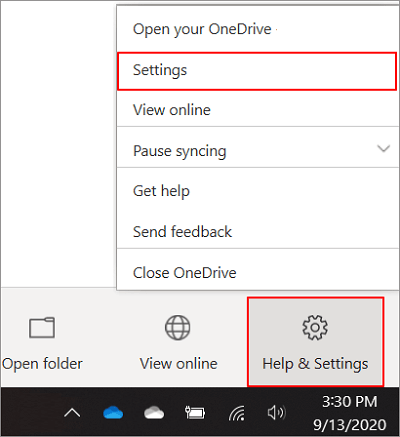
Step 1. Click the OneDrive icon on your PC, select "Help & Settings" > "Settings".
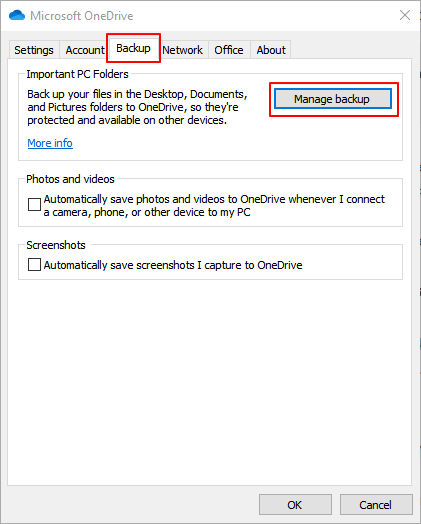
Step 2. Go to the Backup tab and click "Manage backup".
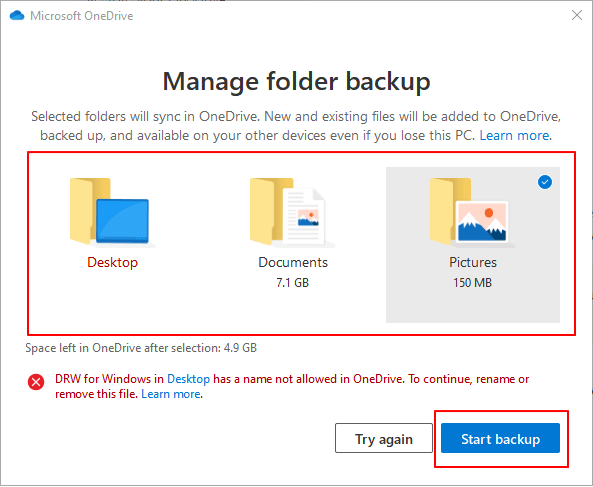
Step 3. On the Manage folder backup window, select folders to backup to OneDrive. And click "Start backup".
Note:
1. The Desktop files are selected by default. Just verify and add "Documents" and "Pictures" for backup.
2. You can backup more files by dragging or saving files into the specified locations.
3. Make sure that your files in folders and Desktop have valid names, so you won't have to rename or remove them.
Solution 3. Backup Computer to Cloud via Google Drive Backup
Tool Name: Google Drive Sync and Backup
Supported Cloud Drive: Google Drive
Pros & Cons:
Pros: To ensure your important files and data are safe, back up your files, folders, and external hard drive data to Google Drive. This will provide a secure and accessible copy of your information, allowing you to access and recover your data in case of any issues or system failures.
Cons: Files outside of the Google Drive folder cannot be backed up.
How to Use:
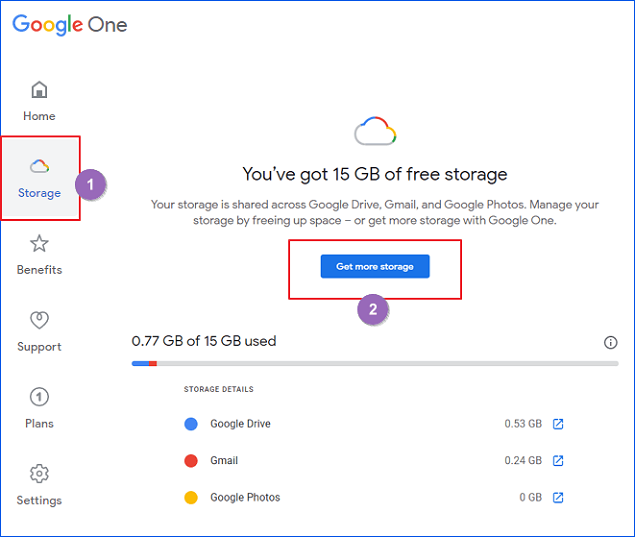
Step 1. Check the storage in Google Drive.
To check the available storage space on Google Drive, you can log in to your account and click on the "Storage" option.
If your storage is not sufficient, click "Get more storage" to upgrade your plan. This will allow you to increase your storage capacity and avoid any potential issues with running out of space.
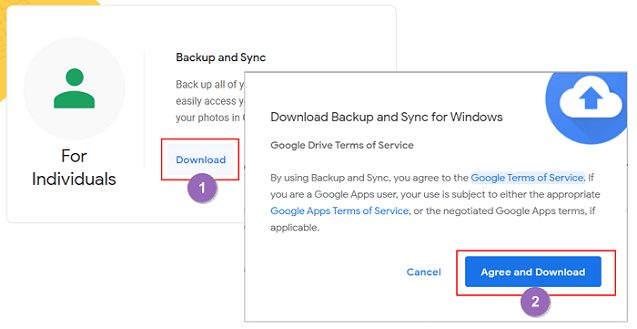
Step 2. Download and install the Backup and Sync app provided by Google on your computer.
To download Google Drive, visit the Google Drive website at https://www.google.com/drive/download/, click on "Download" under the Backup and Sync section, and then click on "Agree and Download" on the popup window.
Step 3. Choose folders that you need to backup from the computer to Google Drive. Click "Next" to continue.
- Launch Backup and Sync > Sign in with your account.
- At the My Computer section, the default selected folders are Desktop, Documents, and Pictures. You can also click on "CHOOSE FOLDER" to select additional folders and then click "Select Folder" to add them to the backup list.
- If you need to backup photos and videos from your computer to Google Drive, check the "High quality" option. This will ensure that your files are uploaded in the highest quality possible, preserving their original resolution and clarity.
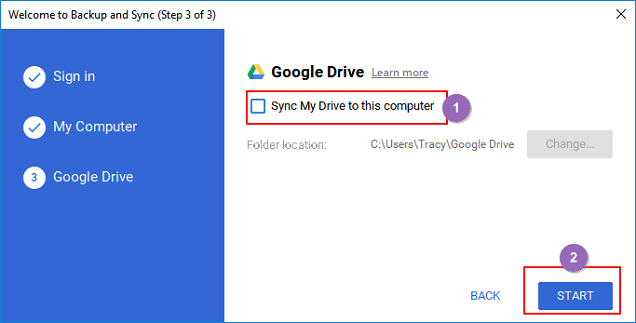
Step 4. Backup selected folders on the computer to Google Drive.
Uncheck "Sync My Drive to this computer" > click "Start".
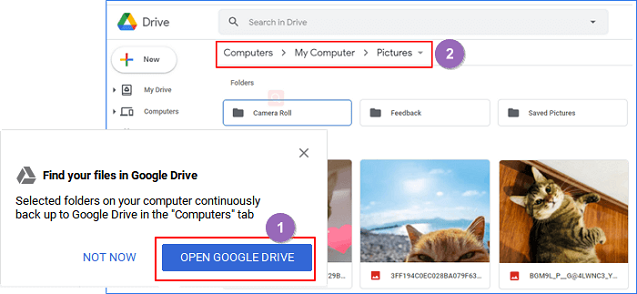
Step 5. Wait for the backup process to complete, check computer files in Google Drive.
To check the backup process, simply verify that all computer content has been backed up to the cloud. Once the process is complete, click "OPEN GOOGLE DRIVE" to access the cloud storage and review the backed-up content.
Solution 4. Backup Entire Computer to Cloud with Dropbox
Tool Name: Dropbox
Supported Cloud Drive: Dropbox
Pros & Cons:
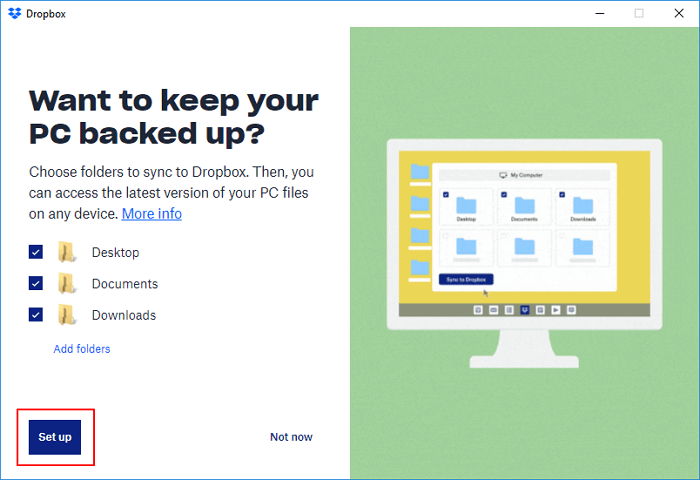
Pros: Back up Desktop, Documents, and Downloads to Dropbox.
Cons: Files outside these locations cannot be backed up to Dropbox.
How to Use:
Step 1. Download and install the Dropbox desktop app on your computer.
Step 2. Launch Dropbox, click "Backups" > "Set up".
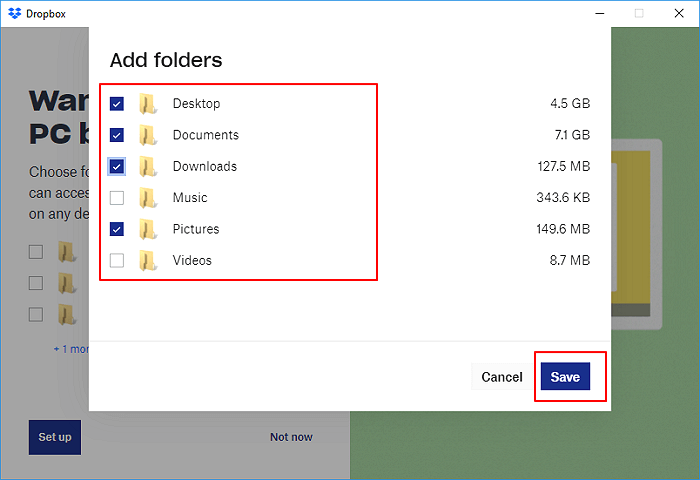
Step 3. Click "Add folders" to select more folders that you want to backup and click "Save" to confirm.
The Desktop, Documents, Downloads folders are selected by default.
Step 4. Click "Set up"
Solution 5. Backup Entire Computer to Cloud with Backblaze
Tool Name: Backblaze
Supported Cloud Drive: Backblaze
Pros & Cons:
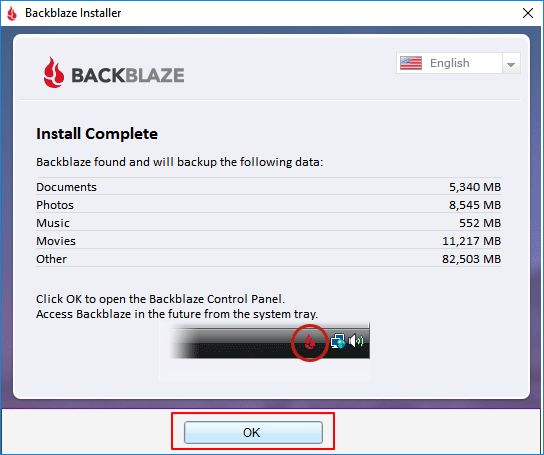
Pros: Back up Documents, Photos, Music, and Movies to Backblaze.
Cons: The computer is unable to select or back up files in other locations.
How to Use:
Step 1. Register and sign in to Backblaze account on this page: https://secure.backblaze.com/user_signin.htm
Step 2. Install and launch the Backblaze app.
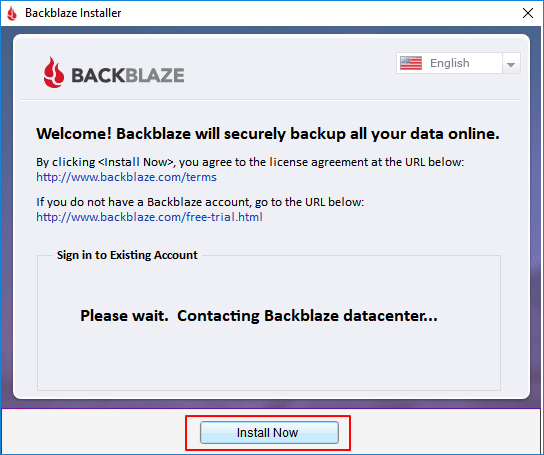
Step 3. Once complete installation, Backblaze will automatically backup detected files on your computer to the cloud. Click "OK" to confirm.
Supported computer files are Documents, Photos, Music, Movies, etc.
Solution 6. Backup Entire Computer to Cloud with IDrive
Tool Name: IDrive
Supported Cloud Drive: IDrive
Pros & Cons:
Pros: Back up Dekstop, Documents, Music, Pictures, Videos to the cloud.
Cons: The setup process requests excessive permissions and alters default computer settings, which can be inconvenient and potentially intrusive.
How to Use:
Step 1. Sign up for IDrive and install its desktop application.
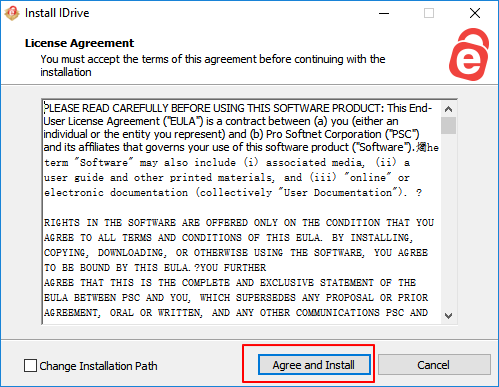
Step 2. Launch the application and sign in with the IDrive account.
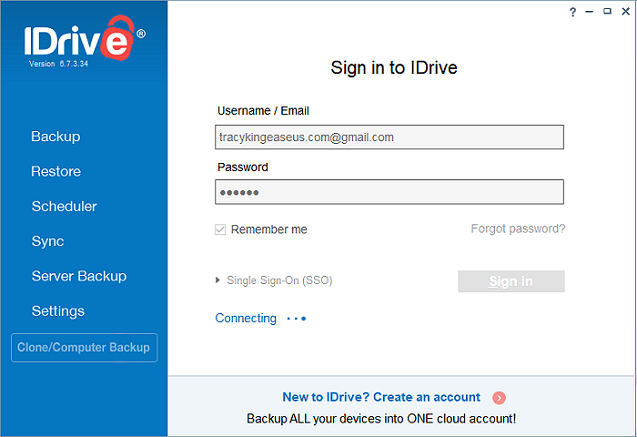
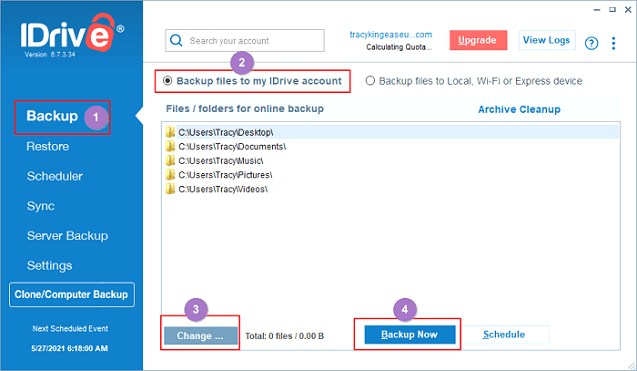
Step 3. To back up files to your IDrive account, click "Backup" and select the files and folders you want to save. Check the box "Backup files to my IDrive account" and click "Change" to confirm your selection. Then, click "Backup Now" to initiate the backup process.
The default selected folders on a computer are Desktop, Documents, Music, Pictures, and Videos.
Solution 7. Backup Entire Computer to Cloud with Carbonite
Tool Name: Carbonite
Supported Cloud Drive: Carbonite
Pros & Cons:
Pros: Back up Photos, Music, Documents, and external hard drive data to Carbonite.
Cons:
The setup process asks for too many permissions.
You're referring to the Windows 10 Settings app. It's a built-in tool that allows users to customize various settings on their computer. Some of the changes it makes include changing the default search engine, setting up a Microsoft account, and configuring other settings.
The backup process is currently running and cannot be stopped, but you can pause it temporarily.
Once launched, no quit option is available.
How to Use:
Step 1. Sign up for Carbonite and install the desktop application.
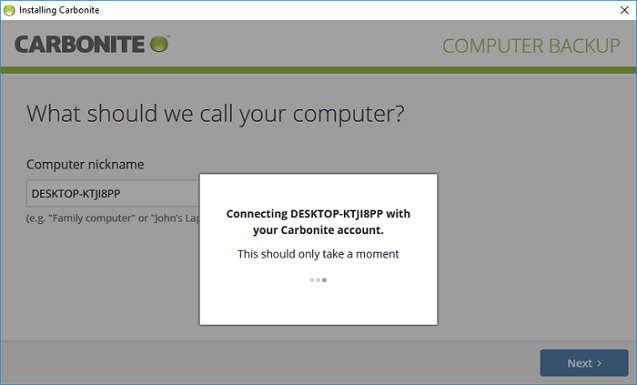
Step 2. Click "Start backing up" once the installation process completes.
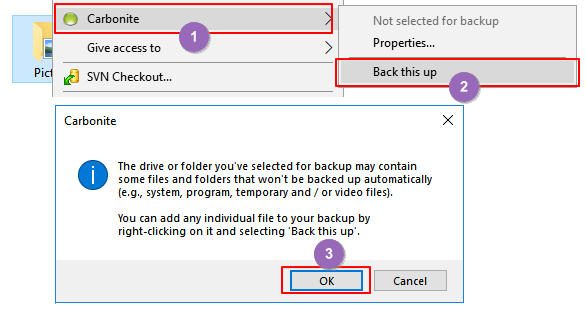
Step 3. Click "Add files to your backup" and learn how to add files to the backup list.
Step 4. To back up a folder using Carbonite, right-click the folder on your desktop, select "Carbonite" and then "Back this up", and click "OK" on the confirmation popup.
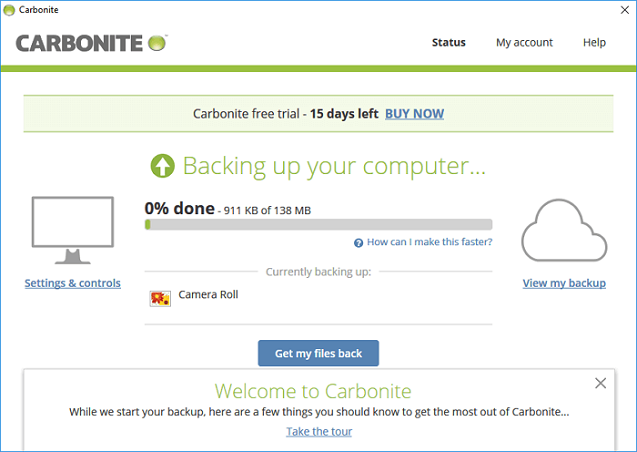
Step 5. Carbonite will automatically backup selected computer files to its cloud drive.
What Is the Best Way to Backup Entire Computer to Cloud? Cloud-Based Backup Tool Goes First!
When backing up your computer to a cloud drive, start by registering and purchasing a cloud storage service.
Here, on this page, we tested 6 cloud storage services, including OneDrive, GoogleDrive, Dropbox, Backblaze, IDrive, and Carbonite, and our Editor's Pick is.
- Budget Cloud Storage - GoogleDrive
- Secure Cloud Storage - Dropbox
- Online Collaboration Cloud Storage - OneDrive
- The best computer to cloud backup solution is a combination of Google Drive and Qiling Backup. This setup allows for seamless backup and synchronization of your computer's files to the cloud, ensuring that your data is safe and easily accessible from anywhere.
For a complete backup solution, we recommend using a cloud-based backup tool like Qiling Backup, as the six cloud storage options tested only backed up partial files on the computer. This provides a more comprehensive way to back up the entire computer to the cloud.
Your computer data is precious, so it's crucial to consider the hard drive storage space. To ensure your data's safety, consider switching to a suitable cloud storage solution to backup your computer to the cloud now.
Related Articles
- How to Clone Windows 10 Operating System
- How to Clone SSD to Larger SSD in Windows 10/8/7
- COVID-19 Safely and Effectively Work from Home Backup and Recovery Plan
- [Solved] Upgrade or Clone PS3/PS4 Hard Drive to a Larger Drive
- Hard Disk Backup in Windows 10/8/7 [Beginners' Guide]
- What Is A System Image? Everything You Need to Know About Creating System Image Backups
- How to Create a NAS to NAS Backup for Synology/QNAP/Buffalo [2022 Tips]
There are two ways to create a NAS to NAS backup: using a manufacturer's appliance or running a NAS backup and recovery software. Qiling Backup is a tool that allows for a NAS to NAS backup with a few clicks, making it easy to back up your NAS data.
Products
Articles & Tutorials
- Data Recovery
- Data Backup
- File Recovery
- File Backup
- System Backup and Restore
- Disk and Partition Clone
- Technical articles
- Mobile articles
- Disk Master Help
- Windows Data Recovery Tutorials
- Windows Secure Delete Tutorials
- Windows Partition Management Tutorials
- Windows File Backup and Restore Tutorials
- Windows System Backup and Restore Tutorials
- Windows Disk Backup and Restore Tutorials
- Windows Clone Tutorials