Backup Files & Programs before Factory Reset Windows 10 PC
If your Windows 10 machine is acting up, you may need to clear junk files or reset it to its factory settings, but first back up your data to avoid loss.
Back up Data Before Factory Reset
To safely backup files and installed programs before factory resetting a Windows 10 computer, use a reliable Windows backup software like Qiling file backup software, which offers advanced and flexible backup features to backup your system, files, settings, disks, and partitions with ease.
To back up files and installed apps before factory resetting Windows 10, follow these steps:
Step 1. Launch Qiling Backup software and then choose "File", "Disk/partition" or "System" for different backup purpose.

Step 2. To back up your computer, select the items you want to save (such as files, apps, or a system), and choose a destination where the backup file will be stored.

Step 3. Click "Proceed" to start the data backup process.
You can find information on backing up and transferring apps and programs on that page.
Steps to Factory Reset Windows 10
After the backup, you can start the factory reset process.
Step 1: To access the Windows 10 reset feature, go to Settings, then Update & Security, followed by Recovery. Click on the "Reset this PC" header and select "Get started".
Step 2: The user needs to decide whether to keep their data files or remove everything, with the settings returning to their defaults and apps being uninstalled in either case.
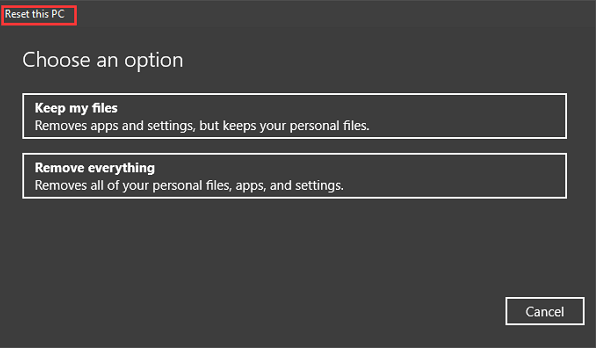
Step 3: Click "Next" if Windows warns you that you won't be able to roll back to a prior version of the OS. Click "Reset" when prompted. Click "Continue" when prompted.
After restarting the PC, reinstall the apps and configure the settings. If the system still crashes, it may be due to a hardware issue, requiring a hardware engineer to inspect the system for any problems.
Related Articles
- How to Backup SD Card Before Formatting [2021 Updated]
- How to Create Windows To Go with Non-certified USB Flash Drive
- Automatically Copy Files from One Folder to Another
- How to Backup PC Files to Dropbox
- Fully Ghost Windows 10 64 Bit/32 Bit with Windows 10 Ghost Software
- How to Automatically Backup Files to An External Hard Drive in 3 Ways
- Is It Possible to Create an ISO Image from an Installed OS?
Is it possible to create an ISO image from an installed OS? Do you want to get the answer? This post will answer whether you can create an ISO image of your installed operating system and offer Qiling Disk Master to help you.
Products
Articles & Tutorials
- Data Recovery
- Data Backup
- File Recovery
- File Backup
- System Backup and Restore
- Disk and Partition Clone
- Technical articles
- Mobile articles
- Disk Master Help
- Windows Data Recovery Tutorials
- Windows Secure Delete Tutorials
- Windows Partition Management Tutorials
- Windows File Backup and Restore Tutorials
- Windows System Backup and Restore Tutorials
- Windows Disk Backup and Restore Tutorials
- Windows Clone Tutorials