How to Backup and Restore Microsoft Outlook 2016(Windows Tutorial)
Outlook is a personal information manager from Microsoft that can be used as a stand-alone application or connected to a Microsoft Exchange Server or SharePoint Server for email, calendar, and contact management.
Backing up and restoring your Microsoft Outlook 2016 data is crucial in case of data loss, and this tutorial will guide you through both manual and automatic methods. It's essential to back up your Outlook data to prevent losing important emails, contacts, and other information. This process will also be covered in the tutorial, along with some frequently asked questions and the importance of backing up your Outlook data. Additionally, we shows you how to manually and automatically back up and restore your Outlook 2016 data, ensuring your valuable information is safely preserved.

You may be interested:
The Importance of Backing Up Microsoft Outlook
Data loss in Outlook can happen due to various reasons, including accidental deletion, hard drive crashes, or computer virus infections. If your Outlook data is lost, you may lose essential emails, contacts, tasks, and more. Even with a backup, lost data might not be retrievable. To avoid this, it's crucial to regularly back up your Outlook data.
Backing up your Outlook 2016 data can be done through two methods: manual backup and automatic backup. Manual backup involves using Outlook's built-in Import/Export Wizard to save your data, while automatic backup relies on third-party software that periodically backs up your Outlook data, providing a more hands-off approach to data preservation. We will explore both methods in this tutorial.
- Notice:
- Both methods are suitable for Microsoft 2016, 2012, and 2019.
Backup & Restore Outlook with Manual Way
Outlook's Import/Export Wizard enables users to export data in PST format, allowing for backup and restoration of Outlook data.
- Editor's Recommendation:
- Using the Import/Export Wizard can be a manual and time-consuming process. In contrast, Qiling Backup offers a more efficient option by allowing you to schedule backups automatically, saving you time and effort. This feature also provides flexibility in choosing multiple target locations for your backups, including internal and external hard drives, Cloud services, network locations, and security zones.
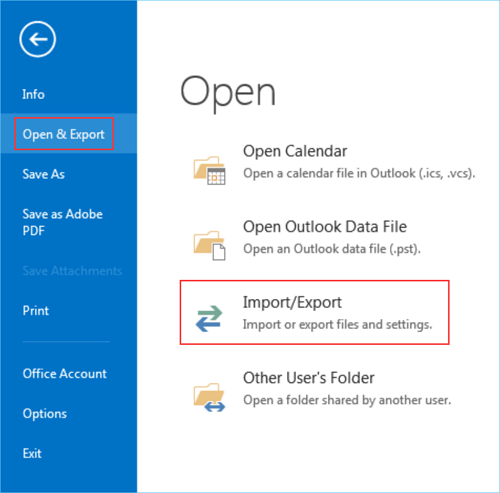
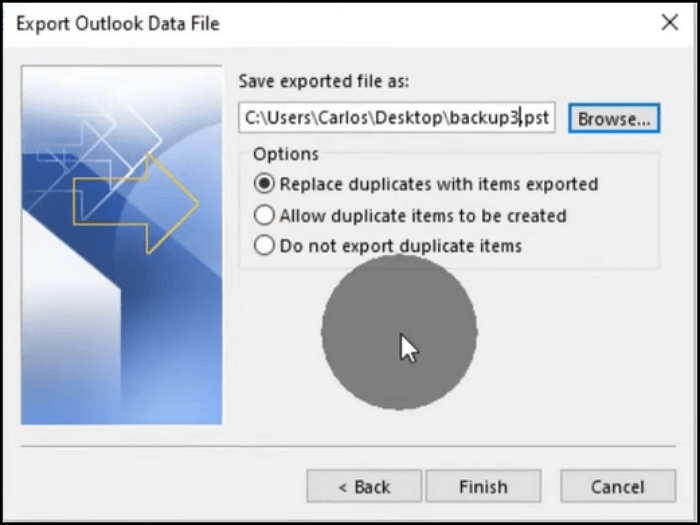
To back up Outlook using the Import/Export Wizard, follow these steps: Open Outlook, go to File > Open & Export > Import/Export Wizard, select "Export to a file" and choose Outlook Data File (.pst) as the file type, select the items to export, choose a location to save the file, and click Finish.
Step 1. To import data into Microsoft Outlook 2016, go to File > Open & Export > Import/Export.
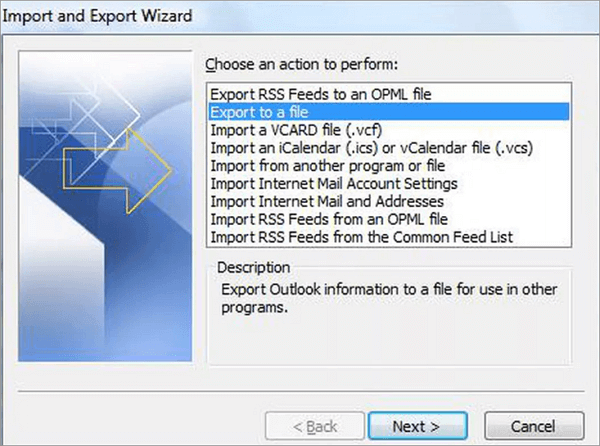
Step 2. On the Import and Export Wizard window, select and tap "Export to a file" and click Next.
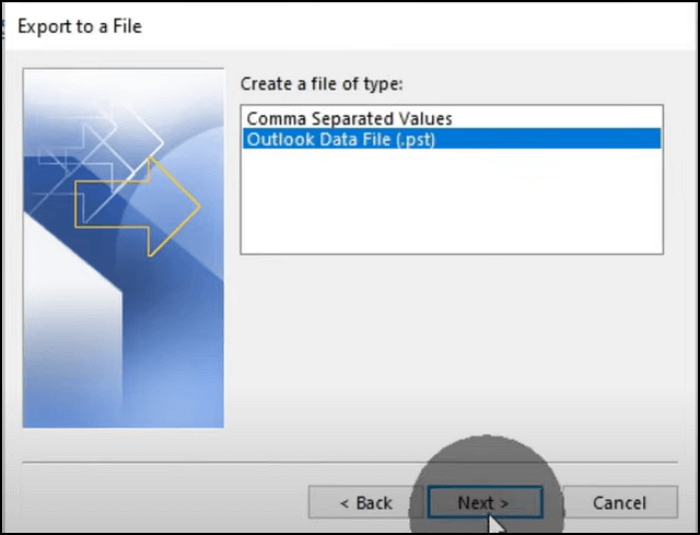
Step 3. To import an Outlook data file, go to the File tab, click on Open & Export, and then select Import from another program or file. Choose Outlook Data File (.pst) and click Next.
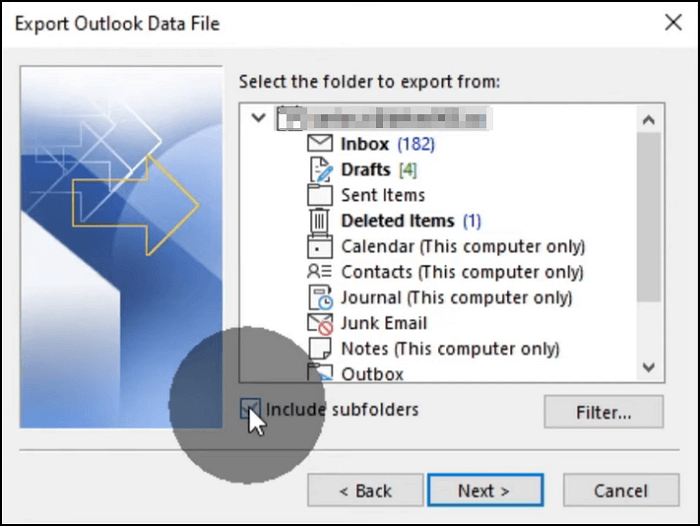
Step 4. Select the emails you want to export and click Next on the next page.
Step 5. Go to the desired location for the backup file, then click Finish to complete the process.
To restore Outlook using the Import/Export Wizard, follow these steps:
Step 1. To import data into Microsoft Outlook 2016, go to File > Open & Export > Import/Export.
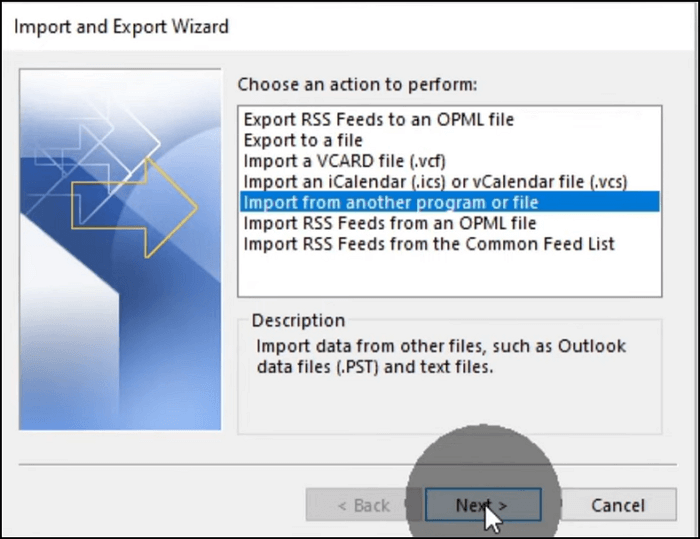
Step 2. On the Import and Export Wizard window, select "Import from another program or file" and click Next.
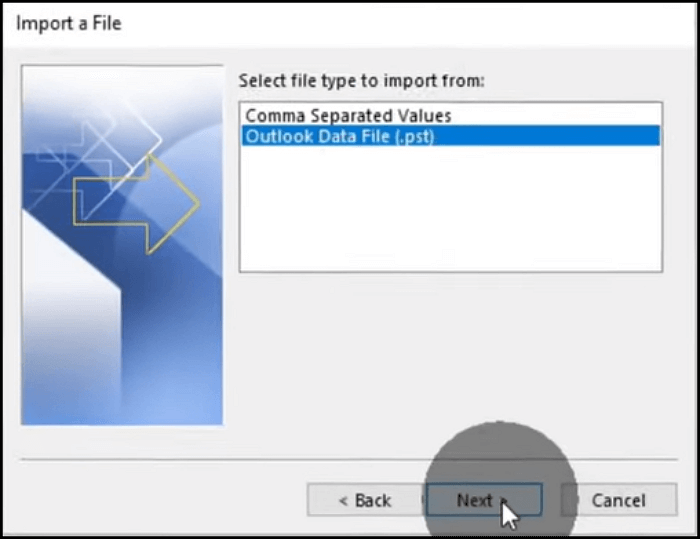
Step 3. To proceed, select Outlook Data File (.pst) from the available options and click the "Next" button.
Step 4. To restore the system, browse to the location of the backup file and click Next.
Step 5. On the next window, choose the data that you want to import and click Finish.
Backup & Restore Outlook with Automatic Way
To automatically back up your Outlook data, you can use a third-party software like Qiling Backup Home, which allows you to schedule backups and restore data with ease. This software also enables you to clone your hard drive or migrate data to another computer.
To back up Outlook using Qiling Backup, follow these steps: You can use Qiling Backup to back up your Outlook data, including emails, contacts, and calendar events. This allows you to easily restore your Outlook data in case of a system crash or other data loss event.
Step 1. Launch Qiling Backup on your computer, and click File Backup on the home screen.

Step 2. To make a backup of your emails and contacts, select the mailbox addresses you want to back up from your Microsoft Outlook database folder.
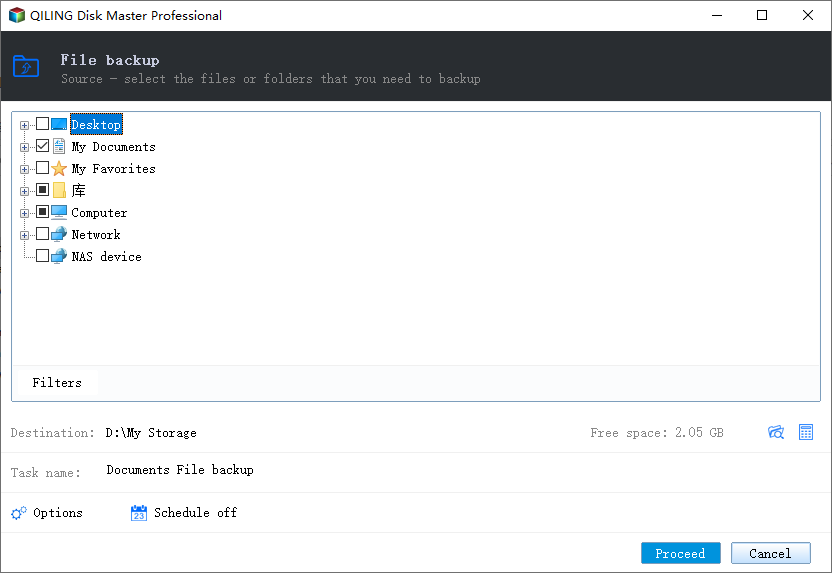
Step 3. To save the Outlook backup, choose a location by clicking the illustrated area.
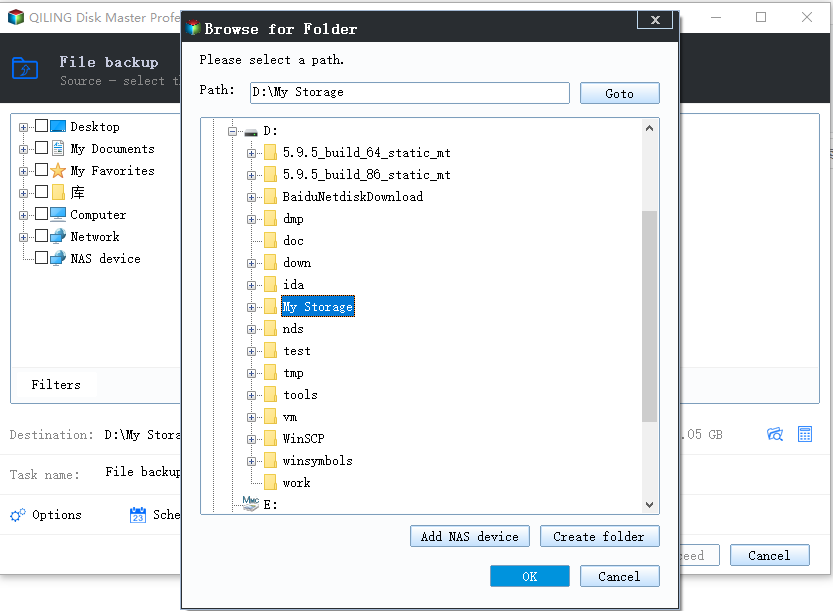
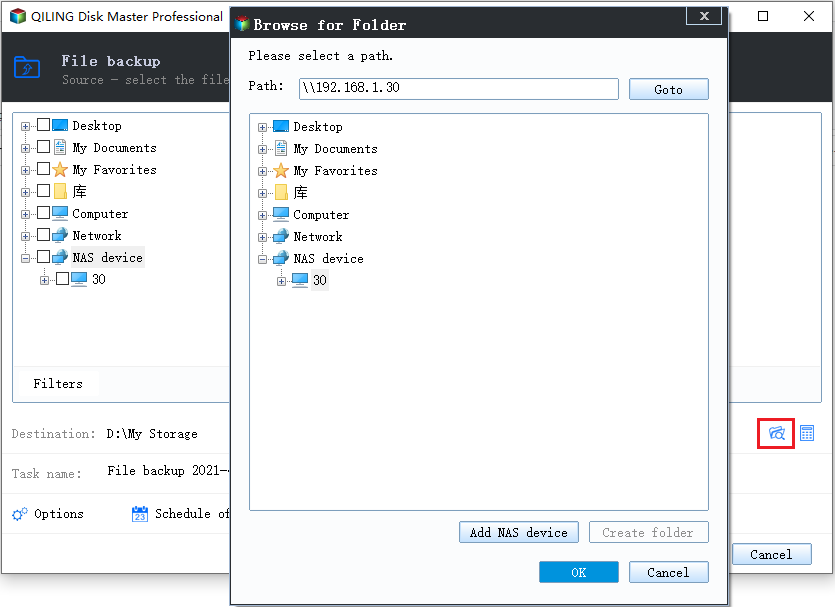
Step 4. The backup location can be another local drive, external hard drive, network, cloud, or NAS, with external physical drives or cloud being preferred options for preserving backup files.
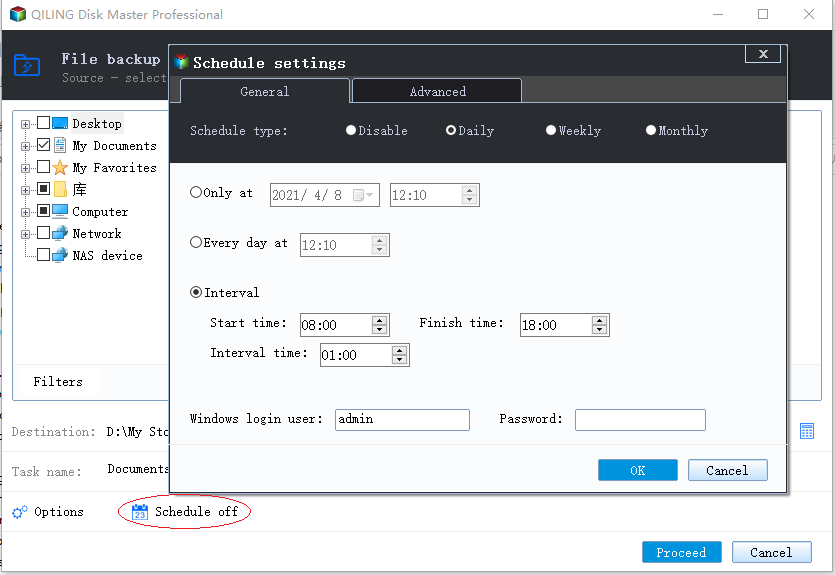
Step 5. Customization settings, such as setting an automatic backup schedule in daily, weekly, monthly, or upon an event, and making a differential and incremental backup, are available in the Options button. Clicking "Proceed" initiates the Outlook backup process, which can be monitored on the left side in a card style once completed.
To restore Outlook backups with Qiling Backup, follow these steps: First, download and install Qiling Backup from the official website. Then, launch the software and click on the "Restore" button to select the backup file you want to restore.
Step 1. Launch Qiling Backup, click "Browse to Recover".
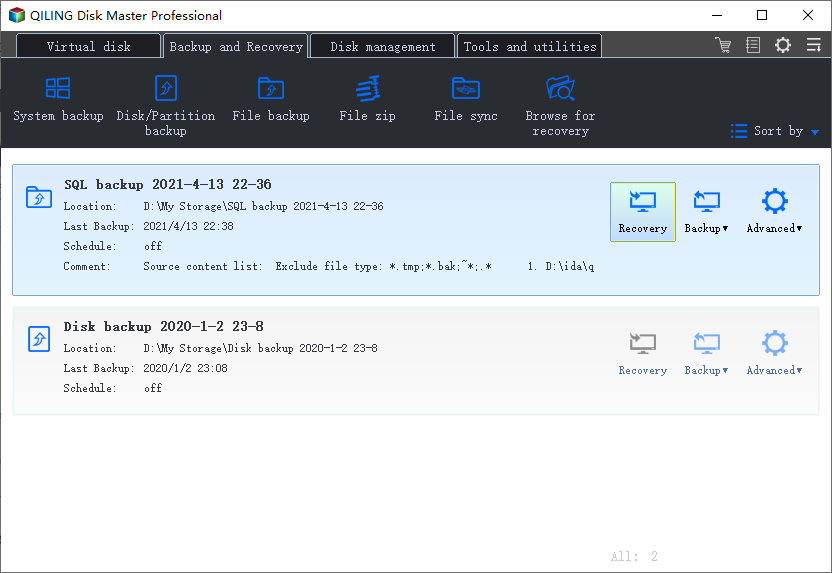
Step 2. To recover your backup, navigate to your chosen backup destination, select the desired backup file, and proceed with the recovery process. Note that the backup file created by Qiling Backup is typically in the .fvd format.
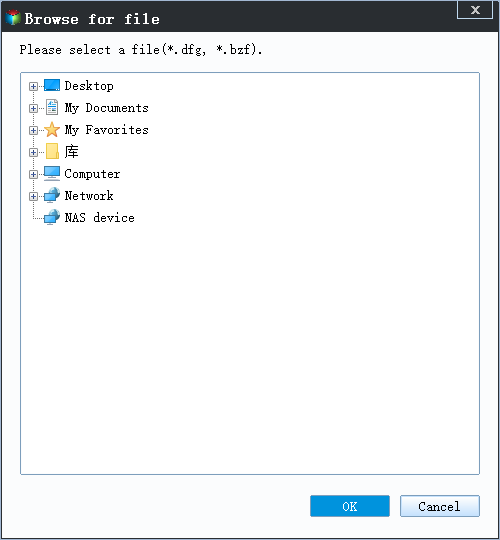
Step 3. You can recover data to a specific location or to the original location.
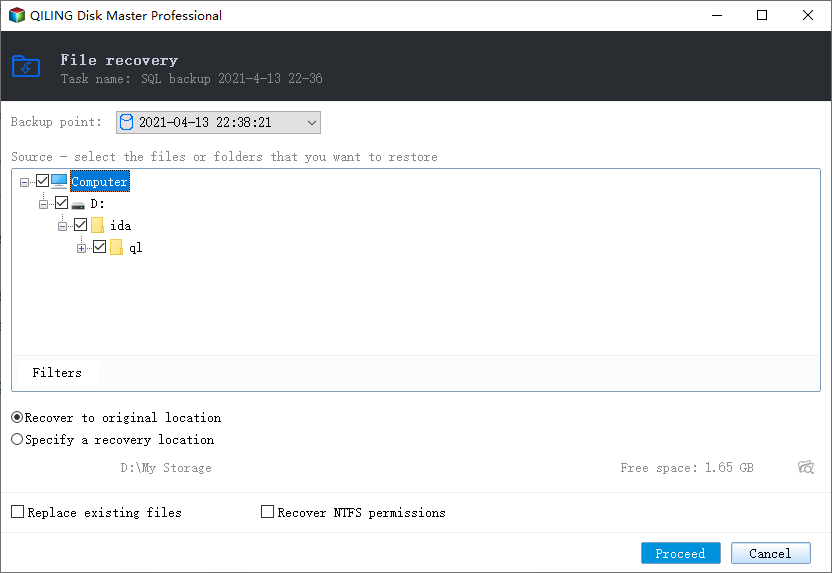
Step 4. Click "Proceed" and the recovery would start.
Conclusion
Backing up and restoring Microsoft Outlook 2016, 2019, or 2013 involves either manual or automatic methods. The Import/Export Wizard provides a software-free solution to back up and restore PST files, but it only allows storage on internal or external hard drives. However, users may experience data loss or process freezes using this method, according to some feedback.
The automatic solution for backing up and restoring Outlook data takes advantage of multiple target backup locations, ensuring no data loss during the process. This is in contrast to the manual method, and tools like Qiling Backup can be utilized to achieve this.
FAQ on Backup and Restore Microsoft 2016
1. Can I back up all my Outlook emails?
To back up all emails, choose all email folders as the backup source and select the desired location to save them.
2. How do I restore my Outlook to a new computer?
To restore Outlook on a new computer, back up all data on the old computer, install Outlook on the new one, and then follow the steps to restore the backups.
3. How do I recover my Outlook 2016 PST file?
If you have a PST file backup, you can directly restore it to Outlook 2016. Otherwise, you'll need to repair the corrupted PST file and then import it into Outlook 2016.
Related Articles
- Clone GPT Disk in Windows 10 - This Method Would Work!
- How to Compress Backups with a Free Backup Tool
- How to Move Windows 10 Installation to Another Drive(SSD/HDD)
- How to Backup and Restore Information in Firefox Profile (Manual & Automatic Ways)
- How to Backup Your Files in Windows 11 and Downgrade Back to Windows 10
Back up files in Windows 11 before downgrading to Windows 10, then restore your documents, photos, and app data safely afterward. - How to Clone Hard Drive with Different Sector Size
If you're wondering how to clone a hard drive with different sector sizes, this guide includes can help. By the end of it, you'll know the process of cloning a hard drive with varying sector sizes.
Products
Articles & Tutorials
- Data Recovery
- Data Backup
- File Recovery
- File Backup
- System Backup and Restore
- Disk and Partition Clone
- Technical articles
- Mobile articles
- Disk Master Help
- Windows Data Recovery Tutorials
- Windows Secure Delete Tutorials
- Windows Partition Management Tutorials
- Windows File Backup and Restore Tutorials
- Windows System Backup and Restore Tutorials
- Windows Disk Backup and Restore Tutorials
- Windows Clone Tutorials