Automatically Copy Files from One Folder to Another
Can I automatically Move Files from One Folder to Another
You can use the built-in Windows tool, "File History", to automatically copy your files from the D drive to another folder. This tool allows you to set up a backup schedule and destination folder, so you can easily keep your files safe. Alternatively, you can also use third-party backup software like Qiling to automate the process. Simply select the files you want to backup, choose a schedule, and let the software do the rest. This way, you'll have a secure copy of your important files in case of any unexpected data loss.
Automatically Transfer Files from One Folder to Another
Many users store important files on their PC but often forget to back up their data, leaving them vulnerable to unexpected data loss due to system issues, disk corruption, or other unforeseen reasons.
Qiling Backup, a professional and easy-to-use backup tool, has a utility called File Backup that allows you to copy files from one folder to another by setting a schedule. This tool creates an image of your file daily, weekly, or at a specific time, ensuring your files are safely backed up.
You can preview an image, but to edit it, you need to copy it elsewhere or use a recovery tool. The edited image takes up less space than the original, while maintaining the same content.
Advantages of Qiling Backup:
- Backup and restore complete partitions or hard drives
- Restore single files or folders
- Space-To save space, the backup is compressed into an archive, and free space is left out to make it more compact.
- Easy to handle
- Greatest flexibility
How to Copy Files from One Folder to Another
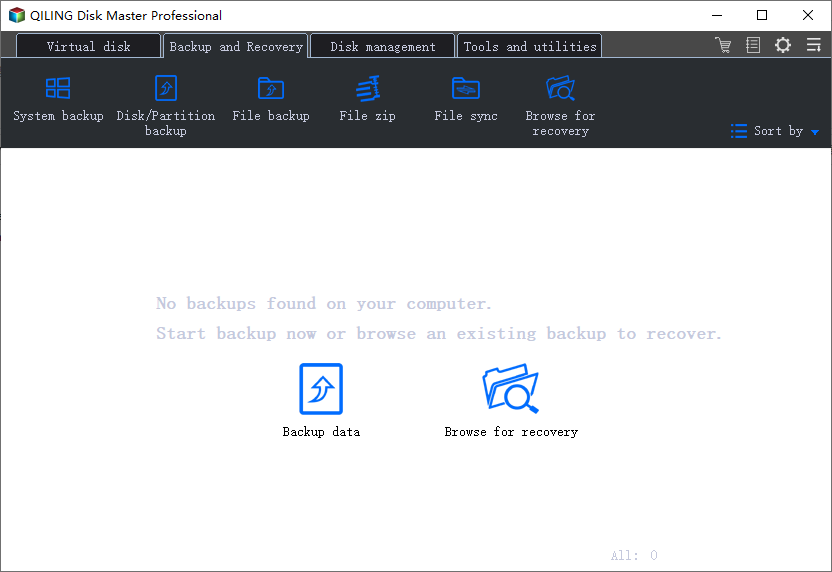
Step 1. Launch Qiling backup software and choose "File backup" to copy files from one folder to another.
Step 2. Select the files or folders you want to copy.
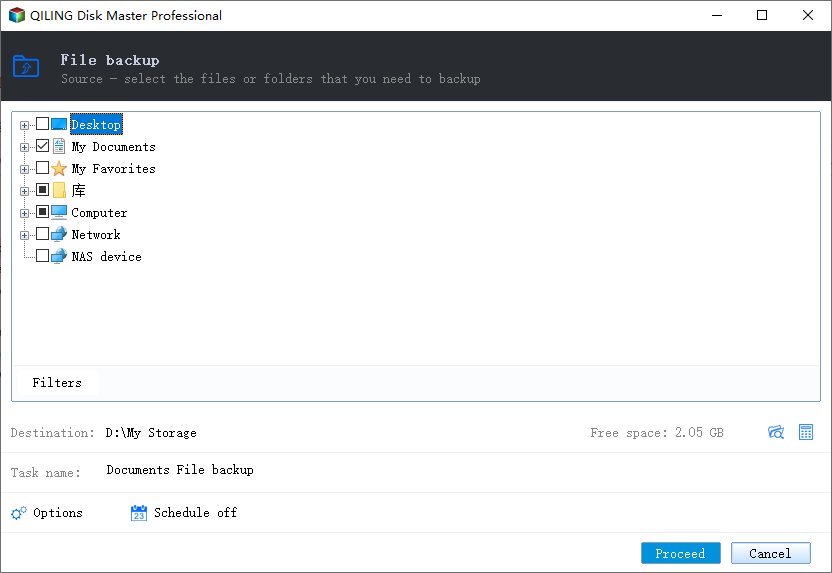
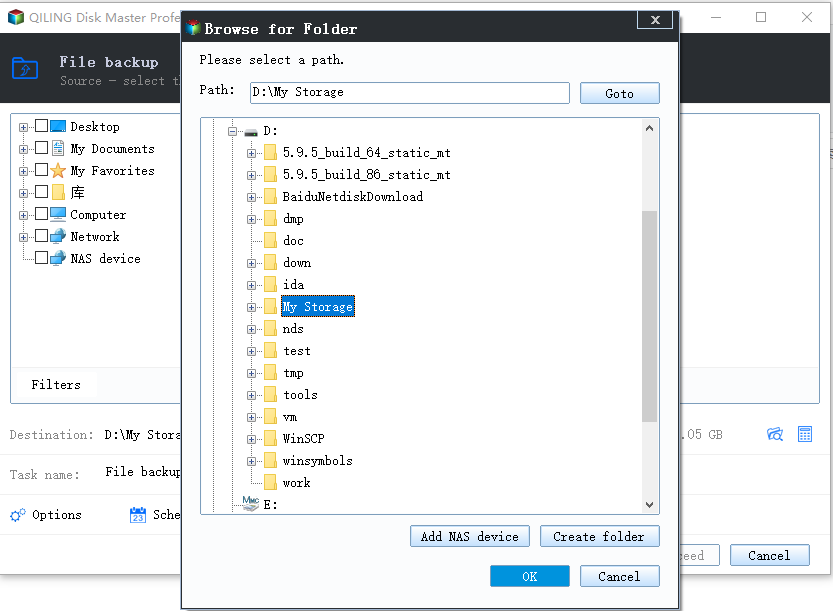
To save a copy of a file, click on "Copy" and then select the desired storage location, known as the "Destination", where you want to save the file. You can also specify a "Plan name" and add a "Description" to the file for organizational purposes.
Step 3. To schedule a backup plan, click on the "Schedule" option, which will open the Backup Scheme window. This is where you can set up a plan to automatically copy files at a later time, whether it's daily, weekly, monthly, or triggered by a specific event.
You can set a specific time, like 5 pm, and the script will automatically copy the files every day at that time.
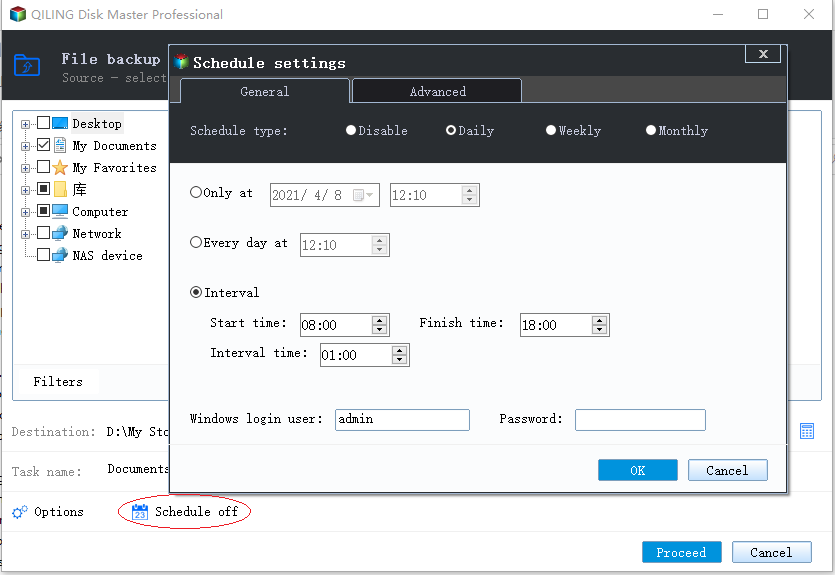
Step 4. Click "Save" to keep the changes, and click "Proceed" to copy files from one folder to another.
How to Verify Scheduled Copies and Handle Conflicts
Set the schedule only after a successful manual run. A scheduled copy is dependable when the source and destination are on local NTFS drives, the destination has room for one full copy, and the task account can read every subfolder; this guide to backing up specific folders covers folder selection. Network destinations add a failure point: the mapped drive letter must exist when the job starts, and the PC must be awake.
Verification is simple. Let one scheduled run finish, then compare file counts and total sizes in both folders, open two or three recent documents from the destination, and confirm their timestamps match the source. Check the task log for skipped or locked files rather than trusting a green status. A command-line comparison, as shown in this Command Prompt copy guide, lists exactly what changed.
Common traps include files held open by Outlook or a database, paths longer than 260 characters, and mirror modes that delete destination files when the source changes. Decide in advance whether deletions should propagate; if not, use an additive copy. Redirected or cloud-only folders must download fully first, so an automatic backup to an external drive is often safer for long-term copies.
Related Articles
- How to Fix Error Code 0x80070002 in Windows Update
- How to Clone a Bootable Hard Drive in Windows 10/8/7
- Copy/Move Windows.old Folder to External Hard Drive
- How to Backup SD Card to Google Photos [Everything Your Need to Know]
- Upgrade 32 Bit to 64 Bit in Windows 10 Without Losing Data
- Fully Ghost Windows 10 64 Bit/32 Bit with Windows 10 Ghost Software
- Bese Free SQL Backup Software
You can download a highly recommended free SQL Server backup software from Qiling and use it for free with a 30-day trial to effectively back up your SQL database.
Products
Articles & Tutorials
- Data Recovery
- Data Backup
- File Recovery
- File Backup
- System Backup and Restore
- Disk and Partition Clone
- Technical articles
- Mobile articles
- Disk Master Help
- Windows Data Recovery Tutorials
- Windows Secure Delete Tutorials
- Windows Partition Management Tutorials
- Windows File Backup and Restore Tutorials
- Windows System Backup and Restore Tutorials
- Windows Disk Backup and Restore Tutorials
- Windows Clone Tutorials