Fix WD External Hard Drive Not Showing Up/Recognized Error [2022 Tutorial]
- Posted by u/pepino358 from Reddit.com
How Do I Fix My WD External Hard Drive Not Showing Up on My Computer
External hard drive failures and sudden recognition errors are common on Windows PCs. If your external hard drive, USB drive, or SD card stops working or does not appear on your PC, try the quick fix and the four methods below to make the device accessible again.
Solutions here support to fix:
- WD elements not showing up
- WD hard disk not detected
- WD easystore not showing up
- WD discovery not finding drive
- WD my boot not showing up
- etc., more issues
In this article, you'll learn:
- Quick Fix WD External Hard Drive Not Showing Up
- Fix WD External Hard Drive Not Showing Up [2 Efficient Solutions]
- Bonus Tip: Fix WD External Hard Drive Not Working
- Extra Tip: WD External Hard Drive Recovery Solution
- FAQs About WD External Hard Drive Not Showing Up
Quick Fix WD External Hard Drive Not Showing Up/Detected/Recognized Error
If your WD external hard drive is not being detected, recognized, or showing up, you can try fixing it on your own by following a quick guide. Start by checking the cable connection to ensure it's securely plugged into both the computer and the drive.
1. Change the USB port/Cable to detect WD external hard drive.
If this doesn't work, continue with the following guidelines.
2. To open Device Manager, click Start, type devmgmt.msc in the Search box, and then click Enter.
3. Open Device Manager > Expand Universal Serial Bus controllers.
4. Right-click on the USB Root Hub > Select Properties.
5. To prevent your computer from turning off the power management for your device, go to Power Management, and uncheck the box that says "Allow the computer to turn off this device to save power".
After the PC is rebooted, reconnect the WD external hard drive to your PC and you'll be able to use it again.
If the quick fix doesn't work, you can try relaxing and following these methods to repair your not working WD external hard drive or devices.
You May Also Be Interested In: If you have essential data saved on the WD external hard drive, it's crucial to seek reliable data recovery software to help retrieve your data.
Recover Data from Western Digital Hard Disk
Western Digital/WD disk recovery tools can help recover data from damaged, corrupted, or formatted WD hard drives. With a suitable recovery tool, you can scan the drive and retrieve lost files before repairing or reformatting the device.
Fix WD External Hard Drive Not Showing Up/Detected Error [2 Efficient Solutions]
Here are the two methods to fix WD external hard drive not recognized or undetectable error in Windows 10/8/7:
Method 1. Reboot PC into Safe Mode to Check if WD External Hard Drive Shows Up
- Go to Setting > Update & security.
- Tab on Recovery > Advanced Startup > Restart now.
- PC will automatically boot into another Startup Settings screen
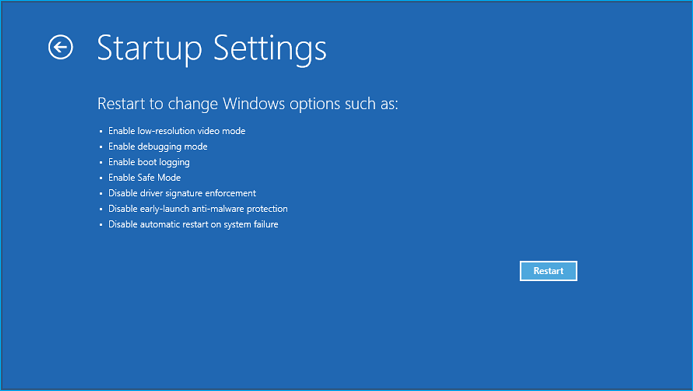
- Press F4 to initiate PC reboot into Safe Mode.
If the WD external hard disk does not show up, you can try to check if it's properly connected and powered on, then restart your computer and check again. If it still doesn't show up, you can try to format it in Disk Management or Disk Utility, or use a third-party tool to scan and repair the disk. If the problem persists, it's possible that the disk is faulty and needs to be replaced.
Method 2. Change Drive Letter to Make Urecognized WD External Hard Drive Showing Up
The other way is to change the drive letter with Disk Management tool so to make unrecognized or undetectable WD external hard drive to show up on PC:
- Right-click on This PC/My Computer > Select Manage.
- To manage your external hard drive, go to Disk Management, find your external hard drive, right-click it, and choose Change Drive Letter and Path to assign a drive letter or change the path.
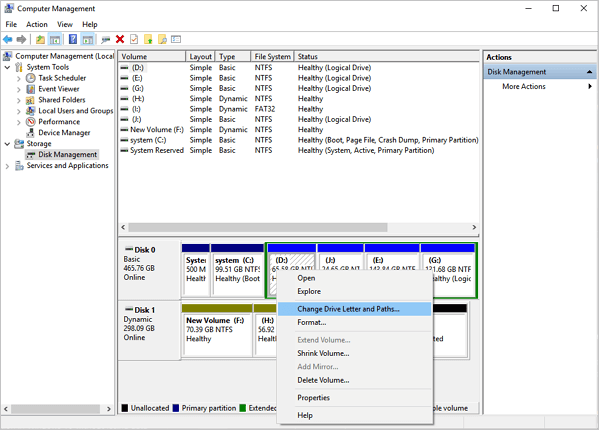
- To assign a new drive letter, go to Disk Management, select the drive, and click on "Change Drive Letter and Paths" in the context menu. Then, select "Add" and choose an unused letter from the list.
- Click OK.
- Restart PC and your External hard drive will show up and work again.
Make WD External Hard Drive Showing Up
If the WD drive still doesn't work properly after making it show up on PC, continue with fixes in the next video for help.
- 00:41 - Update USB Driver
- 01:22 - Reinstall USB Driver
- 01:56 - Create New Partitions
- 02:41 - Assign New Drive Letter
- 03:43 - Fix File System Errors
Here are the solutions mentioned above:
Bonus Tip: Fix WD External Hard Drive Not Working/Responding issue
If your WD external hard drive, USB drive, or another storage device is not working or responding on your PC, try the following methods to resolve the issue.
Method 1. Update WD External Hard Drive Driver to Make It Work
1. Click on Start > Type: devmgmt.msc in Search to open Device Manager by hitting Enter.
2. Expand Universal Serial Bus controllers > Right-click every USB device found there and select Uninstall.
3. Then check out whether any devices show up as unrecognized or not:
- If your WD external hard drive is showing as unrecognized, try uninstalling the driver from the Device Manager's drivers tab. Then, check if the drive appears in My Computer or My PC.
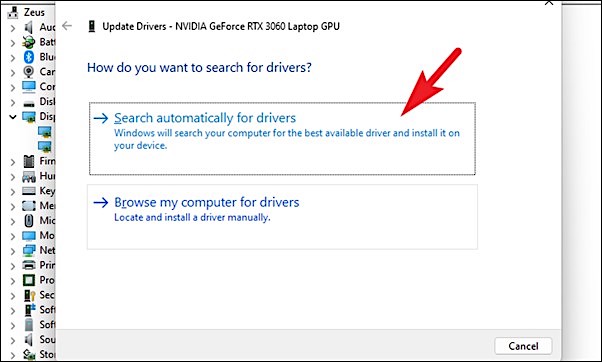
- If it doesn't show up, reboot or restart PC;
- If your Western Digital (WD) external hard drive shows up but disappears later, try repeating the steps and going to Disk Management to change the drive letter of your WD external hard drive and reconnect it to your PC. This should allow your PC to detect it again.
Method 2. Repair Corrupted System Files/Bad Sectors on Not Working WD External Hard Drive
Corrupted system files or bad sectors on external hard drives, such as WD, can cause the device to malfunction or not respond in Windows PCs, preventing normal functioning.
Professional partition manager software from Qiling can repair bad sectors and fix corrupted system files, making it possible to revive a malfunctioning WD external hard drive. To fix the issue, simply download and install the software, then follow the guide steps to resolve the bad sectors and corrupted system files on your drive.
Extra Tip: WD External Hard Drive Recovery Solution
After fixing your external hard drive, you can continue using it to store your files again on your Windows PC.
If you have lost files or valuable data on your WD external hard drive, use a recovery solution before writing new data to the drive. Qiling hard drive recovery software offers a simple and effective way to restore lost files from your WD external hard drive on Windows 10/8/7 PCs, all within just 3 easy steps.
If you lost files after fixing WD external hard drive not working issue or cannot access saved data in your storage devices, you can free download Qiling hard drive recovery software to help recover your data.
FAQs About WD External Hard Drive Not Showing Up
If you have further questions about WD exteranl hard drive, follow and find answers here.
1. Why can't I see my WD Passport?
The WD Passport external hard drive may not show up due to various reasons, including drive letter conflicts, outdated drive drivers, and corrupted file system errors.
2. What should I do when the WD 2TB external hard drive is not showing up on my PC or in Disk Management?
- First, change usb port or usb cable.
- Reboot PC into safe mode, check if WD shows up.
- Change drive letter.
- Check file system error, fix existing bad sectors.
- Create new partition on WD.
3. Can WD hard drive be repaired?
If your WD external hard drive has multiple bad sectors, it's a good idea to use a WD hard drive repair tool like Qiling Partition Master to help recover your data. However, if the drive has too many bad sectors, it may be more practical to use a WD HDD repair tool to transfer your data to a healthy external hard drive instead.
Related Articles
- Internet Browsers Not Working after Windows Upgrade? Fix It Now!
- How to Fix File Explorer Keeps Popping Up Without Losing Data
- How to Fix Grayed Out Folders or Files on Mac
- Is My Computer Running 32-Bit-or 64-Bit Windows? How to check?
- Ransomware: The PC Viruses You Must Fight Against! [Full Guide]
Are you scared of your PC detecting a malware attack but are unaware of overcoming this situation? Today, we will explain Ransomware, the PC viruses you must fight against! - RAW to NTFS Converter Software Free Download (for Windows Only. 100% FREE)
Need a free RAW to NTFS converter? Discover the top 3 methods to convert RAW drives to NTFS without losing data, including CMD commands, Disk Management, and specialized tools.
Products
Articles & Tutorials
- Data Recovery
- Data Backup
- File Recovery
- File Backup
- System Backup and Restore
- Disk and Partition Clone
- Technical articles
- Mobile articles
- Disk Master Help
- Windows Data Recovery Tutorials
- Windows Secure Delete Tutorials
- Windows Partition Management Tutorials
- Windows File Backup and Restore Tutorials
- Windows System Backup and Restore Tutorials
- Windows Disk Backup and Restore Tutorials
- Windows Clone Tutorials