TestDisk Review (Free Download)
| Workable Solutions | Step-by-step Troubleshooting |
|---|---|
| Main Features of TestDisk | TestDisk is a free data recovery tool and is compatible with multiple operating systems...Full steps |
| TestDisk Pros and Cons | Various distinct partition schemes and file systems are fully recoverable with TestDisk...Full steps |
| A Step-by-Step TestDisk Tutorial | Install TestDisk on your PC and follow the instructions to recover data using the TestDisk...Full steps |
| Deep Data Recovery | Deep Data Recovery is the best data retrieval solution for businesses and service providers...Full steps |
Main Features of TestDisk
Losing confidential data from your Windows or Mac can be devastating. Data loss can severely impact your productivity and timelines, and if security breaches accompany it, you risk losing valuable customers.
When confidential company data is stolen, it can lead to a loss of customer trust and respect. A top-notch data recovery or backup solution can help prevent this by identifying and recovering from unrecognized file formats, unforeseen deletions, virus attacks, and corrupt documents.
TestDisk is a leading data recovery solution that helps you regain access to inaccessible files and folders. This article will provide a comprehensive review of TestDisk, covering its features, pros, and cons, to help you understand what it can do for you.
The prime features of TestDisk are shown below:
- Price: TestDisk is a free data recovery tool that can be downloaded now.
- Data Recovery: If a partition on your hard drive becomes corrupt, the data on it may become unreadable by your operating system. However, with the help of TestDisk, a free software, you can recover data from various file systems, including ext2, HFS, exFAT, JFS, NTFS, ext3, ext4, and FAT32. If you've lost a media file due to a damaged partition, PhotoRec, a satellite software of TestDisk, can specifically help you recover media files from storage devices.
- Compatibility: TestDisk is a versatile recovery tool that supports a wide range of operating systems, including Microsoft Windows (7, 8.1, 10, Vista, XP, 2000, Server 2003, 2008, NT 4.0) as well as various Unix-based systems like FreeBSD, OpenBSD, and Linux.
- Multiple Operating System Support:TestDisk supports various operating systems, including macOS, Windows, and multiple Linux and UNIX distributions, offering multi-language functionality.
- Multiple Language Support: No data recovery tool is flawless, and if you face issues while recovering files with TestDisk, contacting its customer care executive is the only way out. However, TestDisk does have a support forum facility available in languages such as English, French, and German.
TestDisk Pros and Cons
After introducing the main features of TestDisk, we'll share its advantages and disadvantages, providing a better understanding of this product. Its pros and cons will be discussed in detail.
Pros:
- File system and partition supportTestDisk can recover various distinct partition schemes and file systems.
- Charges: TestDisk is a 100% free and open-source data recovery tool that can be used and modified without any cost. Its developer accepts contributions to support and maintain the tool, making it a reliable and free option for data recovery.
- OS support: TestDisk supports Windows, Linux, and UNIX operating systems.
Cons:
- Poor UI: While PhotoRec and TestDisk are highly command-line software, they may not be ideal for users who prefer a graphical user experience. However, these tools are often used by individuals with varying levels of computer proficiency, and novices may find themselves limited to using TestDisk to gather data for tech support to analyze.
A Step-by-Step Guide to Recover Lost Data with TestDisk
This TestDisk review shares the detailed steps to install TestDisk on your PC, with the process being straightforward regardless of the OS you're using.
The following steps guide you through installing TestDisk on a MacBook Air with macOS Mojave 10.14.5.
Step1. You need to download TestDisk free version from here.
Step2. For Mac, click on the big green TestDisk 7.1 button, which will download a file called testdisk-7.1-WIP.mac_intel.tar.bz2 to your download folder.
Step3. The file was uncompressed, creating a folder named testdisk-7.1-WIP, which was then expanded, revealing many executable files for PhotoRec and TestDisk.
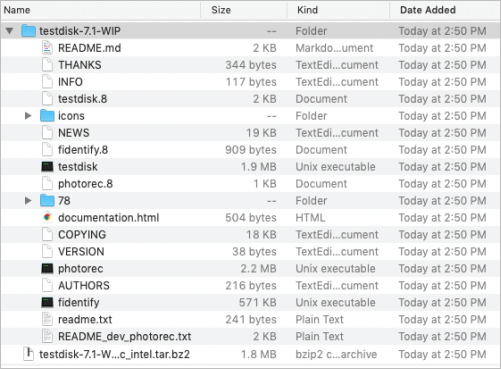
In this step-To run TestDisk, simply launch the software on a MacBook or Windows PC, and follow these steps below. This data retrieval exercise requires careful execution, but TestDisk is a reliable tool for recovering lost data.
Step1. Start TestDisk.
Step2. Choose "Create" to make a brand-new log file.

Step3. Provide your admin's password when instigated. Once you return to the program, you will see a text showcasing that this freeware has no warranty.
Step4. To quickly retrieve a disk, no partition on it can be accessed. You can go into the Disk Utility and unmount the partitions.
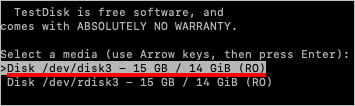
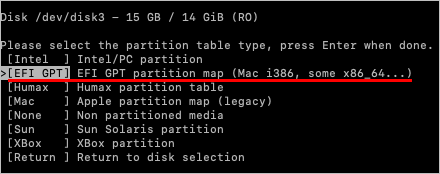
Step5. Choose the table type of the partition, and you must pre-select the EFI GPT as TestDisk had witnessed that partition type.
Step6. Choose "analyze" to have a look at the disk structure.
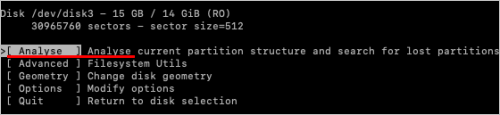
Step7. Once the disk analysis is over, your disk structure is ready to evaluate.
Step8. Carry out a "quick search" for the misplaced partition, which was unsuccessful.
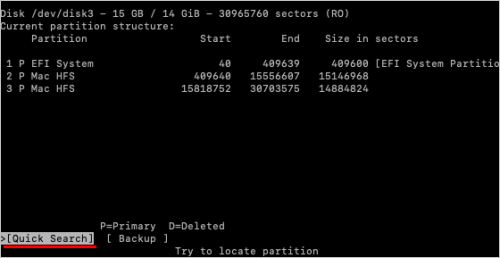
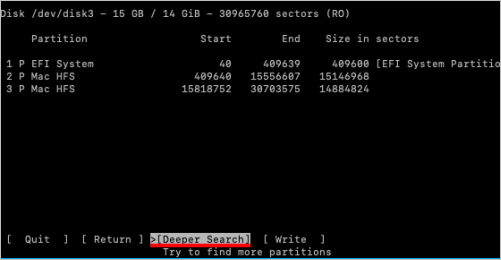
Step9. To perform a deeper search for the missing partition, you can try running a disk utility or partition manager software to scan the entire disk for any existing partitions. This can help identify if the partition was deleted, hidden, or if it's still present but not visible. You can also try using a partition recovery tool to attempt to recover the partition.
Step10. Opt for the partition, which will be retrieved, and hit the "write" button.
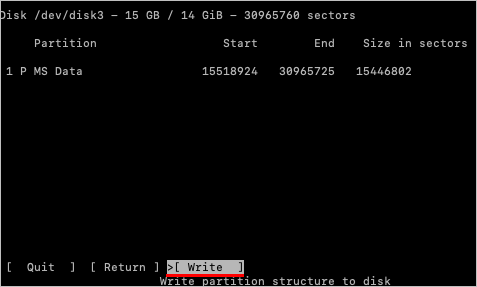
Step11. By following the prompts, you have to proceed with the retrieval.
Deep Data Recovery - TestDisk Alternative
TestDisk, being a command-For everyday users, line interface software can be cumbersome and difficult to operate. If you're looking for a more user-friendly data retrieval solution, Deep Data Recovery is a powerful alternative that can help you recover accidentally deleted files and data from formatted or damaged hard drives.
Qiling is a miraculous solution that can instantly recover lost files after emptying the recycle bin, providing a reliable alternative when TestDisk fails to retrieve data.
- Recover NAS Data: Qiling is the world's first extraordinary data retrieval solution for NAS servers, making it effortless to recover NAS data and retrieve every type of NAS content.
- RAW recovery: When your PC's hard drive becomes RAW, it can be frustrating and pesky. However, with Qiling Data Recovery Wizard Pro, you can scan and retrieve files from any inaccessible storage device, making the recovery process efficient and safe.
How to Use Deep Data Recovery to Recover Data
Deep Data Recovery is the go-to solution for businesses and service providers looking to retrieve lost files. This user-friendly approach combines a classic interface with a convenient suite of features to help you recover files accidentally deleted from your PC. With Deep Data Recovery, you can quickly and easily regain access to your lost data, putting your mind at ease.
Step 1. Run Deep Data Recovery on your computer. Select the file types you want to recover and click "Fast Scan" to begin the process.

Note: You can choose different search modes based on where and why the data was lost.
Step 2. Connect the external storage device to your computer, then choose the drive where you lost files and click "Scan" to recover them.

Step 3. The software quickly scans deleted files, then conducts a deeper scan to find more lost files, and finally allows users to filter specific file types after the scan is completed.

Step 4. To recover files, click the "Preview" button or double-click on a file for a full preview, select the desired files, click "Recover", and choose another safe location to save all the files at once.
Conclusion
TestDisk is a data recovery tool that can help you retrieve files from primary storage devices such as SSD, HDD, flash drive, and SD card. If you're wondering what TestDisk is and how it can help you, this article provides a detailed overview of its features and capabilities. With TestDisk, you can recover lost data from various storage devices, making it a valuable tool for anyone who needs to retrieve important files.
TestDisk is a safe and free software that can be downloaded by following the steps mentioned, but if you're looking for a better alternative, Deep Data Recovery is the best solution.
TestDisk Recovery FAQs
Now that you've gained an understanding of TestDisk, its features, price, installation process, and pros and cons, it's time to explore some common FAQs to better grasp how to use TestDisk.
Is TestDisk Safe to Use?
TestDisk is an open-source software that allows users to download and verify the integrity of its source code, providing transparency and credibility in its operations.
How to Use TestDisk to Recover a Partition?
To use TestDisk to retrieve a partition, start by selecting a storage drive to scan, then choose a partition table type and select "advanced" for more options. Next, select the eliminated partition and check its directory.
To recover the lost file, select it and press the C key to copy. Then, navigate to the desired folder and press the C key again to paste.
How to Use TestDisk to Repair a Raw Partition?
You can use TestDisk to fix a RAW partition by scanning your PC's drives and available partitions. TestDisk will provide a list of available partitions for assessment, and you can then perform a Deeper Search or Quick Search for a thorough scan of your drive.
Damaged partitions will be highlighted in green. Select the partition you want to fix, choose 'write', and press enter to confirm. A prompt will appear asking you to confirm the selection, type 'Y' to proceed. After a few minutes, your impaired RAW partition should be successfully retrieved.
Related Articles
- Disk Drill Review for Windows/Mac, Is It Good for Users
- [Error 5] Unable To Execute Files In The Temporary Directory
- Fixes for External Hard Drive Not Formatted/Won't Format Error
- How to Recover Deleted Files from Recycle Bin | Recover Recycle Bin
- Ethernet Switch VS Hub: What Are the Main Differences
Want to know why Ethernet Switches and Hub are used in networking? This article provides an overview of Ethernet Switch and Ethernet Hub while presenting an Ethernet Switch vs. Hub comparison. This overview will help you select the best Ethernet network systems. - How to Fixe Excel 2016 Opens and Closes Immediately in 4 Ways
Get the 4 useful fixes for the Excel crashes issue - Excel 2016 opens and closes immediately on PC. Try to prevent Excel 2016 from opening and immediately shutting down and recover lost Excel files with Deep Data Recovery.
Products
Articles & Tutorials
- Data Recovery
- Data Backup
- File Recovery
- File Backup
- System Backup and Restore
- Disk and Partition Clone
- Technical articles
- Mobile articles
- Disk Master Help
- Windows Data Recovery Tutorials
- Windows Secure Delete Tutorials
- Windows Partition Management Tutorials
- Windows File Backup and Restore Tutorials
- Windows System Backup and Restore Tutorials
- Windows Disk Backup and Restore Tutorials
- Windows Clone Tutorials