How to Recover Unsaved/Lost Notepad ++ Files with/Without Backups
Q: How Can I Recover Unsaved Files from Notepad++ After a Crash?
Notepad++ has a built-in auto-save and backup feature that can help you recover unsaved files. You can check the Notepad++ backup folder (C:\Users\[YourUsername]\AppData\Roaming\Notepad++\backup) to see if any temporary files were created during your editing session. You can also try using a third-party file recovery software like Deep Data Recovery to scan your computer for any deleted or lost files. Please note that the success of file recovery depends on various factors, including the amount of time elapsed since the file was deleted and the level of disk fragmentation.
| Workable Solutions | Step-by-step Troubleshooting |
|---|---|
| Method 1. Recover from Backups | Start Notepad ++ > Click Settings > Click Preference > Click Backup...Full steps |
| Method 2. Recover Without Backups | Download Notepad ++ recovery software > Choose a drive to scan > Preview and recover...Full steps |
Notepad ++ Files Recovery Overview
If you're facing an issue where your Notepad++ files have been deleted or removed due to a program crash or accidental closure without saving, you're in the right place. This page will guide you on how to recover unsaved Notepad++ files with backups, as well as provide a solution for recovering lost or deleted Notepad++ files.
Method 1. How to Recover Unsaved Notepad ++ Files from Backups
Unlike Notepad, Notepad ++ is more advanced. It features automatic backup generation for unsaved files, creating temp files during the editing process to prevent data loss.
If you've turned on the backup feature (which is usually on by default), you can follow the detailed guidelines below to restore your unsaved Notepad ++ files right now.
Step 1. Start Notepad ++, click on "Settings" > "Preference".
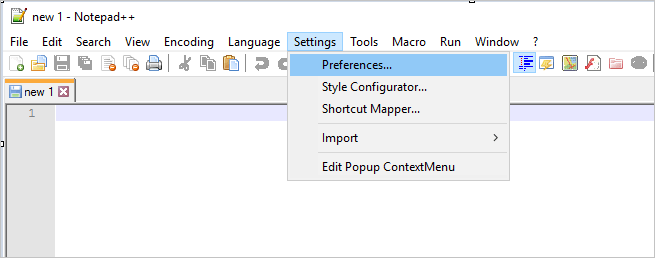
Step 2. To back up your unsaved Notepad++ files, click on the "Backup" button on the window, and navigate to the location where Notepad++ stores its backup files. This can be found in the "Backup" path.
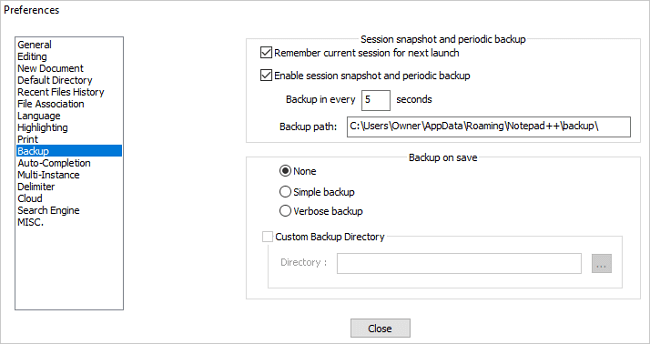
Note: To prevent Notepad ++ files from being lost, you can enable the software to remember your current session and periodically back it up, allowing you to recover your work if needed. This can be done by checking the options to "Remember current session for next launch" and "Enable session snapshot and periodic backup" and setting a suitable backup interval.
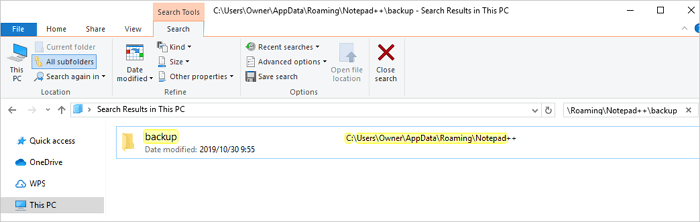
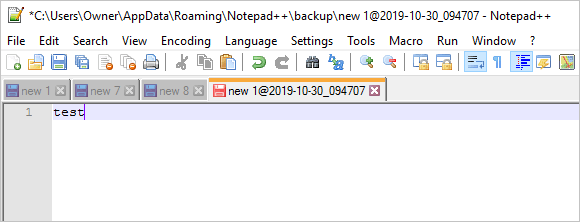
Step 3. To find the backup folder of your Notepad++, copy the path C:\Users\UserName\AppData\Roaming\Notepad++\backup (usually) and paste it into Windows Explorer. Press Enter to locate the exact backup folder.
Step 4. To view and recover your lost Notepad files, you can check the backup folder for Notepad, where all backups are listed. You can sort the files by date modified to find the most recent one, then right-click on it and open it with Notepad++.
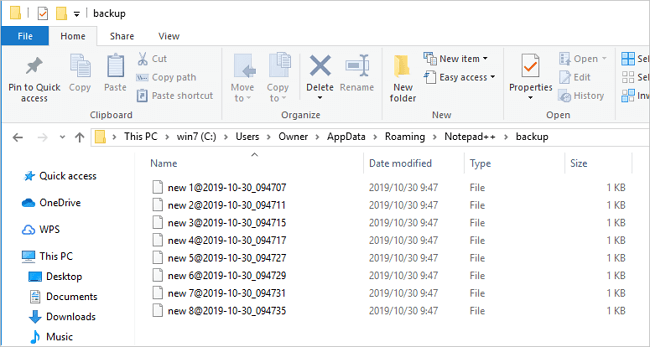
Step 5. You should now be able to view and save the restored Notepad++ files to a safe location.
Method 2. How to Restore Lost/Unsaved Notepad ++ Files without Backup
Unfortunately, there is no straightforward method to recover deleted saved files without backup in Notepad++. Once you click the "Save" button, the file is saved and the temporary copy in the "backup" folder is deleted. If you've deleted a saved file without backup, it's likely gone for good. However, if you've closed the file without saving and it's still open in Notepad++, you may be able to recover the file using the method mentioned earlier. Otherwise, you may want to consider using a cloud backup service or a third-party backup software to ensure your files are safely stored.
If deleted files are not in the recycle bin, they may be permanently lost. In this case, a professional data recovery tool like Deep Data Recovery can be used to recover lost data due to various reasons such as accidental deletion, hard drive corruption, or OS crash. It is compatible with Windows and Mac OS X.
You can download and install this file recovery software on your computer and recover lost Notepad++ files within three simple steps.
Step 1.Launch Deep Data Recovery on your Windows computer. Select file types and click "Fast Scan" to begin the recovery process.

Note: You can choose different search modes based on where and why the data was lost.
Step 2. Choose the place where you lost data. Then, click "Scan".

Step 3. After scanning, use the file format filter to locate the desired files, and then click the "Preview" button or double-click a file to view its content.

Step 4. To recover lost data, select the file you want to recover, check the box next to it, and then click the "Recover" button to save the data to a secure location.
- Relevant reading: To move Notepad++ configuration, settings, and plugins to another computer, follow these steps:
Final Word
To avoid losing essential Notepad ++ files unexpectedly, keep the backup feature on to automatically store unsaved files and back up saved files regularly. If you don't want to manually copy files, use a Windows schedule backup software for automatic backup, eliminating the worry of accidental data loss.
Related Articles
- Fix USB Flash Drive Not Working on Windows 10/7
- [3 Solutions] Fix Word Not Opening on Mac
- Fixed: CHKDSK Failed to Transfer Logged Messages to the Event Log with Status 50
- Fix WD External Hard Drive Not Showing Up/Recognized Error [2022 Tutorial]
- What Are the Best External Hard Drive for PS4? Top 8 Choice in 2023
Are you tired of deleting your favorite games from your PS4's internal storage to make room for new ones? This article reviews the top 8 best external hard drives for PS4, helping you choose the perfect one to expand your gaming library without the hassle of deleting games. - Best External Hard Drive for PS3: Top 7 Picks for 2024
What is the best external hard drive for PS3? We will introduce the best four external hard drives for PlayStation 3, which can help you to choose a better one.
Products
Articles & Tutorials
- Data Recovery
- Data Backup
- File Recovery
- File Backup
- System Backup and Restore
- Disk and Partition Clone
- Technical articles
- Mobile articles
- Disk Master Help
- Windows Data Recovery Tutorials
- Windows Secure Delete Tutorials
- Windows Partition Management Tutorials
- Windows File Backup and Restore Tutorials
- Windows System Backup and Restore Tutorials
- Windows Disk Backup and Restore Tutorials
- Windows Clone Tutorials