How to Repair PDF File Using Acrobat | Adobe PDF Repair Tool
PDF, or Portable Document Format, was developed by Adobe in 1990. The widely used Adobe Acrobat allows users to edit, convert, and encrypt PDF files on both Windows and Mac computers.
When using PDFs, users often encounter issues such as files not opening, being corrupted, or damaged. Fortunately, there is a free solution available using Acrobat to repair these PDF files. Let's get started with the repair process.
Error: PDF Is Corrupted & Cannot Be Opened, What Is The Cause
You can try opening the corrupted PDF file with a free PDF viewer like Foxit Reader, which may be able to recover the file. If that does not work, you can also try using a free online service like Online-Convert or PDFCandy to repair the file. Alternatively, you can try a free PDF repair tool, or contact the creator of the PDF file to see if they can provide a revised version.
The PDF file not opening is a symptom that means the current file is corrupted or damaged. This corruption could be caused by a virus or malware, a software or system crash, a faulty or outdated Adobe Acrobat or Reader, or a damaged or corrupted file itself. It could also be due to a large or complex file size, or a file that has been altered or modified in some way, or even a hardware failure. The exact cause may need to be investigated further to determine the root issue.
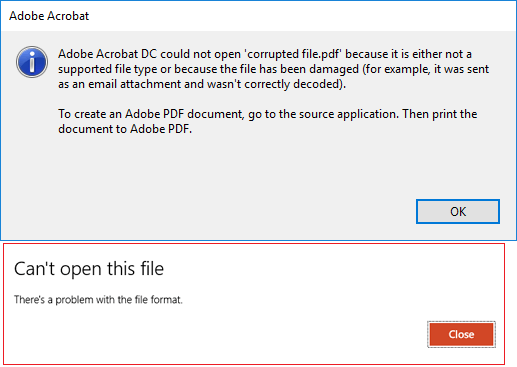
- Adobe Acrobat application corrupted
- Interrupted transfer of PDF file
- PDF file corrupted while editing
- Failed or incomplete download of PDF file
- Improper app or system shutdown
- Sudden power failure
- Virus or malware infection
You can try to open a corrupt or damaged PDF file for free using various methods, such as using online tools or built-in features in your operating system. However, if you want to fix a PDF file that won't open, you may need to use a dedicated software like Adobe Acrobat, which offers a free trial version that allows you to repair corrupted PDF files. To fix a corrupted PDF file with Adobe Acrobat, you can follow these steps: open Adobe Acrobat, go to "File" > "Open" and select the corrupted PDF file, then go to "File" > "Save As" and choose a new location and file name to save the repaired PDF file. If the file is severely damaged, you may need to use the "Preflight" tool to diagnose and repair the issues. Note that Adobe Acrobat is a paid software, but it offers a free trial version that allows you to fix corrupted PDF files.
How to Repair PDF File Using Acrobat? Repair PDF with Adobe for Free
Here are the Adobe official solutions to help you with your issue:
1. Update Adobe Reader/Adobe Acrobat
- Launch Adobe Acrobat or Adobe Reader
- Choose Help > Check for Update.
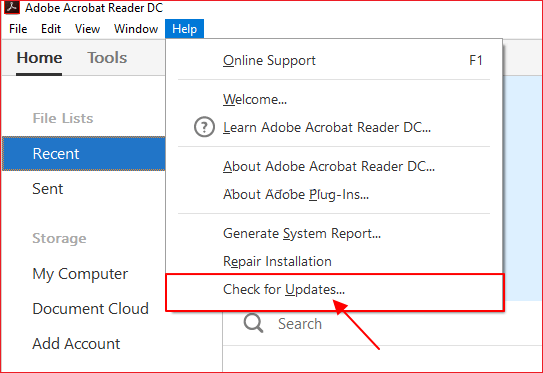
- Follow the steps in the Updater window to install the latest updates.
To troubleshoot the issue, try printing the PDF file. Once you've printed the PDF file, check if the problem gets resolved.
2. Download and Install Adobe PDF Editor - Acrobat
- Go to the Adobe Reader or Acrobat download page.
- Find the latest or a newer version, choose Install Now.
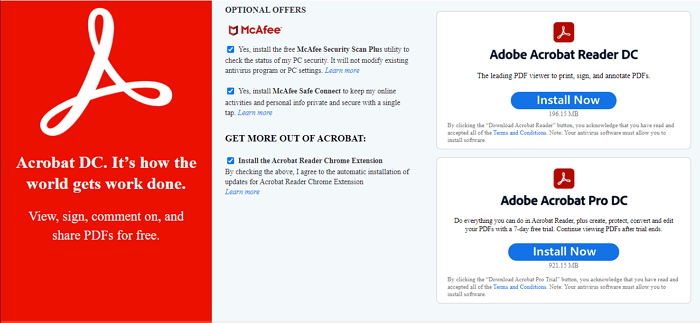
- Follow the installation guide to install a new edition on your computer.
- Launch the new Adobe Acrobat and open the PDF file to see if you can view its content. If the file opens and displays its content correctly, it indicates that the file is valid and there are no issues with the file itself.
3. Find Corrupted PDF from Temporary File
- The temporary folder for PDF files on your PC is located at C:\Users\%UserName%\AppData\Roaming\Adobe\Acrobat\1X.0\AutoSave\, where %UserName% is your actual username. This is the default path. The 'X' in 1X.
- Find the PDF temporary file.
- Launch Adobe Acrobat on your computer, then open the PDF file.
- To save the PDF file as a new document, you can click on the "File" menu, then select "Save As" and choose a location to save the file. You can also use the keyboard shortcut "Ctrl+S" (Windows) or "Cmd+S" (Mac) to save the file.
Bonus Tips to Repair Corrupted/Damaged PDF Files
If the above three methods do not work, the problem may not be in Adobe Acrobat itself. Follow the fixes in this part to see how to repair corrupted PDF files on your own.
#1. Download Adobe PDF Repair Tool
The most recommended method for repairing an Adobe PDF file is to use the Adobe PDF repair tool, specifically the file repair feature of Deep Data Recovery, which enables simple repair of corrupted or unopenable PDF files during the recovery process.
Step 1.Launch Deep Data Recovery, select file types, and click "Fast Scan" to begin the recovery process.

Note: You can choose different search modes based on where and why the data was lost.
Step 2. This software allows you to repair damaged Word, Excel, PPT, and PDF files in a single process, and can be initiated by clicking the "Scan" button to scan the disk containing the corrupted documents.

Step 3. Qiling data recovery and repair tool will scan for all lost and corrupted files, allowing you to find them by file type or search box, and recover them.

Step 4. Deep Data Recovery can automatically repair damaged documents. After previewing the file, you can click "Recover" to save the repaired files to a safe location.
#2. Try Another PDF Reader
A malfunctioning PDF reader may be the cause of a PDF document not opening. Try using a different PDF reader to see if the issue is resolved.
Here you may try PDF Editor, Adobe PDF Reader, Adobe Acrobat, etc.
#3. Convert PDF File
Converting the PDF file to another format, such as DOC, DOCX, images, or text, may resolve the issue of the PDF file not opening. This can be done using a PDF converter or by converting the PDF to a new document file using Adobe Acrobat.
PDF Files Are Important, Take Action to Protect Adobe PDF Files Now
On this page, we explained the basic causes of PDF file won't open error and provided multiple solutions to help you fix PDF files effectively.
When a PDF file is corrupted and can't be opened, try updating or reinstalling Adobe Acrobat to repair the file. If that doesn't work, consider using a reliable PDF repair tool or converting the file to a different format.
To protect your PDF files, consider using strong passwords, encrypting sensitive information, and limiting access to authorized users. You can also use security software to scan for malware and viruses, and regularly back up your files to prevent data loss. Furthermore, consider using PDF editing software that includes security features, such as Adobe Acrobat, to add an extra layer of protection.
- Back up PDF files regularly.
- Update PDF editor or reader timely.
- Make sure that the PDF downloading and transferring profess complete.
- Run antivirus tools or software regularly.
Related Articles
- Fix 'You Need to Format the Disk in Drive Before You Can Use It' Error
- [Fixed] Error Code 0x80070005 on Windows Update, System Restore, or Microsoft Store
- 4 Ways to Fix Windows Update Stuck at 0%
- Open/Boot Command Prompt at Boot in Windows 10 (4 Ways)
- How to View and Clear Clipboard History to Windows
A clipboard is a Windows tool that temporarily holds texts, images, files, and other items before they are pasted somewhere else. It's particularly useful for moving files and copying texts from one location to another. - What Is C Drive on a PC in 2022 [Full Guide on How to Manage it]
What is C drive? This article focuses on its definition, specific functions, and how to manage the C drive on a PC. Besides, it also introduces a professional helper to manage the C drive.
Products
Articles & Tutorials
- Data Recovery
- Data Backup
- File Recovery
- File Backup
- System Backup and Restore
- Disk and Partition Clone
- Technical articles
- Mobile articles
- Disk Master Help
- Windows Data Recovery Tutorials
- Windows Secure Delete Tutorials
- Windows Partition Management Tutorials
- Windows File Backup and Restore Tutorials
- Windows System Backup and Restore Tutorials
- Windows Disk Backup and Restore Tutorials
- Windows Clone Tutorials