How to Fix PS4 Cannot Access System Storage Error Code CE-34335-8
How to Fix PS4 Cannot Access System Storage
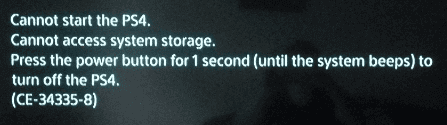
If you received the error code and the message "Cannot access system storage", there is likely an issue with the internal hard drive on the PS4 system. To fix the error, you can follow the steps below.
| Workable Solutions | Step-by-step Troubleshooting |
|---|---|
| 1. Troubleshoot in Safe Mode |
|
| 2. Replace the Hard Drive |
|
"Cannot start the PS4. Cannot access system storage. Press the power button for 1 second (until the system beeps) to turn off the PS4. (CE-34335-8)".
When playing PS4, some users have encountered the CE-34335-8 error, particularly after removing the hard drive once or twice. This error code implies a problem with accessing system storage, making it difficult to start the console. If you're experiencing this issue, don't worry - the causes and a solution will be analyzed in this post.
Causes for PS4 Cannot Access System Storage
The error code CE-34335-8 indicates that the PS4 console is unable to detect the hard drive, which is a crucial component for storing games, data, and other content. To resolve this issue, you'll need to investigate the root cause by examining the hard drive and its connections.
- Is there a hard drive connected?
- Is the hard drive connection loose?
- Was the PS4 hardware processor broken?
- Were there bad sectors on the hard drive?
- Was the hard drive power supply connector damaged?
Part 1: How to Troubleshoot CE-34335-8 in Safe Mode
If you received this error code and the message "Cannot access system storage", there is likely an issue with the internal hard drive on the PS4 system. You can follow the steps below to fix the error.
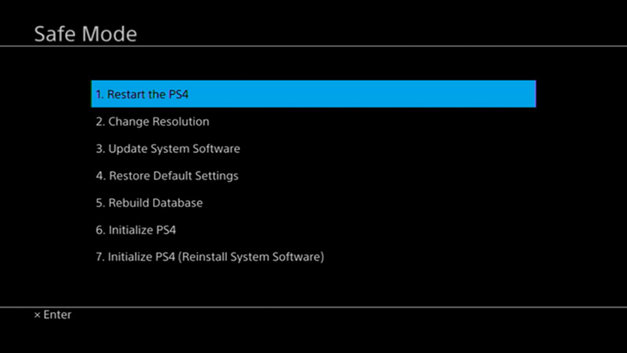
Step 1: Connect your PS4 controller to the console with a USB cable.
Step 2: Press and hold the power button on your PS4 console until you hear the second beep. This will initiate the system restart process.
Step 3: Select "7. Initialize PS4 (Reinstall System Software)" with your controller.
Part 2: Replace the Internal Hard Drive to Fix Error CE-34335-8
If the PS4 error persists, try turning it off by pressing the power button for a second, then turn it back on. If this doesn't work, it's likely that the hard drive has failed and needs to be replaced or reconnected to another PC to troubleshoot the issue.
- 1 - Preparations
- 2 - Back Up Your PS4 Data
- 3 - Replace the Internal Hard Drive
- 4 - Recover Data from Hard Drive
1 - Preparations to Fix Cannot Access System Storage PS4
- A screwdriver.
- A computer connected to the Internet.
- A portable external storage device with at least 1GB of free space, like a USB flash drive.
- PlayStation 4 full-size system - models CUH-1000 to CUH-1200 or model CUH-1215.
- 2.5-inch internal hard drives with serial ATA are the only officially supported replacement hard drives for the PS4 system.
2 - Back Up Your PS4 Data
To back up your PS4's internal hard drive, use a portable device to transfer all game, app, saved data, captures, and themes to it. This will ensure that all your data is safely backed up and can be easily transferred to a new PS4 or restored to your current one if needed.
Step 1: Connect a portable device or USB storage device to the system.
Step 2: To back up your Windows system to a USB drive, go to "Settings > System > Back Up and Restore" and select "Copy to USB Storage Device".
Step 3: Select "Back Up" and confirm the data you'd like to back up.
Step 4: To remove the backup feature, first, you can customize the name of the backup. Then, highlight "Back Up" and press the "X" button. Finally, remove the external storage device from the system.
3 - Replace the Internal Hard Drive
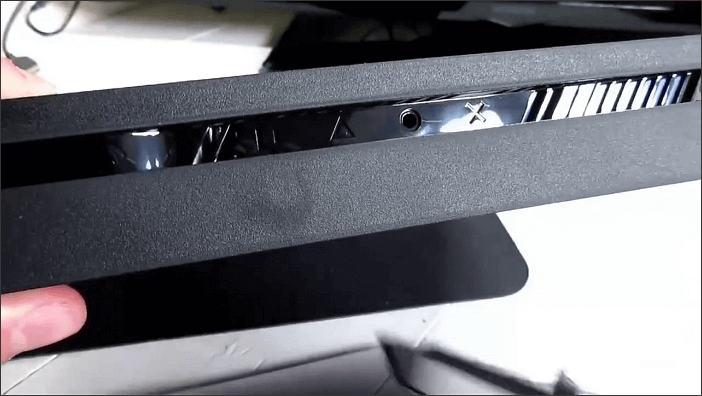
To fix the PS4's hard drive issue, consider replacing the damaged hard drive with a new one instead of hiring a professional to repair it, which can be costly. This DIY solution will likely resolve the problem of the PS4 being unable to access its system storage.
Step 1: Make sure the PS4 is completely turned off.
Step 2: Remove the old internal hard drive
Step 3:To replace the hard drive on a PS3 or PS4, first, you'll need to purchase a compatible hard drive, which is typically a 2.5-inch SATA drive.
After replacing the HDD, you can transfer saved data from a USB storage device to the PlayStation 4 system. This requires signing in with the same account used initially to copy the saved data.
4 - Recover Data from Hard Drive or External Devices (Extra Tips)
Players didn't use hard drives correctly, repeatedly installing, connecting, and removing them without thinking, and using one drive across multiple platforms, leading to hard drive corruption and inaccessible data.
Your Reliable Choice - Deep Data Recovery
To recover data from a hard drive or other devices, download Qiling free data recovery software and let it help, allowing access to the hard drive without formatting.
- Recover deleted, formatted, and inaccessible data in different data loss situations.
- Recover photos, audio, music, and emails from any storage with ease and confidence, thanks to the effective, safe, and complete recovery process offered.
- You can recover data from various devices and storage media, including the recycle bin, hard drive, memory card, flash drive, digital camera, and camcorder.
Step 1. Launch Deep Data Recovery. Choose file types and click "Fast Scan" to begin the recovery process.

Note: You can choose different search modes based on where and why the data was lost.
Step 2. To recover lost data, select the drive where the data was lost and click "Scan" to start the recovery process.

Step 3. When the scan is complete, you can use the "Filter" or "Search" option to locate the lost files. This feature allows you to narrow down the search results and find the specific files you're looking for.

Step 4. Select the files you want to recover and click "Recover". Then, browse to a secure location to save them.
If the error persists after reinstalling the HDD, the drive may be corrupt or faulty, or your system may need servicing. You can contact the PlayStation support team for further assistance.
Related Articles
- SFC Windows Resource Protection Could not Perform the Requested Operation
- 6 Solutions to Fix Unmountable Boot Volume Windows 10/8/7
- Fixed: Copy/Cut/Paste Not Working in Windows 10/8/7
- How to Turn On/off Firmware Password on Mac [Fixed]
- [Detailed Info] The Elder Scrolls V: Skyrim Saves Location
This post will guide you on where to find The Elder Scrolls V: Skyrim saves location and provide tutorials to help you back up these important game saves with Qiling Disk Master software. Also, ways of deleting and transferring Skyrim saves are offered too. - What Is SoftThinks Agent Service and How to Fix Its High Disk and CPU Usage
SoftThinks Agent Service is one of the nagging issues in Dell computers, as it takes a lot of Disk and CPU usage. This article will tell you why exactly that happens and how you can stop this service from slowing down your computer.
Products
Articles & Tutorials
- Data Recovery
- Data Backup
- File Recovery
- File Backup
- System Backup and Restore
- Disk and Partition Clone
- Technical articles
- Mobile articles
- Disk Master Help
- Windows Data Recovery Tutorials
- Windows Secure Delete Tutorials
- Windows Partition Management Tutorials
- Windows File Backup and Restore Tutorials
- Windows System Backup and Restore Tutorials
- Windows Disk Backup and Restore Tutorials
- Windows Clone Tutorials