Microsoft Outlook Has Stopped Working 2016/2013/2010 in Windows 10/8/7
How to Fix Microsoft Outlook Has Stopped Working
Microsoft Outlook has stopped working Here are the solutions to fix Outlook not working on Windows 10, 8 or 7: Try repairing Office or uninstalling and reinstalling it. If that still doesn't work, install the latest device drivers on your PC. If Outlook starts in Safe Mode, disable the application add-ins and COM add-ins one at a time. If you need to access Outlook, this article provides the necessary information.
| Workable Solutions | Step-by-step Troubleshooting |
|---|---|
| Fix 1. Remove Flawed Add-ins | Press Windows + R keys to active Run dialog. Type Outlook.exe /safe...Full steps |
| Fix 2. Use Event Viewer | Type Event Viewer, and press "Enter". Expand "Windows Logs"...Full steps |
| Fix 3. Create a New Profile | Go to "Control Panel > mail". Click "Show profile > Add"...Full steps |
| Fix 4. Repair MS Office Suite | Open "Control Panel", there, choose "Programs and Features"...Full steps |
| Fix 5. Repair Corrupt PST File | Press Windows + E to open File Explorer. Search for SCANPST in the Search bar...Full steps |
| Fix 6. Recover Outlook Emails | Choose the drive X: where your lost email files were saved, and click "Scan"...Full steps |
You may encounter the "Microsoft Outlook has stopped working" error while using Outlook 2007, 2010, 2013, or 2016, similar to other Office software issues. This error can occur when trying to open or send an email.
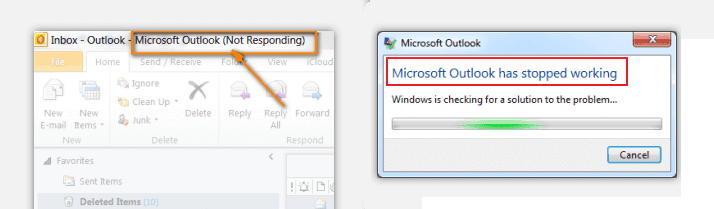
Outlook stopped working may occur due to various reasons, including incompatible add-ins, DLL files issues, or a lost or corrupted PST file. When you encounter the Outlook not responding error, you can try the methods described below to resolve the issue.
How to Solve 'Microsoft Outlook has stopped working' Error
If Microsoft Outlook suddenly becomes gray and displays 'Not Responding' or 'Microsoft Outlook has stopped working' error, you can try the following workarounds to resolve the issue.
- Fix 1. Remove Flawed Add-ins
- Fix 2. Use Event Viewer
- Fix 3. Create a New Profile
- Fix 4. Repair MS Office Suite
- Fix 5. Repair Corrupt PST File
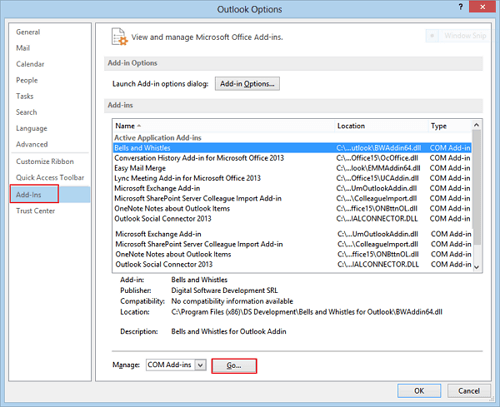
Way 1. Remove Flawed Add-ins in Safe Mode
Step 1. To access Outlook in safe mode, press the Windows key + R to open the Run dialog, type "Outlook.exe /safe", and then press Enter. This will launch Outlook in a minimal mode, where only the most basic features are available, allowing you to troubleshoot issues or access your email account.
Step 2. Go to "File" > "Options" > "Add-ins" > "Go".
Step 3. In the pop-up window, remove all third-party add-ins and keep only the Microsoft add-ins that are necessary.
Way 2. Use Event Viewer
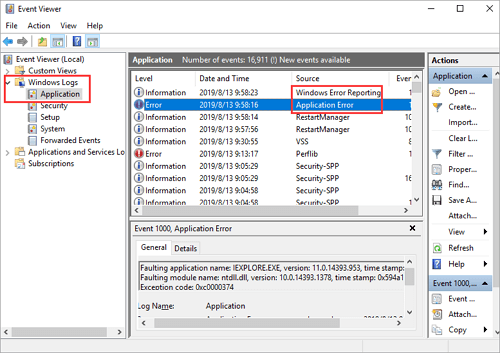
Event Viewer can be used to identify the causes of Outlook not working properly by examining the event logs.
Step 1. In the Windows Search Box, type Event Viewer, and press Enter.
Step 2.To resolve Outlook issues, expand "Windows Logs" in Event Viewer, then select "Application". Look for items with "Outlook", "Windows Error Reporting", or "Application Error" in the Source line, and identify the reasons for the errors. Next, locate the error file and delete it to resolve the issue.
If you don't find any useful information here and Outlook continues to malfunction, take further measures to resolve the issue.
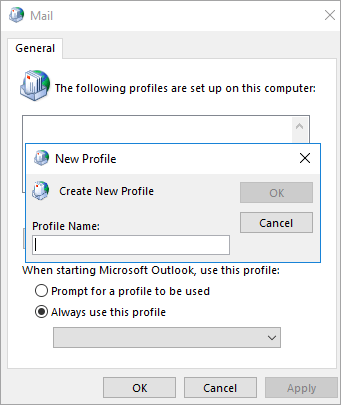
Way 3. Create a New Outlook Profile
Step 1. Go to "Control Panel" > "mail".
Step 2. In the new dialog, click "Show profile" > "Add" and type a profile name. Click "OK" to move on.
Step 3. Type the email account, and click "Next".
Step 4. Now, set the newly created profile as the default email profile. Then, restart your outlook.
Way 4. Repair your MS Office Suite
This operation will scan and fix any errors that may be causing Microsoft Outlook to freeze or crash, helping to resolve the issue where it has stopped working or responding.
Step 1. Close all the running Office applications.
Step 2. Open "Control Panel", there, choose "Programs and Features".
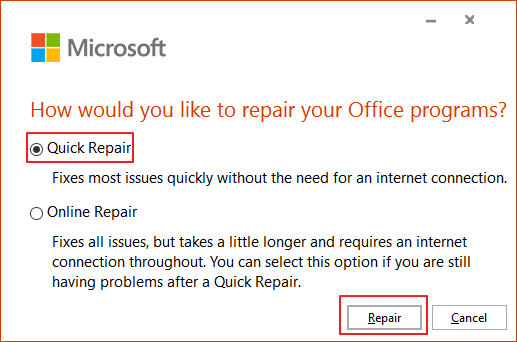
Step 3. To fix issues with Microsoft Office, right-click on it and select "Change", then choose "Quick Repair" and finally "Repair". After the repair process completes, restart Outlook to ensure the changes take effect.
Way 5. Repair Corrupt PST File with SCANPST
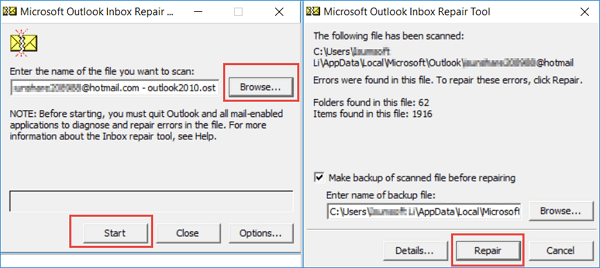
Step 1.To open the Microsoft Office SCANPST program, press the Windows key + E to open File Explorer, then search for "SCANPST" in the search bar, and double-click on the program to open it.
Step 2.Click "Browse" to select the PST file you want to repair in the Microsoft Outlook Inbox Repair Tool window.
Step 3. Repair the damaged .pst file by clicking "Repair" and restarting Outlook after the process completes.
How to Recover Lost/Deleted Outlook Emails with Email Recovery Software
If the .pst files are lost or corrupted, you can recover lost Outlook emails by using a data recovery software, such as Qiling, to scan your computer and restore the lost or corrupted .pst files, allowing you to regain access to all contents, including emails, attachments, contacts, and more.
Download this powerful email recovery tool to easily recover deleted emails and .pst/.ost files.
Step 1.To recover lost data, launch Deep Data Recovery in Windows 11/10/8/7, choose the file types you want to recover, and click "Fast Scan" to start the process.

Note: You can choose different search modes based on where and why the data was lost.
Step 2. Choose the place where you lost data. Then, click "Scan".

Step 3. After the scan, use the file format filter to find the files you need, and then click the "Preview" button or double-click a file to preview its content.

Step 4. To recover lost data, select the file by clicking the checkbox next to it, then click the "Recover" button to restore the data to a secure location.
Import PST/OST files into Outlook
To retrieve your email in Outlook, follow these steps.
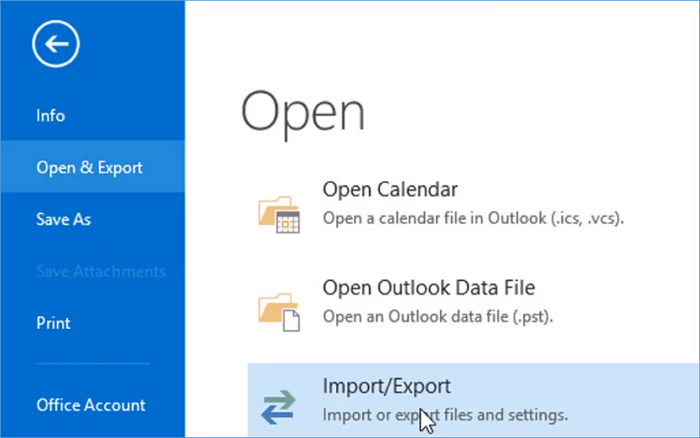
Step 1. To import emails from another email client into Outlook, start Outlook, go to the "File" tab, select "Open & Export", then "Import/Export", choose "Import from another program or file", and finally select "Open Outlook Data File".
Step 2. To transfer emails, contacts, and other folders from a .pst file to your existing Outlook folders, navigate to the navigation pane and drag and drop the desired items from the .pst file to your corresponding Outlook folders.
Conclusion
If Microsoft Outlook stops working, it can cause significant disruptions to business operations, potentially leading to economic losses. While there are manual methods to resolve the issue, they can be complex. In cases where data loss occurs, consider using a professional data recovery application, such as Deep Data Recovery, for assistance.
Microsoft Outlook Has Stopped Working FAQs
Here are some frequently asked questions about Outlook not working. You can read on to get additional help.
How do I fix Microsoft Outlook has stopped working?
To Solve Microsoft Outlook has stopped working Error:
- 1. Remove Flawed Add-ins
- 2. Use Event Viewer
- 3. Create a New Profile
- 4. Repair MS Office Suite
- 5. Repair Corrupt PST File
- 6. Recover Outlook Emails
Why has my Outlook email stopped working?
Causes to Outlook not working:
- Outlook doesn't have a connection to the Internet or your network.
- Some email accounts, specifically POP and IMAP, use an outgoing mail (SMTP) server that necessitates authentication.
- Your ISP or network has a firewall that blocks connections to your email service's outgoing mail (SMTP) server, preventing you from sending emails.
- Your credentials or account settings are incorrect.
- Your network requires a proxy server to connect with the mail server.
- Your email server is unavailable.
Why are my emails not showing up in my inbox?
Your email may be missing from your inbox due to filters, forwarding, or incorrect POP and IMAP settings in other mail systems, or because your mail server or email systems are downloading and saving local copies and deleting them from Gmail.
Related Articles
- How to Cancel Windows 10 Updates Once Started
- [Fixed] The File Is Corrupted and Cannot Be Opened in Excel/Word
- Disk Boot Failure - Insert System Disk and Press Enter in Windows 10
- Restore Deleted/Crashed Notepad ++ Files from Backup
- How to Transfer Stardew Valley Saves Between Different Devices
Stardew Valley is a farm simulation game available on multiple platforms. To prevent players from losing their game progress when switching devices, we provide methods to transfer Stardew Valley saves between PC, iOS, Android, Switch, and PS Vita. - 2 Available Ways | How to Update BIOS Without USB
If you're wondering how to update your BIOS without using a USB, you're in the right place. This article will guide you through the process in two different ways, making it easy to update your BIOS on your own.
Products
Articles & Tutorials
- Data Recovery
- Data Backup
- File Recovery
- File Backup
- System Backup and Restore
- Disk and Partition Clone
- Technical articles
- Mobile articles
- Disk Master Help
- Windows Data Recovery Tutorials
- Windows Secure Delete Tutorials
- Windows Partition Management Tutorials
- Windows File Backup and Restore Tutorials
- Windows System Backup and Restore Tutorials
- Windows Disk Backup and Restore Tutorials
- Windows Clone Tutorials