Fix a Broken USB Stick and Recover Data
If your USB seems to be broken on your computer, stay calm and try these practical fixes to potentially recover your lost data. Check and repair your USB now to see if your lost files can be salvaged.
| Workable Solutions | Step-by-step Troubleshooting |
|---|---|
| 1. Fix RAW USB | Recover data from raw USB > Format raw USB to FAT32 or NTFS...Full steps |
| 2. Fix Unreadable USB | Connect USB to PC > Open Disk Management > Right-click USB and change drive letter...Full steps |
| 3. Fix Not Showing USB | If Disk Management detects USB unallocated, right-click and select "New Simple Volume"...Full steps |
| 4. Fix Broken USB Port | Clean the port > Re-solder the USB wiring > Replace the port...Full steps |
| 5. Fix Bent USB | When a USB port is bent or deformed, no manual method can help. You should buy a new one...Full steps |
Notice
Before attempting to fix a broken USB stick, make sure to backup its contents first, as formatting or wiping it without backup may result in permanent data loss.
Case 1. Fix the USB with File System Error
When the USB file system becomes RAW, errors occur, prompting messages such as 'the disk is not formatted. do you want to format it now?', 'you need to format the disk in drive X: before you can use it', and 'this volume does not contain a recognized file system...' among others.
If a USB drive becomes RAW, causing data to be inaccessible, formatting it will erase all data. To recover data, use data recovery software to recover data from the RAW USB first, then format it. If there's no backup, this is the only way to retrieve data. Formatting will erase all data, so it's essential to recover data before proceeding.
Procedure 1. Recover data from the raw USB drive
To recover lost data from a USB drive, download and install the Deep Data Recovery software on your computer.
Step 1. Select file types and click "USB/SD Scan" to start
Launch Deep Data Recovery on your PC. Select file types and click "USB/SD Scan" to start the recovery process.

Note: You can choose different search modes based on where and why the data was lost.
Step 2. Select and scan the RAW partition
If the RAW partition is labeled, you can directly select it from the drives list and click "Scan" to search for lost files. If the partition has lost its label, it will be listed as "Lost Partition" and you can select it and click "Scan" to initiate a full scan of the RAW drive.

Step 3. Preview found data from the scan result
After the scan is completed, all available files in the RAW hard drive will be displayed, allowing you to view and select the files you want to recover. You can sort the scanned data by file format or search directly in the "Search files or folders" box to quickly find the files you need.

Step 4. Recover data from RAW partition
To recover data from a RAW drive, select all files and click "Recover" to get all the data back. Then, choose another internal or external hard drive to save the recovered data and click "OK" to start the recovery process.
Procedure 2. Format raw USB drive for reuse
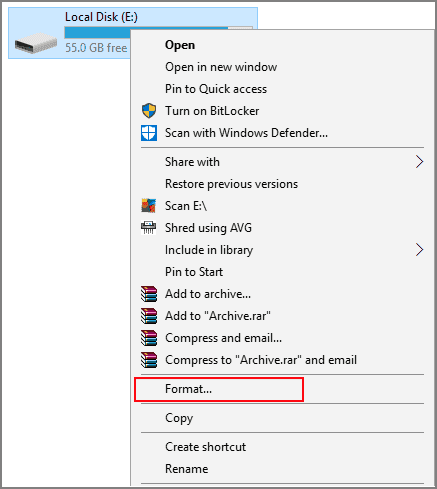
To format the RAW drive, open Windows File Explorer, right-click on the RAW drive, and select the "Format" option from the context menu. Then, click on the "Start" button to initiate the formatting process.
Case 2. How to Fix a USB that Won't Read
If your computer won't read your USB stick, it's often because the drive letter Windows is trying to assign to it is already taken. To resolve this issue, you simply need to assign a drive letter to your USB stick, which will allow it to be recognized by your computer again.
Step 1. To access the "Device Manager" on a Windows 10 computer, right-click on "My Computer" or "This PC" and select "Manage" from the menu.
Step 2. The Computer Management window will pop up. Select "Disk Management".
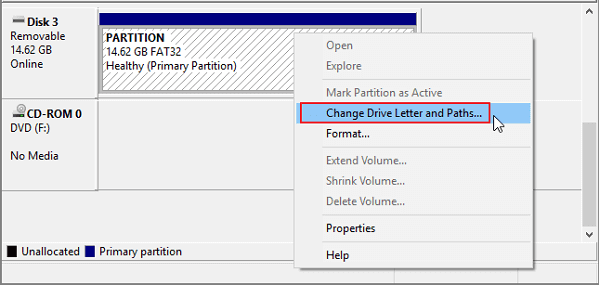
Step 3. Right-click on the USB that won't read by Windows PC and choose "Change Drive Letter and Paths".
To resolve the issue of a missing drive, assign a drive letter to the drive. This can be done by following the wizard. Once completed, your USB drive should read and write properly.
Case 3. Fix USB Not Showing Up
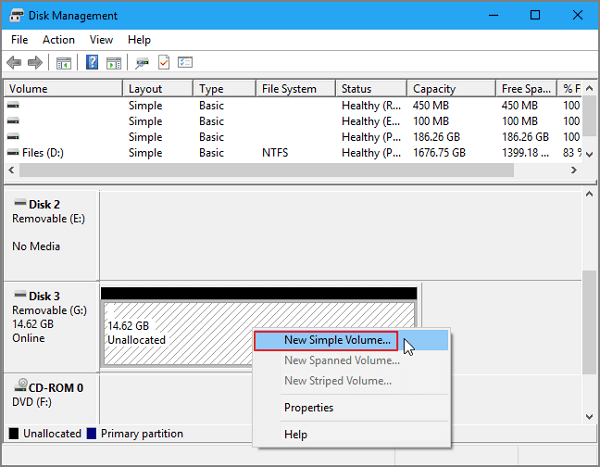
Sometimes, a USB stick won't show up on a computer after being inserted, and checking its status in Disk Management reveals that the USB partition has become an unallocated space. This issue can arise from deleted files or a virus attack, leading to the need to create a new partition to resolve the problem.
Step 1. Right-click on the unallocated space and select "New Simple Volume".
Step 2. Follow the wizard to create a partition on the unallocated space.
Case 4. Fix a Broken USB Port
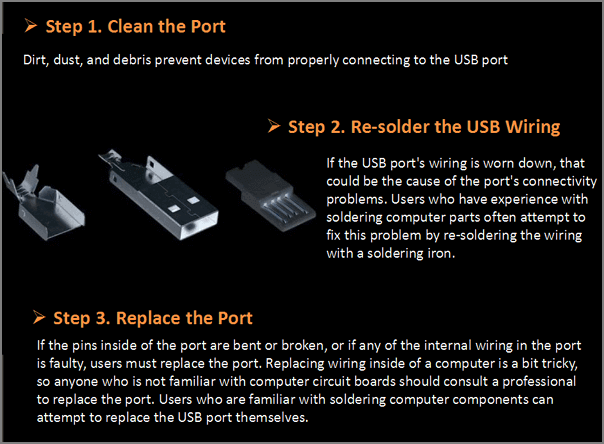
If neither restarting nor reinstalling USB drivers can resolve the issue, it's likely due to a hardware problem, such as a damaged USB port. To potentially fix the damaged port manually, you can try three methods.
Case 5. How to fix a bent USB stick
If the USB stick is bent in the port and the light comes on when inserted, it's likely that the physical connection is established, but the computer can't read the data. Try using a USB extension cable or a USB adapter to see if that resolves the issue. If not, try using a different USB port on the computer. If the stick still doesn't work, you might need to use a data recovery software to try and recover the data. However, if the stick is severely damaged, it may be best to send it to a professional data recovery service to avoid any further damage.
Bending a USB flash drive can be irreparable and often beyond recognition by a computer, making it unlikely to be fixed with a standard USB repair service or data recovery tool like Qiling. It's usually best to purchase a new one in such cases.
Related Articles
- Why Does My Computer Keep Crashing? Top 8 Reasons Are Here!
- File Recovery Software to Restore Deleted Files on Dell Laptop
- How to Fix: SD Card Command Volume Partition Disk Failed with Null
- Elden Ring Lost Progress or No Longer Available on Xbox/PS4/PC
- How to Fix "the Archive Is Either in Unknown Format Or Damaged" [100% Working Solution]
Computer keeps crashing on Windows 10? Learn the top 8 reasons for random PC crashes and freezes, plus effective fixes to prevent data loss. Restore your system stability today. - How to Fix Atomic Heart Keeps Crashing Issue on PC
If Atomic Heart keeps crashing on your PC, you're not alone, and this post offers solutions and information to help you retrieve your game data. If the game crashes after an update, you can try to fix it by following the provided solutions, which will help you get back to playing the game.
Products
Articles & Tutorials
- Data Recovery
- Data Backup
- File Recovery
- File Backup
- System Backup and Restore
- Disk and Partition Clone
- Technical articles
- Mobile articles
- Disk Master Help
- Windows Data Recovery Tutorials
- Windows Secure Delete Tutorials
- Windows Partition Management Tutorials
- Windows File Backup and Restore Tutorials
- Windows System Backup and Restore Tutorials
- Windows Disk Backup and Restore Tutorials
- Windows Clone Tutorials