How to Fix Diskpart Failed to Clear Disk Attributes Error
When a hard drive, USB USB flash drive, or SD card is read-only or write-protected, you can use the Diskpart command to remove the read-only state by running the command "attributes disk clear readonly".
Some users have reported that Diskpart fails to clear disk attributes, causing unknown issues. This can render a drive and its data unusable. On this page, we'll explore the reasons behind this issue and provide efficient fixes to resolve it, making the drive and data accessible again.
Overview of Diskpart Failed to Clear Disk Attributes
In this part, you will learn:
- 1. What is Diskpart failed to clear disk attributes error
- 2. Why is Diskpart not working
Diskpart failed to clear disk attributes error DISKPART MESSAGES: THE REQUESTED OPERATION HAS FAILED. THE CLEAR READ-ONLY ATTRIBUTE FAILED.
You run the "attributes disk" command in Diskpart to check the status of your inaccessible device and see that it's currently read-only. To try and resolve the issue, you type "attributes disk clear read-only" in Diskpart, attempting to remove the read-only attribute.
The Diskpart operation failed to execute for unknown reasons, resulting in an error message that reads "Diskpart failed to clear disk attributes".
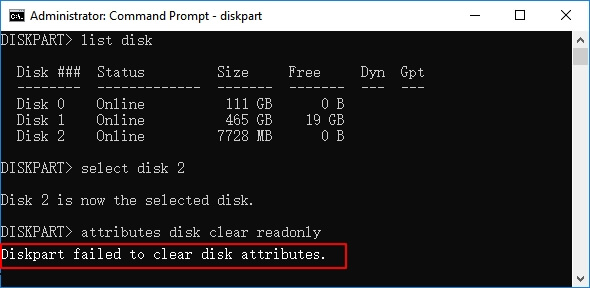
Diskpart may not work while running the attributes disk command due to several reasons. The command may fail to execute on your device due to various issues, including:
- If you're unable to access your external hard drive, USB, or SD card due to a locked physical switch, try to locate the tiny switch on the side or bottom of the device. Use a small tool or pin to press the switch and unlock it.
- You failed to run Diskpart as Administrator.
- Your device contains bad sectors or a corrupted file system.
- Your device became RAW.
- Virus or malware locked your device.
If your hard drive, USB, external hard drive, or SD card contains any one of the above issues, Diskpart cannot clear the read-only state. So how to remove read only attributes from your devices in Windows 10/8/7? You can use the built-in tool called Diskpart to remove the read-only attribute from a device, but it may not work if the device is damaged or corrupted. In such cases, you can try using the Check Disk utility to scan and repair the disk, or use a third-party tool like Qiling Partition Master to remove the read-only attribute.
How to Fix Diskpart Failed to Clear Disk Attributes Issue [8 Methods]
Applies to: Fix and clear read-only attributes from locked or write-protected devices.
Here are the 8 solutions to the "Diskpart clear read-only not working" issue:
- #1. Turn Off Device Physical Lock Switch
- #2. Run Diskpart as Administrator
- #3. Check and Fix Disk Error
- #4. Format Target Drive
- #5.Remove Write protection Using Regedit.exe
- #6. Use Regedit.exe Alternative
- #7. Run Diskpart Clean Command
- #8. Run Antivirus Software
To avoid losing files, try methods 1-3 first, and if those don't work, you can try methods 4-8, but be aware that they may cause file loss. If you do lose files, use a reliable data recovery software like Deep Data Recovery to help recover them.
Let's start fixing this issue and remove read only attributes from your device now.
Method 1. Turn Off the Physical Lock Switch
When you encounter the "Diskpart failed to clear disk attributes" issue while using Diskpart to clear read-only disk attributes, first check the physical switch on your device.
Step 1. The physical switch on the hard drive, USB USB flash drive, or SD card is the power button. It is used to turn the device on and off.
Step 2. Check if the switch is on the Lockside.
Step 3. If yes, turn off it.
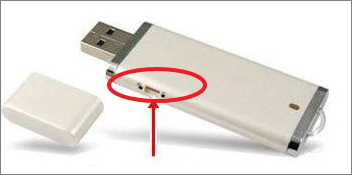
Step 4. To fix the issue, you can try running the Diskpart clear read-only command and see if it resolves the problem. This command can help remove any read-only flags that may be preventing the disk from working properly.
Method 2. Run Diskpart as Administrator
If you didn't log in to the computer as an administrator or failed to run Diskpart as an administrator, you won't be able to run the attribute disk clear readonly command.
To switch to an admin account, press the Windows key + X and select Command Prompt (Admin). Alternatively, you can search for Command Prompt in the Start menu, right-click it, and select "Run as administrator".
Step 1. Click the Windows icon, click your username and select "Administrator".
Log in and switch to your administrator account.
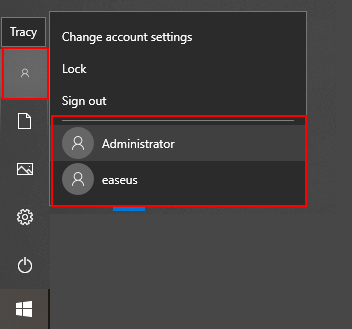
Step 2. Connect your read-only or locked device to your computer if it's an external storage device. If it's a phone, you can't connect it to your computer.
Step 3. To open the Command Prompt as an administrator in Windows, type "cmd" in the Search box, and right-click on Command Prompt to select "Run as administrator".
Step 4. Type diskpartand hit Enter.
Step 5. Type the following commands and hit Enter each time to clear the read only state from your device:
- list disk
- select disk 0 (Replace 0 with the disk number of your problematic drive.)
- attributes disk clear readonly
Step 6. Type exit to close Diskpart when the process completes.
After using Diskpart to clear disk attributes, you should be able to resolve the issue and access your files on the target drive again. Once you have completed the process, you will find that the problem has been resolved and you can use your files as usual.
Method 3. Check and Fix Disk Errors
When your storage device has bad sectors or file system errors, it may become uneditable, and Diskpart commands may not work properly on it.
Running a reliable tool to scan and fix existing corruptions or bad sectors on the drive is suggested. Qiling partition software with its Check File System feature can help with this process.
Here are the steps to check and repair errors on your device automatically:
Step 1. To check the file system on a partition using Open Qiling Partition Master, open the software, select the disk containing the partition, click on the partition to check, and navigate to "Advanced" > "Check File System".
Step 2. In the Check File System window, select the "Fix the error on the disk" option and click "Proceed".
Step 3. The software will start checking your partition file system on your disk. Once it's done, click "Finish" to complete the process.
After fixing the device errors, you can try to open the device and see if it's still write-protected or read-only. If yes, revert to Method 2 and run Diskpart command lines to remove the error.
Method 4. Format RAW Target Drive
Another error that may prevent Diskpart from running the attribute disk clear readonly command is if your drive or external storage device becomes RAW, which may also disable the command from running.
To fix the issue, you can directly format the drive into a recognized format like NTFS, FAT32, etc. This can be done by right-clicking on the drive in the Disk Management console, selecting "Format", and then choosing the desired file system. Alternatively, you can also use a third-party formatting tool, or use the built-in formatting feature in the operating system.
Connect the external hard drive or USB to your computer first, then proceed with the setup process.
Option 1. Format RAW Drive using Qiling Formatting Tool
Here are the steps to format a device using Qiling Partition Master:
Step 1. Launch Qiling Partition Master.
To format a RAW partition or RAW external hard drive/USB/SD card, simply click on it and select the "Format" option.
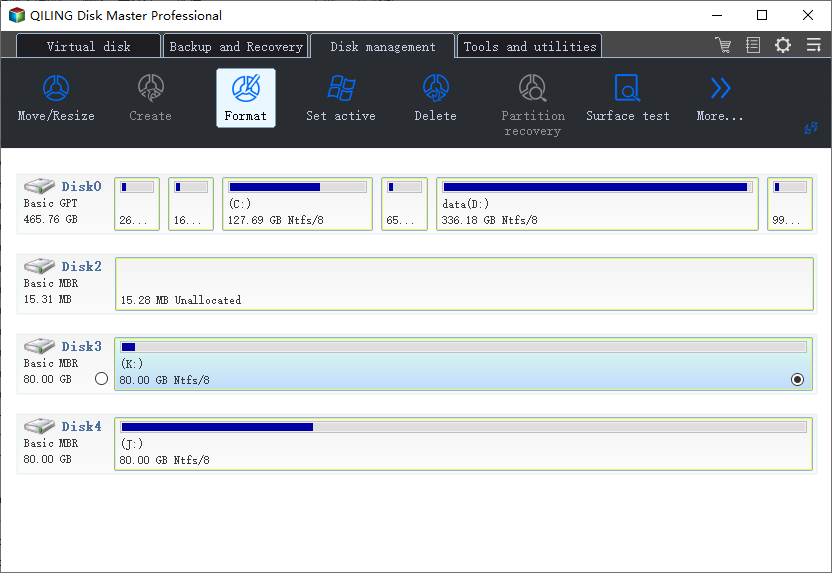
Step 2. Format RAW Partition and reset the file system.
Assign a new partition label, set the file system to NTFS, FAT32, EXT2, EXT3, EXT4, or exFAT, and cluster size to the selected partition, then click "Proceed".
Step 3. To start formatting your RAW partition/USB/SD/external hard drive, click "OK" in the Warning window.
Option 2. Format RAW Drive Using Disk Management
Step 1. To access the Disk Management tool, right-click on "This PC" or "My Computer" and select "Manage", then click on "Disk Management".
Step 2. Right-click the RAW drive and choose "Format". Click "Yes".
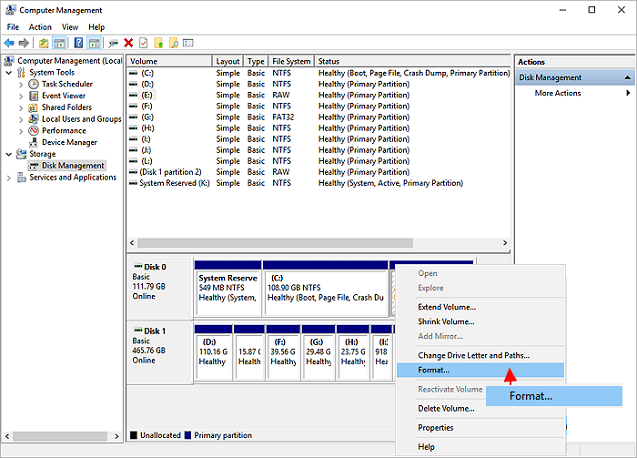
Step 3.Select the drive and choose "NTFS" or "FAT32" as the file system, then click "OK".
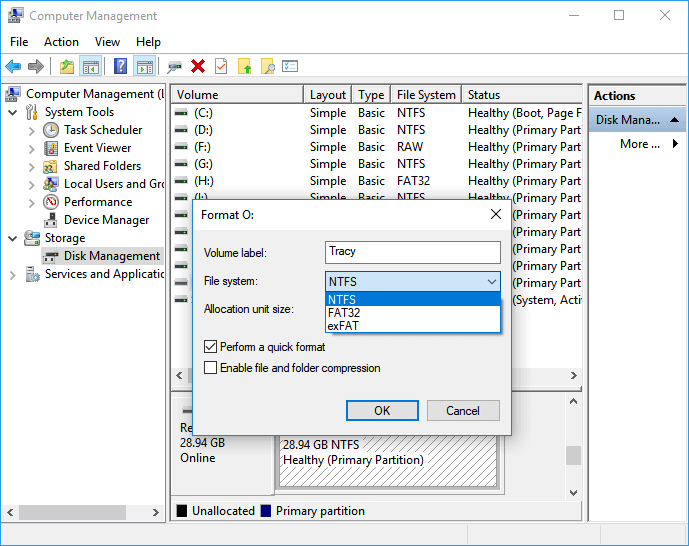
Step 4. Now, open the drive and see if it's still in read-only state.
If yes, continue with steps in Method 2 for to address the read-only issue.
Method 5. Remove Write protection using Regedit.exe
Here are the steps to unlock your device if it's locked or showing a 'disk is write-protected' error: You can run Registry Editor to clear the mode and unlock your device to make it usable again. To do this, you can use the built-in tool called Registry Editor, which allows you to modify the registry settings on your device. By running Registry Editor, you can clear the mode that's causing the lock or write protection, and then you should be able to use your device again.
Step 1. Connect the read-only device to PC.
Step 2. Press Windows + R keys to open the Run box. Type regedit and click "OK".
Step 3. Navigate to path: HKEY_LOCAL_MACHINE\SYSTEM\CurrentControlSet\Control\StorageDevicePolicies
Step 4. Click the Write Protection icon, and set the Value data to "0". Click "OK".
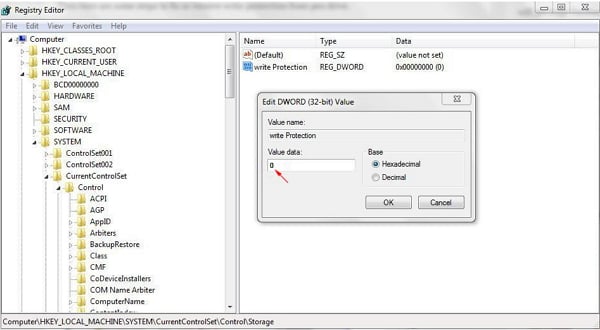
Method 6. Regedit.exe Alternative - Write-Protection Removal Tool
If you're not familiar with the command line, there are graphical-based solutions to help you remove write-protection from your hard drives, USB drives, and SD cards, making it easy to access and use them.
Qiling CleanGenius is a tool that helps fix issues on drives without requiring command-line knowledge.
Here is a guide on how to use this tool to resolve your issues:
Step 1: DOWNLOAD and install Qiling CleanGenius (free) on your computer.
Step 2: Run Qiling CleanGenius on your PC, select Optimization and choose the Write Protection mode.
Step 3: Select the device that is write-protected and click Disable to remove the protection.
Method 7. Run Diskpart Clean Command
If you have a device that's write-protected or locked with a "read-only" state, you can try running the clean command in Diskpart to unlock it. However, be aware that this method will result in the loss of all partitions and data on your drive.
So, please think twice before you move to the following steps:
Step 1. Connect your removable device to your computer first.
Step 2. Type cmd in the Search box and right-click Command Prompt to open it as Administrator.
Step 3. Type diskpart and hit Enter to open it.
Step 4. Type the following command and hit Enter each time.
The below commands will clean the device and force to remove the read-only state:
- list disk
- select disk 2
- clean
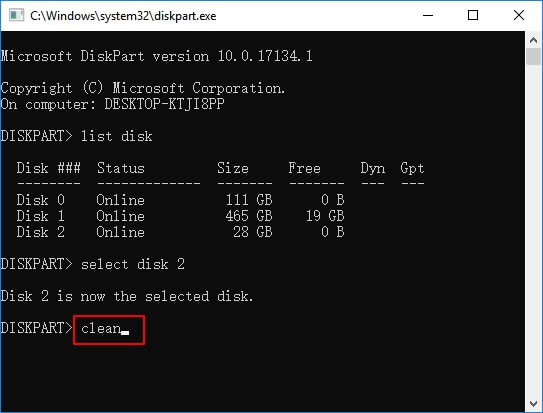
If you've successfully wiped your drive, it now has no partition and all data has been removed. If you had important files saved on it, you may need to use a reliable data recovery software like Deep Data Recovery to recover them.
Step 5. Now, you can create a new partition on your device, making it work again with the following command lines:
- list disk
- select disk * (* represents the disk number)
- create partition primary size=* (* means the partition size in MB.)
- assign letter=* (* represents Choose a drive letter not already being used.)
- format fs=ntfs quick
- exit
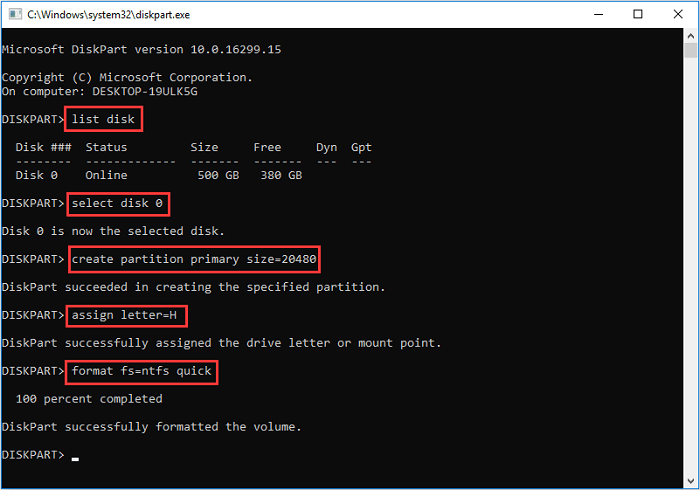
Now that the disk check is complete, your drive is in a good and healthy state, and you can safely save data onto it again.
Method 8. Run Antivirus Software
If your drive is showing as read-only due to a virus or malware infection, you can try using antivirus software to help resolve the issue.
Step 1. Connect your read-only or locked drive to the PC.
Step 2. Install and run antivirus software on your computer.
Step 3. To keep your computer safe and secure, it's essential to regularly clean and wipe out any suspicious viruses or malware from your drive. This will help prevent any potential harm or damage to your system and ensure that your personal data remains protected.
To resolve the issue, you can try restarting your computer in safe mode and then check if the drive is accessible. If that doesn't work, you can try checking the drive's file system and formatting it if necessary.
After fixing any disk errors, go to Diskpart to clear the read-only attributes on the disk to see if the issue is resolved.
To Sum Up
On this page, we explain the "Diskpart failed to clear disk attributes" error, why Diskpart can't fix it, and collect 8 reliable solutions to help you address the disk read-only error successfully, making your drive available again for saving data in Windows 10/8/7.
Be aware that using these methods to reset your drive may result in lost data, so it's essential to have reliable data recovery software in place to recover any lost files.
To keep your drive healthy, remember to check and fix errors on your drive using Qiling Partition Master, clean up viruses with antivirus tools, and back up valuable data in advance. This will help prevent potential issues and ensure your drive remains in good condition.
Related Articles
- Break Windows 10 Roll Back Limit - Roll Back to Windows 7/8 after 30 Days
- Solved: What Is Taking Up Space on My Hard Drive in Windows 10/8/7
- Fix Dropbox Not Syncing Error in Windows 10 [2026]
- Fix boot sector of FAT16/FAT32/NTFS partitions
- How to Fix Dev Error 6634 in Warzone in Windows 10/11
Dev error 6634 is a Windows error caused by outdated operating system or graphic card drivers, which can be resolved by updating the drivers or ensuring the device is up-to-date. - How to Open Control Panel in Windows 10
Windows 10 still contains the Control Panel. Some settings appear only in the Control Panel, some in the Settings app, and some in both. This guide provides a step-by-step breakdown of different ways to open the Control Panel in Windows 10. Please give it a read and try them out yourself later.
Products
Articles & Tutorials
- Data Recovery
- Data Backup
- File Recovery
- File Backup
- System Backup and Restore
- Disk and Partition Clone
- Technical articles
- Mobile articles
- Disk Master Help
- Windows Data Recovery Tutorials
- Windows Secure Delete Tutorials
- Windows Partition Management Tutorials
- Windows File Backup and Restore Tutorials
- Windows System Backup and Restore Tutorials
- Windows Disk Backup and Restore Tutorials
- Windows Clone Tutorials